Document review
How to compare two PDF files online
Create a visual difference report locally and use it to focus a careful review of revised pages.
Reviewed by PDFKaka ·
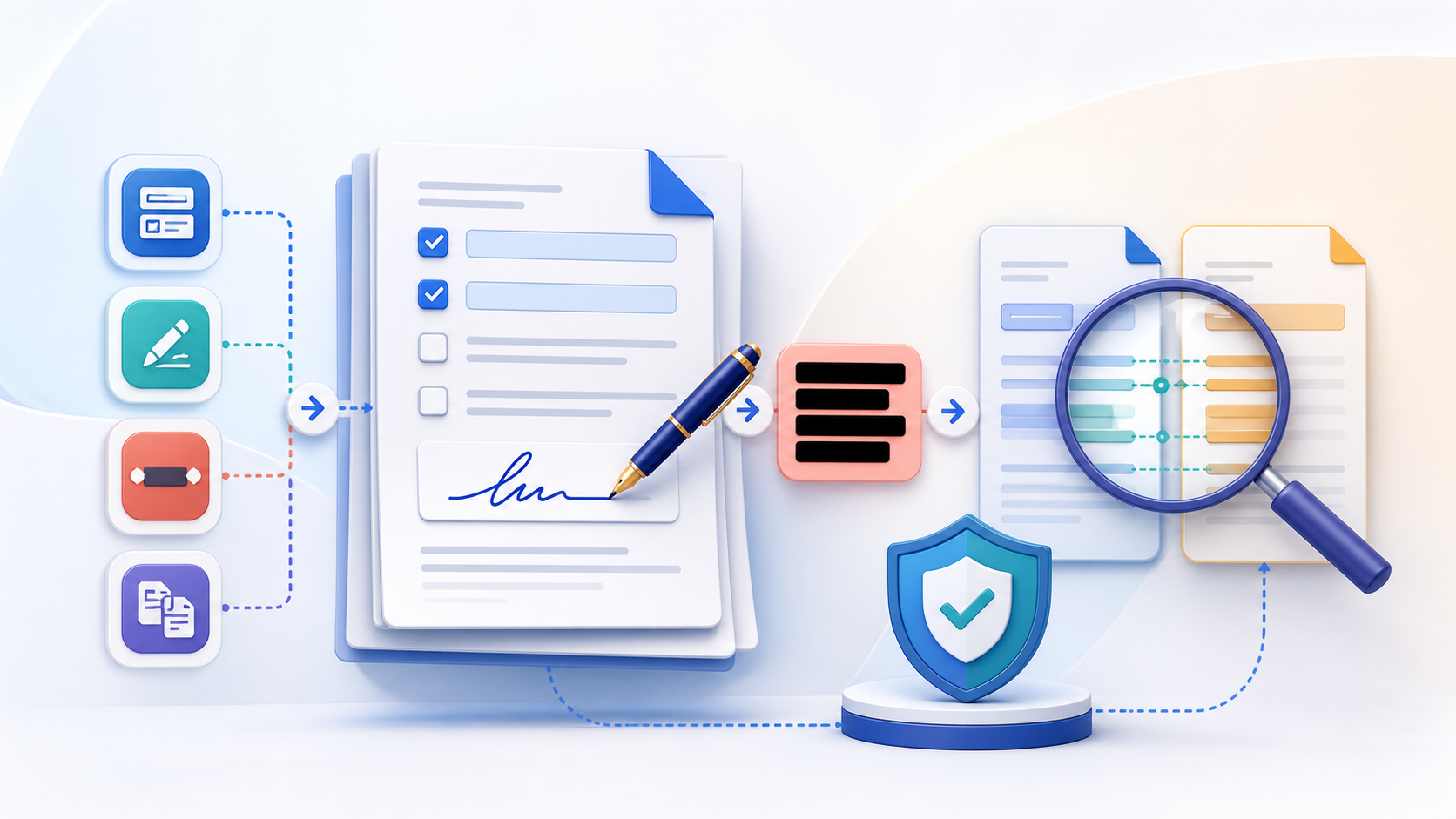
Prepare the correct document versions
Name and keep the original and revised PDFs separately. Matching page order and dimensions make the comparison easier to interpret.
- Identify the older and newer files.
- Confirm the intended page order.
- Keep both source documents unchanged.
Run the visual PDF comparison
Open Compare PDF, select the two versions in the correct positions, and create the difference report. Review pages with the largest visible difference first.
- Select the first PDF.
- Select the comparison PDF.
- Generate and inspect the page-level report.
Read the changed pages directly
A small visible change can be important, and a rendering change can be harmless. Use the report as a navigation aid, then read the relevant wording, numbers, images, and page context in both originals.
- Open both source pages.
- Check wording and numbers directly.
- Do not treat the visual score as legal verification.
Tools used in this workflow
Frequently asked questions
Can PDFKaka compare PDF files online for free?
Yes. The visual comparison runs locally without an account or document upload.
Does it compare the meaning of two PDFs?
No. It compares rendered page appearance rather than semantic meaning.
Can identical content produce a small difference?
Yes. Font rendering, page dimensions, and antialiasing can change pixels.