Annotate PDF guides
PDF annotation versus editing existing text
Use annotation to mark and comment on content; use additive editing to place new text, while neither workflow rewrites existing text in the current tools.
Open Annotate PDFReviewed by PDFKaka ·
What this workflow helps you do
Similar PDF tasks can produce materially different results. This Guide separates what Annotate PDF does from the nearby alternative so the correct output is chosen before processing.
Use annotation to mark and comment on content; use additive editing to place new text, while neither workflow rewrites existing text in the current tools.
Plan the task in Annotate PDF
Mark a selected PDF page with a visible highlight and optional note, then create a new annotated document locally in your browser.
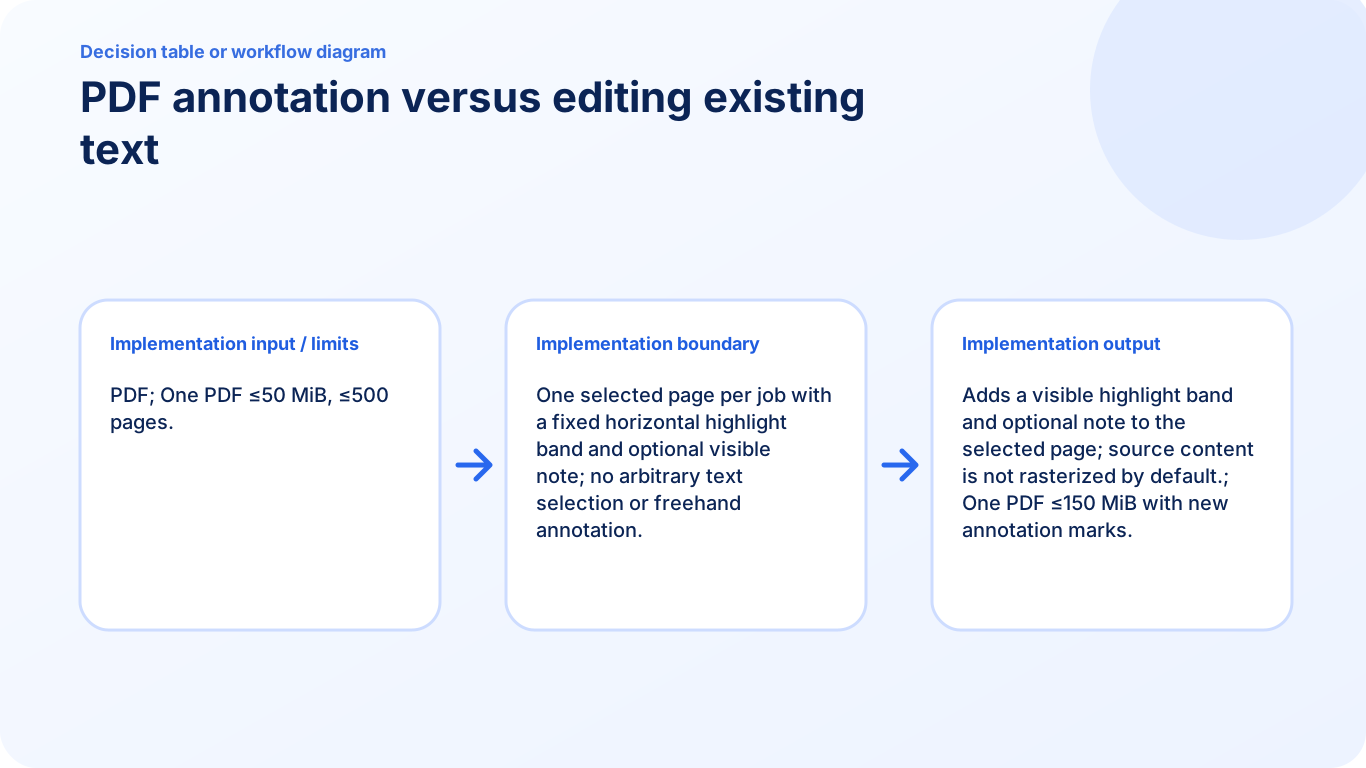
Annotate PDF is a focused review tool that places a coloured page-width highlight band on one selected page and can include a short note. It produces a new shareable copy while leaving the source document unchanged.
- Highlight a PDF page during review. Use the visible band to draw attention to a relevant area or page in a report, assignment, proof, or approval workflow.
- Add a short PDF note. Include a concise comment with the annotation so the recipient understands why the page was marked.
- Understand the current annotation scope. This version does not provide freehand drawing, arbitrary text selection, or a full multi-annotation workspace. It applies one focused page annotation per run.
Choose the result, not just the familiar tool name
This task overlaps with another PDF workflow, but the outputs are not interchangeable. Annotate PDF should be chosen only when its documented result matches what the recipient or next application needs.
Compare whether the result must remain editable, preserve appearance, create several files, remove content, or simply change what is visible.
- Describe the required output in one sentence.
- Choose the tool whose output contract matches that sentence.
- Verify the result before deleting or replacing the source.
Settings and limitations to check
Can I annotate a PDF online for free? Yes. Add a supported highlight and optional note without registration.
Can I select individual words to highlight? No. The current tool creates a page-width highlight band rather than a freehand or text-selection highlight.
Does annotation change the original PDF? No. It creates a new annotated copy and leaves the selected source document unchanged.
- Use only the settings needed for the required result.
- Keep the source file available for comparison.
- Do not rely on an unsupported exact-size, fidelity, or security promise.
Review the completed file
Choose the result that communicates the intended review without implying the source wording was changed.
Open the downloaded result in a separate viewer, inspect important pages or details, and repeat the workflow with adjusted settings if the output is not suitable.
- Confirm the expected file type and page count.
- Check important text, images, order, and orientation.
- Share or submit only the reviewed copy.
Tools used in this workflow
Frequently asked questions
What should I prepare before following this workflow?
Use annotation to mark and comment on content; use additive editing to place new text, while neither workflow rewrites existing text in the current tools.
How should I verify the result?
Choose the result that communicates the intended review without implying the source wording was changed.
Can I annotate a PDF online for free?
Yes. Add a supported highlight and optional note without registration.
Can I select individual words to highlight?
No. The current tool creates a page-width highlight band rather than a freehand or text-selection highlight.
Does annotation change the original PDF?
No. It creates a new annotated copy and leaves the selected source document unchanged.
Do I need an account to use Annotate PDF?
No. Current PDFKaka tools work without registration or sign-in.
Are my files uploaded while I use Annotate PDF?
No. This working tool processes the selected files locally in the current browser session.