Annotate PDF guides
How to annotate PDF on iPhone, Android, or iPad
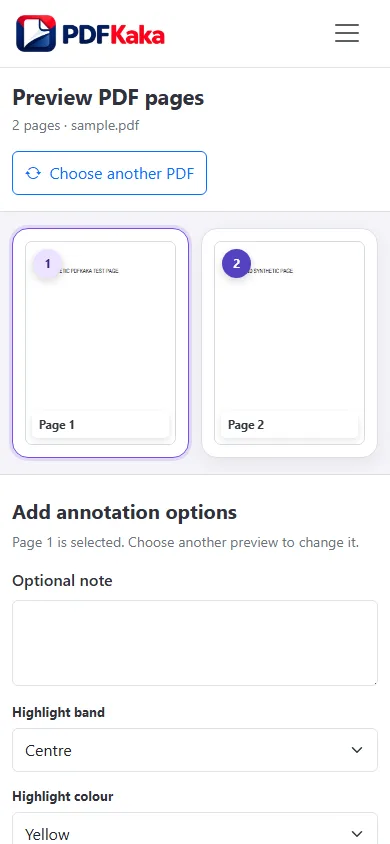
Choose a PDF on a phone or tablet, place a highlight and note, and download the annotated copy.
Open Annotate PDFReviewed by PDFKaka ·
What this workflow helps you do
A phone browser can run Annotate PDF without a separate desktop program. Device memory, the mobile file picker, camera permissions, and download handling matter more on a phone, so smaller batches are easier to verify.
Choose a PDF on a phone or tablet, place a highlight and note, and download the annotated copy.
Plan the task in Annotate PDF
Mark a selected PDF page with a visible highlight and optional note, then create a new annotated document locally in your browser.
Annotate PDF is a focused review tool that places a coloured page-width highlight band on one selected page and can include a short note. It produces a new shareable copy while leaving the source document unchanged.
- Highlight a PDF page during review. Use the visible band to draw attention to a relevant area or page in a report, assignment, proof, or approval workflow.
- Add a short PDF note. Include a concise comment with the annotation so the recipient understands why the page was marked.
- Understand the current annotation scope. This version does not provide freehand drawing, arbitrary text selection, or a full multi-annotation workspace. It applies one focused page annotation per run.
Complete the task reliably on a phone
The mobile file picker may show Photos, Files, Downloads, a camera option, or cloud-provider shortcuts depending on the device. Select only the sources required by Annotate PDF and return to the browser while processing finishes.
Large documents and high-resolution images use device memory. If the browser reloads or becomes unresponsive, keep the originals and retry with a smaller supported batch rather than repeatedly starting the same large job.
- Use a current browser and keep the tab active during processing.
- Save the result to Files or Downloads.
- Reopen the download outside the tool before sharing it.
Settings and limitations to check
Can I annotate a PDF online for free? Yes. Add a supported highlight and optional note without registration.
Can I select individual words to highlight? No. The current tool creates a page-width highlight band rather than a freehand or text-selection highlight.
Does annotation change the original PDF? No. It creates a new annotated copy and leaves the selected source document unchanged.
- Use only the settings needed for the required result.
- Keep the source file available for comparison.
- Do not rely on an unsupported exact-size, fidelity, or security promise.
Review the completed file
Reopen the result on the device and verify placement at a comfortable zoom.
Open the downloaded result in a separate viewer, inspect important pages or details, and repeat the workflow with adjusted settings if the output is not suitable.
- Confirm the expected file type and page count.
- Check important text, images, order, and orientation.
- Share or submit only the reviewed copy.
Tools used in this workflow
Frequently asked questions
What should I prepare before following this workflow?
Choose a PDF on a phone or tablet, place a highlight and note, and download the annotated copy.
How should I verify the result?
Reopen the result on the device and verify placement at a comfortable zoom.
Can I annotate a PDF online for free?
Yes. Add a supported highlight and optional note without registration.
Can I select individual words to highlight?
No. The current tool creates a page-width highlight band rather than a freehand or text-selection highlight.
Does annotation change the original PDF?
No. It creates a new annotated copy and leaves the selected source document unchanged.
Do I need an account to use Annotate PDF?
No. Current PDFKaka tools work without registration or sign-in.
Are my files uploaded while I use Annotate PDF?
No. This working tool processes the selected files locally in the current browser session.