Annotate PDF guide
How to Add a Visible Note to One PDF Page
A visible note is useful when one page needs a short explanation, correction, or review marker that remains visible in the downloaded PDF.
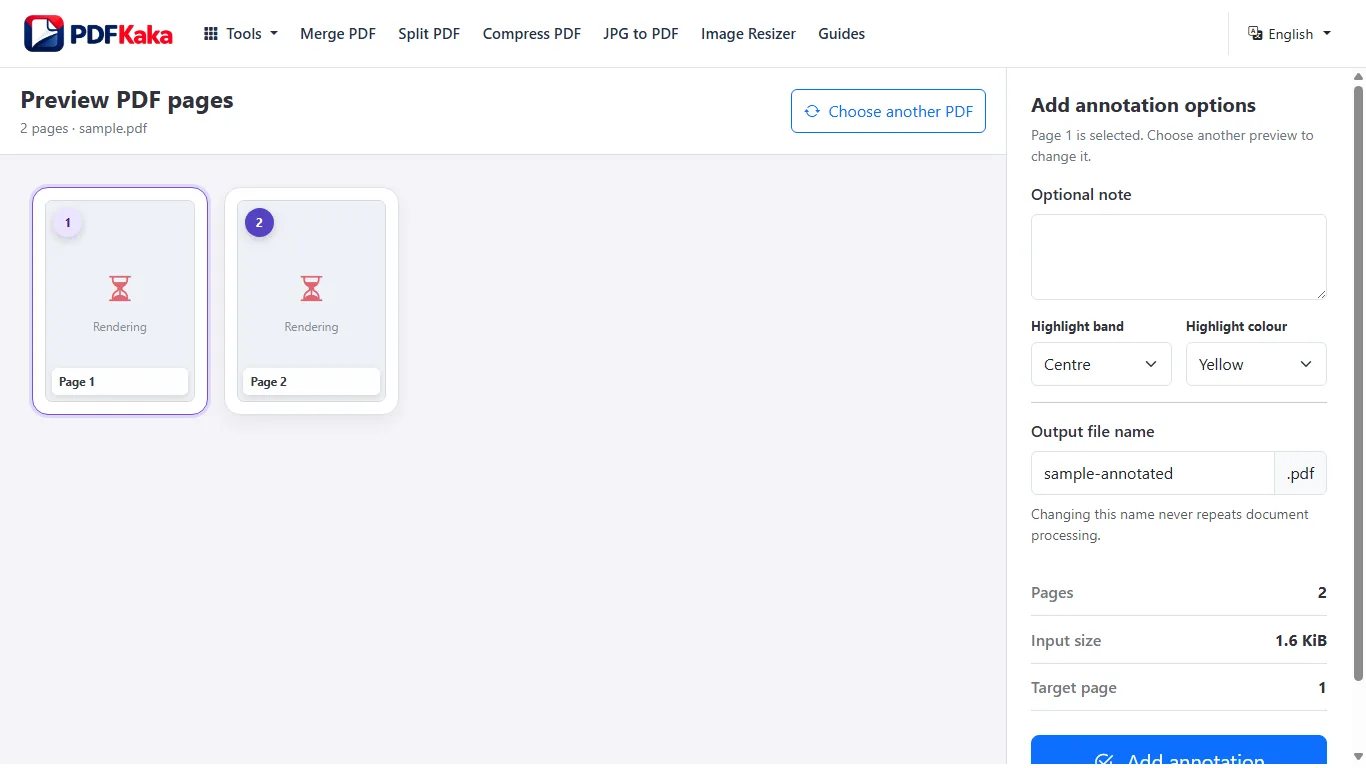
Add the note to the intended page
- Choose the PDF and select the one page that needs the mark.
- Position the horizontal band over the relevant area.
- Enter the optional note in clear, self-contained wording.
- Create the annotated copy and read the note at normal zoom.
The note should identify the issue without pretending to replace the underlying text. If several pages need comments, each supported job handles one selected page; a broader annotation editor is more suitable for a document-wide review.
Know what remains unchanged
The annotation is a new visible mark. It does not select, delete, or rewrite existing PDF text, and it does not provide freehand drawing or arbitrary text-range highlighting.
Use the note for one precise callout
Place the band so it identifies the intended line or area without hiding the surrounding context. Keep the note short enough to read beside that mark. If several pages or scattered passages need comments, repeat separate jobs or choose an annotation product designed for a broader review workflow.
FAQ
Can I add notes to several pages in one job?
No. The current Annotate PDF workflow handles one selected page per job.
Is the note a hidden PDF comment?
No. It is visible content associated with the page mark in the downloaded PDF.
Can I place a note without changing the original text?
Yes. The tool adds a visible annotation mark; it does not rewrite the source text objects.