Compare PDF guides

How to read and verify a PDF difference report

Use the report to prioritize pages with visible changes, then verify wording, figures, images, and context in both source PDFs.

Open Compare PDF

Reviewed by PDFKaka ·

How to read and verify a PDF difference report

What this workflow helps you do

Creating the file is only part of the task. This workflow uses Compare PDF and then checks the output independently so missing text, changed order, poor quality, or incomplete processing is caught before sharing.

Use the report to prioritize pages with visible changes, then verify wording, figures, images, and context in both source PDFs.

Plan the task in Compare PDF

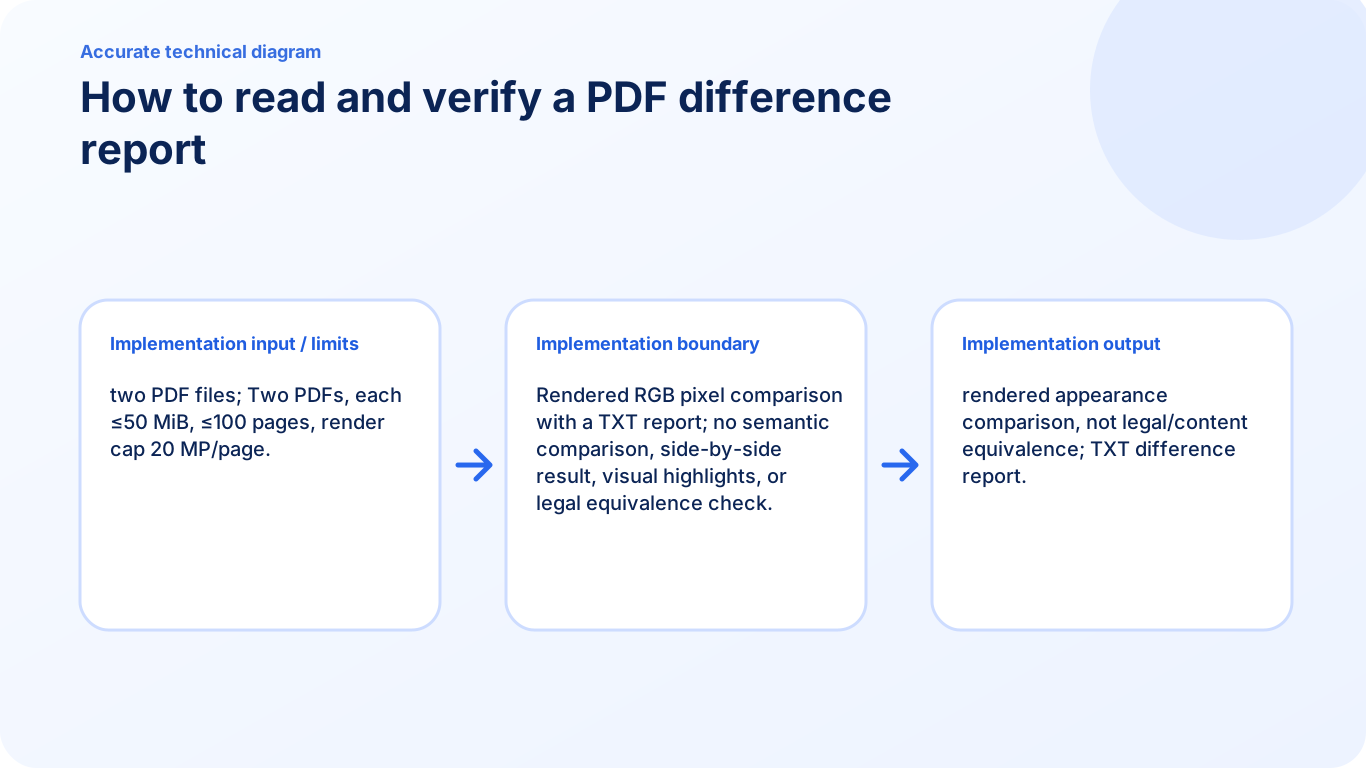
Review rendered page differences between two PDF versions. The comparison is visual and does not determine semantic or legal equivalence.

Compare PDF renders matching page positions from two documents and measures visual pixel differences. It can reveal changed wording appearance, layout movement, missing graphics, or page-level revisions, but it is not a semantic, contractual, or legal comparison.

  1. Compare PDF documents page by page. Review corresponding page positions and use the difference report to identify where closer inspection is needed.
  2. Find visible changes between PDF versions. Layout, image, font-rendering, page-size, and visible text changes can affect the comparison score and highlighted result.
  3. Know what a visual comparison cannot prove. Meaning can change without a large pixel difference, and harmless rendering differences can produce a score. Always read important revisions directly.

Use an independent result check

Do not treat a completed progress indicator in Compare PDF as the final quality check. Save the output, reopen it outside the active workspace, and compare the parts that matter with the original.

Verification should match the risk: page order and readability for ordinary files, exact field values for forms, and stronger checks for signatures, redaction, or sensitive content.

  1. Reopen the downloaded file.
  2. Test the exact content or behavior that motivated the task.
  3. Keep or share only the reviewed result.

Settings and limitations to check

Can I compare PDF files online for free? Yes. Select two PDFs and create a visual difference report without registration or uploading them.

Does PDF comparison detect changed meaning? No. The current comparison is visual. It does not perform semantic, contractual, or legal analysis.

Why can identical-looking PDFs show small differences? Font rendering, antialiasing, page dimensions, and other visual details can change pixels even when the documents look similar.

  1. Use only the settings needed for the required result.
  2. Keep the source file available for comparison.
  3. Do not rely on an unsupported exact-size, fidelity, or security promise.

Review the completed file

Document the reviewed source versions and do not treat unchanged pixels as proof of identical meaning.

Open the downloaded result in a separate viewer, inspect important pages or details, and repeat the workflow with adjusted settings if the output is not suitable.

  1. Confirm the expected file type and page count.
  2. Check important text, images, order, and orientation.
  3. Share or submit only the reviewed copy.

Tools used in this workflow

Frequently asked questions

What should I prepare before following this workflow?

Use the report to prioritize pages with visible changes, then verify wording, figures, images, and context in both source PDFs.

How should I verify the result?

Document the reviewed source versions and do not treat unchanged pixels as proof of identical meaning.

Can I compare PDF files online for free?

Yes. Select two PDFs and create a visual difference report without registration or uploading them.

Does PDF comparison detect changed meaning?

No. The current comparison is visual. It does not perform semantic, contractual, or legal analysis.

Why can identical-looking PDFs show small differences?

Font rendering, antialiasing, page dimensions, and other visual details can change pixels even when the documents look similar.

Do I need an account to use Compare PDF?

No. Current PDFKaka tools work without registration or sign-in.

Are my files uploaded while I use Compare PDF?

No. This working tool processes the selected files locally in the current browser session.