Add page numbers guides
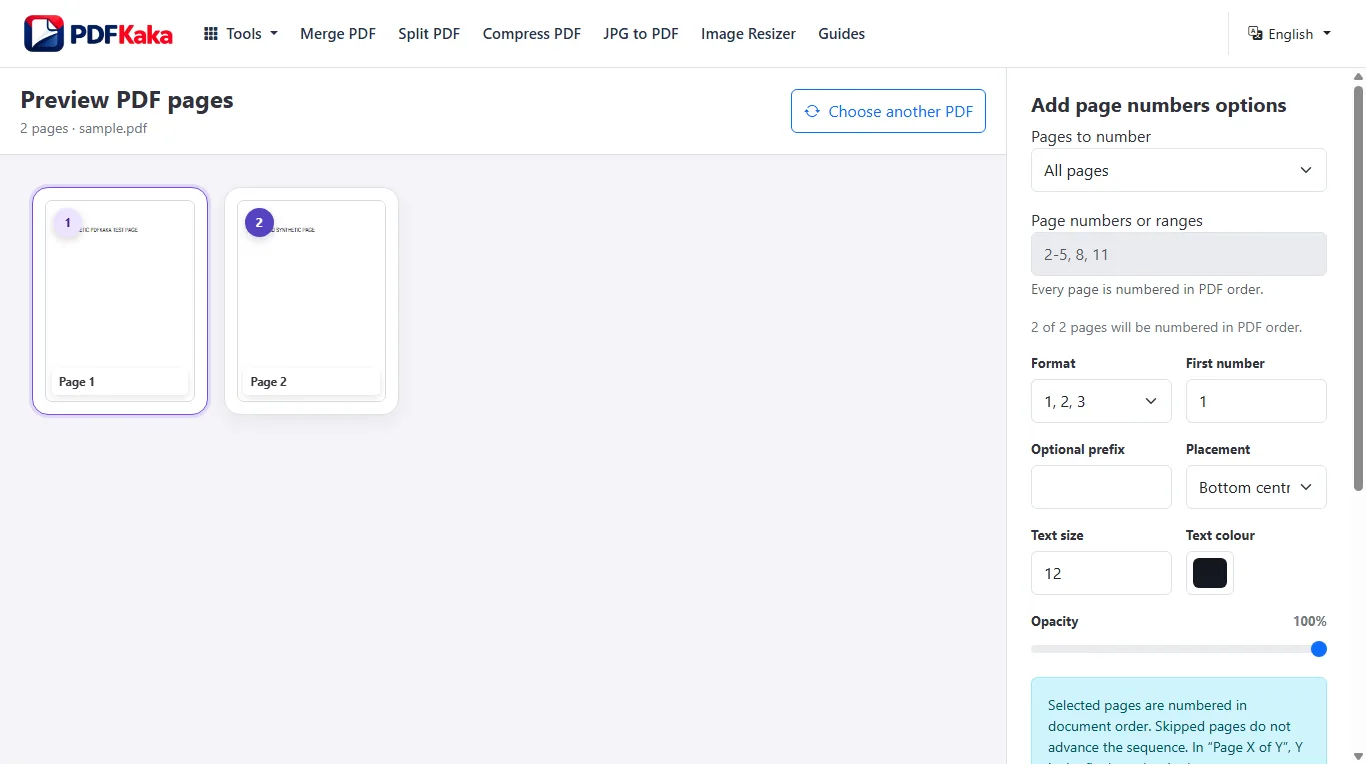
How to choose PDF page-number position, label, and size
Use the available label, start value, placement, and size settings to create a clear numbering pattern.
Open Add page numbersReviewed by PDFKaka ·
What this workflow helps you do
Formatting is affected by the difference between fixed PDF pages and the destination format. Use Add page numbers for its documented output, then review line breaks, positions, fonts, and page structure before reuse.
Use the available label, start value, placement, and size settings to create a clear numbering pattern.
Plan the task in Add page numbers
Add clear page numbers to an existing PDF and control where numbering starts, how it is labelled, and where it appears on each page.
Number every PDF page using the starting value, optional prefix, position, and text size you choose. This is useful after merging reports, applications, evidence bundles, or other documents that need a visible and consistent page sequence.
- Choose where PDF page numbers appear. Place the sequence in a supported header or footer position and preview possible overlap with existing page content.
- Start PDF numbering from another value. Continue a sequence from an earlier section by choosing a custom starting number and optional label or prefix.
- Number pages in their current PDF order. The sequence follows the document order. Reorganize the PDF first when pages are not yet arranged correctly.
Review structure and formatting separately
Add page numbers handles the documented conversion or placement, but fixed PDF geometry, flowing text, page breaks, fonts, and image dimensions do not always map one-to-one.
Prioritize the structure the destination actually needs. A visually similar page may not contain editable objects, while editable text may need manual layout repair.
- Check headings, paragraphs, lists, tables, and page boundaries.
- Compare fonts, line breaks, positions, and dimensions.
- Correct the destination file before publishing or submitting it.
Settings and limitations to check
Can I add page numbers to a PDF online for free? Yes. Choose the numbering settings and download a numbered copy without an account.
Can I use Roman numerals for PDF page numbers? No. The current tool writes a numeric sequence with an optional text prefix.
Can I skip the cover page? The current workflow numbers every page. Separate or reorganize the document when the cover must be handled independently.
- Use only the settings needed for the required result.
- Keep the source file available for comparison.
- Do not rely on an unsupported exact-size, fidelity, or security promise.
Review the completed file
Confirm the label and number remain readable on pages with different backgrounds.
Open the downloaded result in a separate viewer, inspect important pages or details, and repeat the workflow with adjusted settings if the output is not suitable.
- Confirm the expected file type and page count.
- Check important text, images, order, and orientation.
- Share or submit only the reviewed copy.
Tools used in this workflow
Frequently asked questions
What should I prepare before following this workflow?
Use the available label, start value, placement, and size settings to create a clear numbering pattern.
How should I verify the result?
Confirm the label and number remain readable on pages with different backgrounds.
Can I add page numbers to a PDF online for free?
Yes. Choose the numbering settings and download a numbered copy without an account.
Can I use Roman numerals for PDF page numbers?
No. The current tool writes a numeric sequence with an optional text prefix.
Can I skip the cover page?
The current workflow numbers every page. Separate or reorganize the document when the cover must be handled independently.
Do I need an account to use Add page numbers?
No. Current PDFKaka tools work without registration or sign-in.
Are my files uploaded while I use Add page numbers?
No. This working tool processes the selected files locally in the current browser session.