Convert from PDF
How to extract text from a PDF online
Create a plain-text copy from a digital PDF and review reading order, columns, tables, and scanned-page limitations.
Reviewed by PDFKaka ·
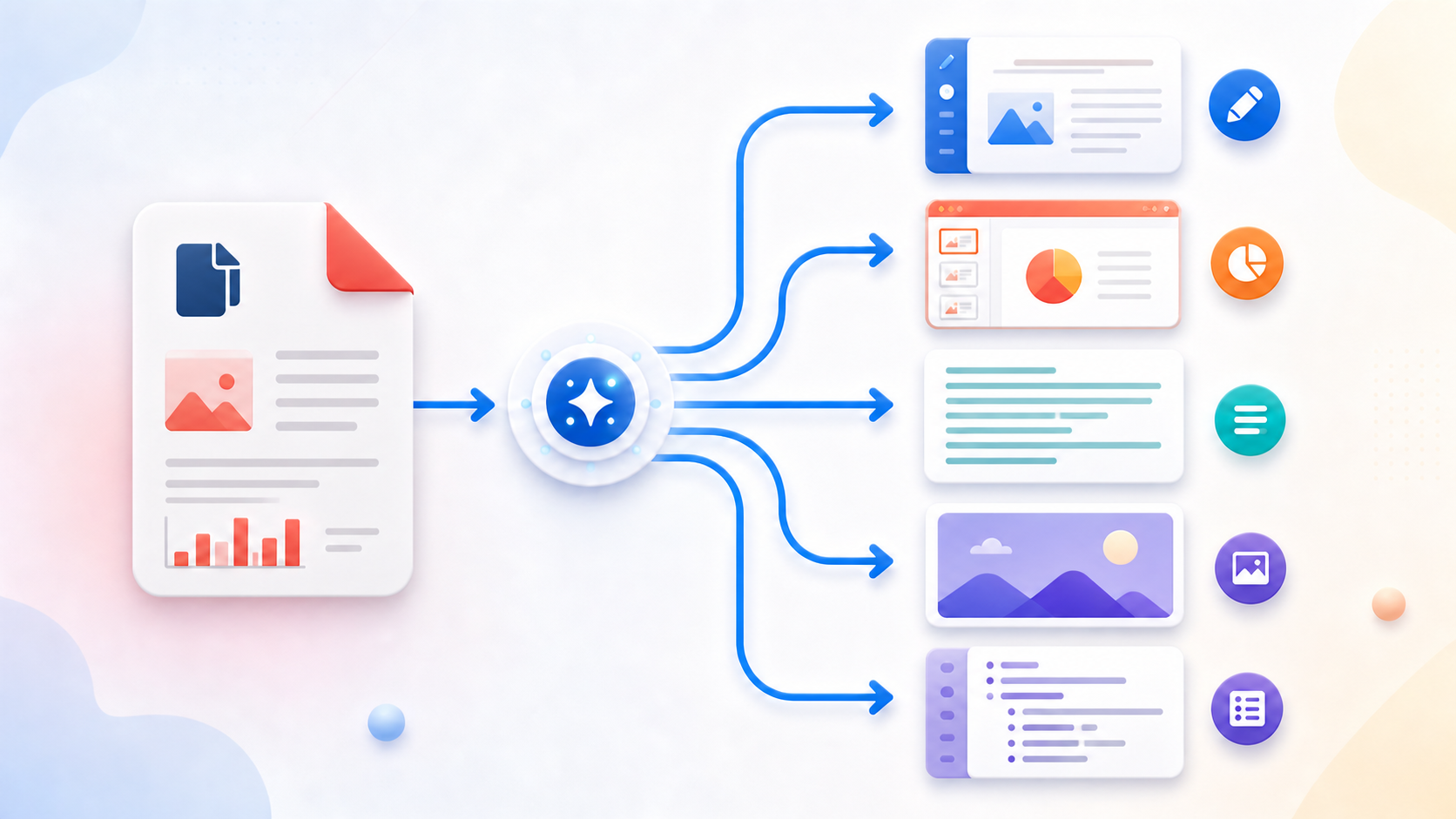
Check whether the PDF text is selectable
Try highlighting a sentence in a reader. If the page behaves as one large image, use OCR PDF first. Digitally created PDFs normally contain selectable text even when copying order is imperfect.
- Open the source PDF.
- Test text selection on several pages.
- Choose OCR first for image-only pages.
Create a TXT file from the PDF
Open PDF to Text, choose the searchable PDF, and decide whether optional page headings will make multipage output easier to review.
- Select the PDF.
- Choose the page-heading option.
- Extract and download the UTF-8 TXT file.
Repair reading order and missing structure
Plain text cannot reproduce the PDF's visual positions. Columns, tables, headers, footers, and captions may appear out of order and should be compared with the source before reuse.
- Open the TXT file in a text editor.
- Compare difficult sections with the PDF.
- Correct order and add missing context manually.
Tools used in this workflow
Frequently asked questions
Why is the extracted text empty?
The PDF probably contains scanned images instead of selectable text. Use OCR first.
Will PDF to Text preserve formatting?
No. TXT stores plain characters and line breaks rather than page design.
Are columns and tables extracted perfectly?
No. Reading order is best-effort and complex layouts require review.