Crop PDF guides
How to crop PDF without losing page quality
Change PDF page boxes without rendering the retained page content into a lower-quality image.
Reviewed by PDFKaka ·
What this workflow helps you do
Quality depends on whether the task copies existing PDF objects or renders and rebuilds page images. The Guide identifies what Crop PDF changes so the result can be checked instead of relying on a vague quality promise.
Change PDF page boxes without rendering the retained page content into a lower-quality image.
Plan the task in Crop PDF
Choose the visible area to keep, preview the boundaries, and apply the same percentage crop settings across every page in the PDF.
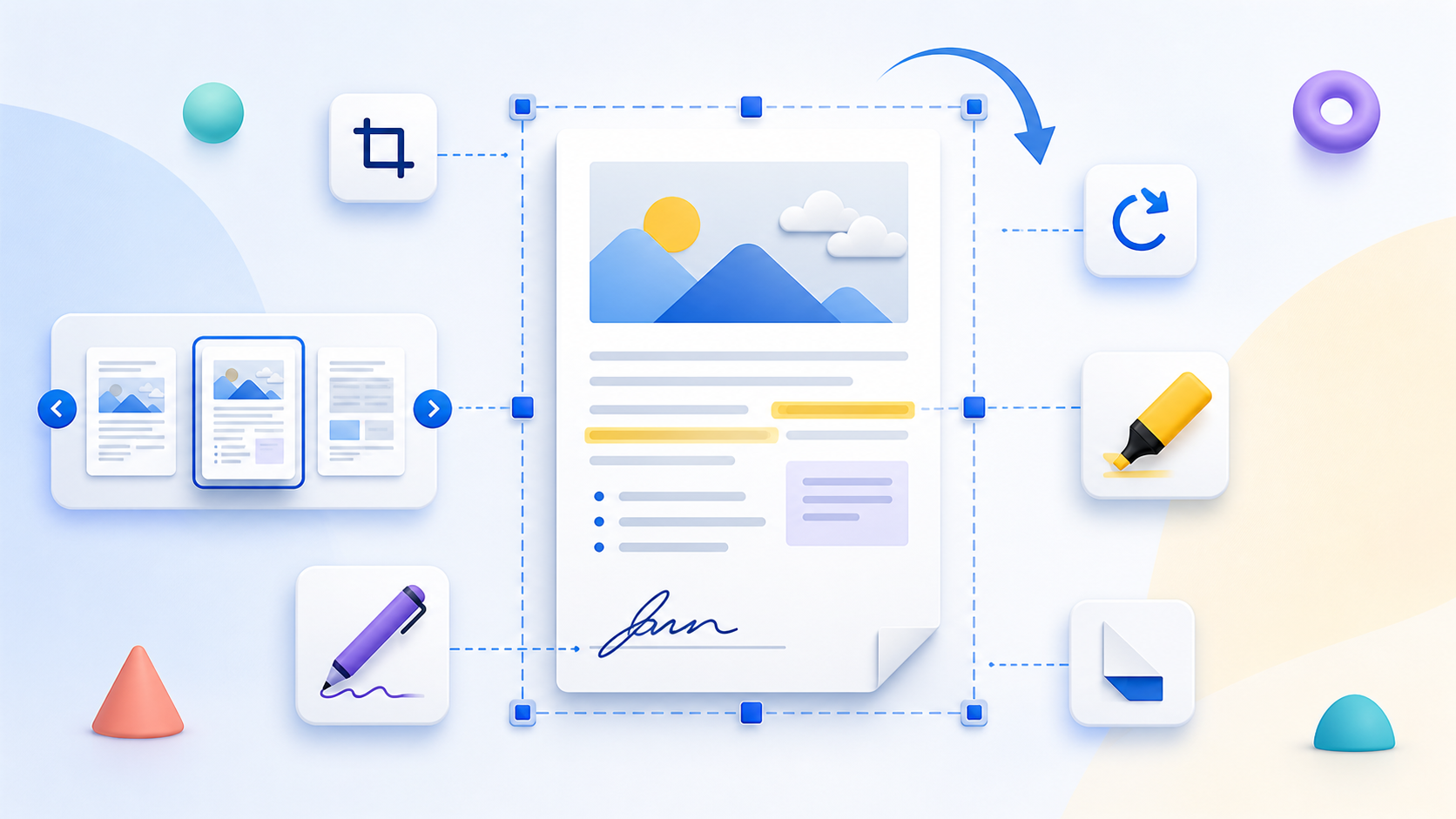
Crop PDF changes the visible page area to remove scanner borders, excess white space, or unwanted content near the edges. Choose percentage-based crop boundaries, inspect the preview, and apply the same crop settings across the document.
- Crop PDF pages online with a preview. Adjust top, right, bottom, and left boundaries while checking that headings, page numbers, signatures, and other important content remain visible.
- Apply consistent crop margins. The same crop percentages are used on every page. This works best when the source pages share a similar size and layout.
- Do not use cropping as secure redaction. Cropping changes the visible page boxes and may not securely remove hidden content. Use Redact PDF for sensitive selectable text and verify the sharing copy.
Protect useful quality instead of trusting a label
Quality has to be checked in the actual Crop PDF output. Text, line art, photographs, signatures, stamps, and small numbers reveal different problems, so one preview or file-size value is not enough.
Keep the source unchanged and compare representative pages at a realistic viewing or printing size. If a setting produces an unacceptable result, return to the source instead of processing the degraded copy again.
- Inspect the smallest important text and details.
- Compare a representative output with the source.
- Keep the clearest version that satisfies the real requirement.
Settings and limitations to check
Can I crop PDF pages online for free? Yes. Set the visible boundaries and download a cropped copy without registration.
Can I use a different crop for each page? No. The current tool applies the same percentage boundaries to every page in the selected PDF.
Will cropping permanently remove sensitive information? Do not rely on cropping for redaction. Hidden or recoverable content can remain; use an appropriate redaction workflow instead.
- Use only the settings needed for the required result.
- Keep the source file available for comparison.
- Do not rely on an unsupported exact-size, fidelity, or security promise.
Review the completed file
Compare fine text and graphics inside the retained area with the original page.
Open the downloaded result in a separate viewer, inspect important pages or details, and repeat the workflow with adjusted settings if the output is not suitable.
- Confirm the expected file type and page count.
- Check important text, images, order, and orientation.
- Share or submit only the reviewed copy.
Tools used in this workflow
Frequently asked questions
What should I prepare before following this workflow?
Change PDF page boxes without rendering the retained page content into a lower-quality image.
How should I verify the result?
Compare fine text and graphics inside the retained area with the original page.
Can I crop PDF pages online for free?
Yes. Set the visible boundaries and download a cropped copy without registration.
Can I use a different crop for each page?
No. The current tool applies the same percentage boundaries to every page in the selected PDF.
Will cropping permanently remove sensitive information?
Do not rely on cropping for redaction. Hidden or recoverable content can remain; use an appropriate redaction workflow instead.
Do I need an account to use Crop PDF?
No. Current PDFKaka tools work without registration or sign-in.
Are my files uploaded while I use Crop PDF?
No. This working tool processes the selected files locally in the current browser session.