
OCR PDF guides

How to OCR a scanned PDF before Word conversion

Run OCR first to create searchable text, review recognition errors, and then use PDF to Word for a best-effort editable DOCX.
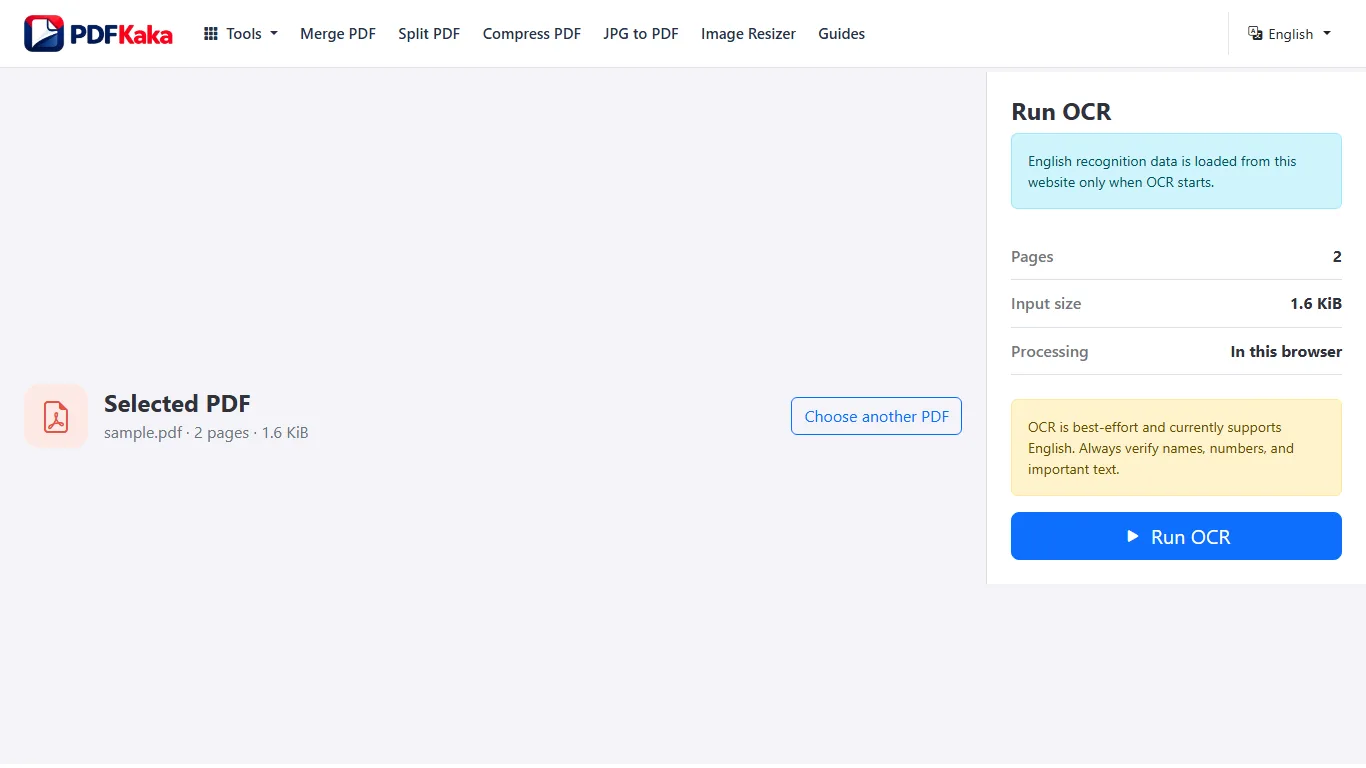
Open OCR PDF

Reviewed by PDFKaka ·

How to OCR a scanned PDF before Word conversion

What this workflow helps you do

This Guide answers a focused OCR PDF task and connects the explanation directly to the working browser tool.

Run OCR first to create searchable text, review recognition errors, and then use PDF to Word for a best-effort editable DOCX.

Plan the task in OCR PDF

Add a searchable text layer to image-only PDF pages using local English OCR. Review important names, dates, and numbers because recognition is best-effort.

OCR PDF is for pages that look like text but behave like images. It recognizes printed English characters in scanned pages and adds a searchable text layer locally. The result can support searching and copying, but OCR is best-effort and important values must always be checked.

  1. Convert a scanned PDF into searchable PDF. Each page is rendered for recognition and the detected English text is added to a new PDF. This can make image-only scans easier to search and reuse.
  2. Prepare OCR text for Word or TXT workflows. After OCR, use PDF to Text or PDF to Word when reusable text is the main goal. Complex layouts, columns, and tables can still require manual correction.
  3. Improve OCR accuracy before processing. Straight pages, clear printed characters, good contrast, and adequate resolution help recognition. Handwriting, shadows, curved pages, and blurred photographs reduce accuracy.

Follow the focused browser workflow

Run OCR first to create searchable text, review recognition errors, and then use PDF to Word for a best-effort editable DOCX.

Use OCR PDF for the supported operation, keep the source unchanged, and make one reviewed output rather than repeatedly processing an already changed copy.

  1. Prepare a supported source file.
  2. Choose only the settings needed for the task.
  3. Download and review the completed result.

Settings and limitations to check

Can I OCR a PDF online for free? Yes. The current tool recognizes supported printed English text locally without requiring an account.

Does OCR PDF convert directly to Word? OCR creates a searchable PDF. Open that result in PDF to Word when an editable DOCX file is also needed.

Can OCR read handwriting or every language? No. The current workflow is designed for printed English text. Handwriting and other languages are not reliable supported inputs.

  1. Use only the settings needed for the required result.
  2. Keep the source file available for comparison.
  3. Do not rely on an unsupported exact-size, fidelity, or security promise.

Review the completed file

Compare the Word text with the scan and correct reading order, spelling, tables, and missing characters.

Open the downloaded result in a separate viewer, inspect important pages or details, and repeat the workflow with adjusted settings if the output is not suitable.

  1. Confirm the expected file type and page count.
  2. Check important text, images, order, and orientation.
  3. Share or submit only the reviewed copy.

Tools used in this workflow

Frequently asked questions

What should I prepare before following this workflow?

Run OCR first to create searchable text, review recognition errors, and then use PDF to Word for a best-effort editable DOCX.

How should I verify the result?

Compare the Word text with the scan and correct reading order, spelling, tables, and missing characters.

Can I OCR a PDF online for free?

Yes. The current tool recognizes supported printed English text locally without requiring an account.

Does OCR PDF convert directly to Word?

OCR creates a searchable PDF. Open that result in PDF to Word when an editable DOCX file is also needed.

Can OCR read handwriting or every language?

No. The current workflow is designed for printed English text. Handwriting and other languages are not reliable supported inputs.

Do I need an account to use OCR PDF?

No. Current PDFKaka tools work without registration or sign-in.

Are my files uploaded while I use OCR PDF?

No. This working tool processes the selected files locally in the current browser session.