Rotate PDF guide
How to rotate PDF pages online permanently
Correct sideways and upside-down PDF pages locally, including documents where different pages need different rotations.
On this page
Rotate the PDF pages
- Correct sideways and upside-down PDF pages locally, including documents where different pages need different rotations.
- Individual pages can be corrected one by one.
- Quarter-turn rotation does not require page-image recompression.
Identify which pages need correction
Scanned documents often contain a mixture of portrait, landscape, sideways, and upside-down pages. Review the thumbnail sequence before rotating the entire document.
- Open the source PDF.
- Check every page thumbnail.
- Decide whether the correction applies to all pages or selected pages.
Rotate pages left or right
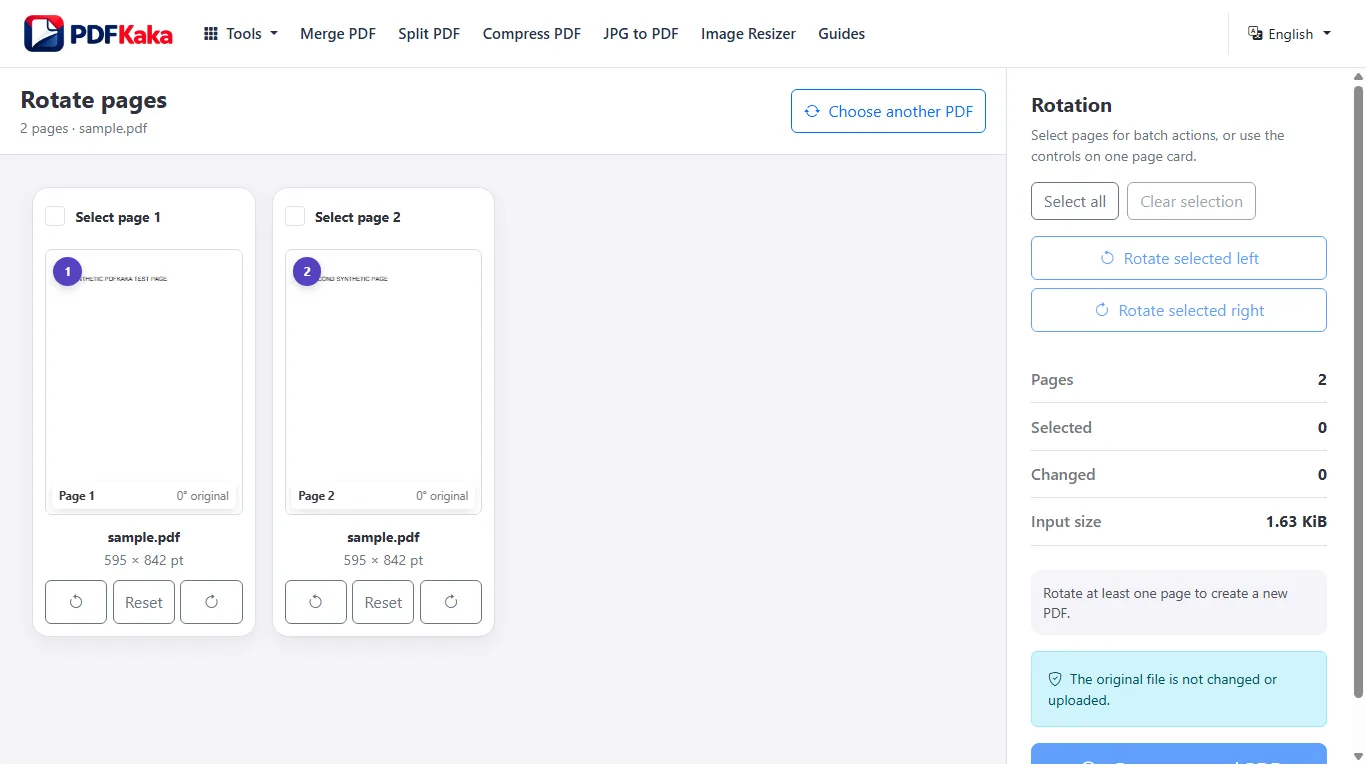
Use complete-document rotation when all pages share the same problem. Otherwise apply quarter-turns to individual pages until every thumbnail has the intended orientation.
- Select the pages to change.
- Rotate left or right as required.
- Confirm the orientation before processing.
Save and reopen the corrected PDF
The tool writes page rotations into a new document without rasterizing the source content. Open the result in another reader to confirm that the saved orientation is visible outside the editing workspace.
- Keep the original until verification is complete.
- Download the rotated copy.
- Reopen several corrected pages.
FAQ
Does rotating a page rewrite its text or turn it into an image?
The rotation workflow changes page orientation rather than intentionally converting the page content into an image.
What is the current input limit for Rotate PDF?
PDF; One PDF ≤50 MiB, ≤500 pages.
What does Rotate PDF create?
no page rasterization intended; One PDF ≤150 MiB.