
Extract pages guides

How to extract pages and make a new PDF

Select the pages needed for a chapter, form, invoice, or appendix and place them together in one new PDF.
Open Extract pages

Reviewed by PDFKaka ·

How to extract pages and make a new PDF

What this workflow helps you do

This Guide answers a focused Extract pages task and connects the explanation directly to the working browser tool.

Select the pages needed for a chapter, form, invoice, or appendix and place them together in one new PDF.

Plan the task in Extract pages

Create a focused PDF from selected source pages while preserving their original order, dimensions, and visible quality.

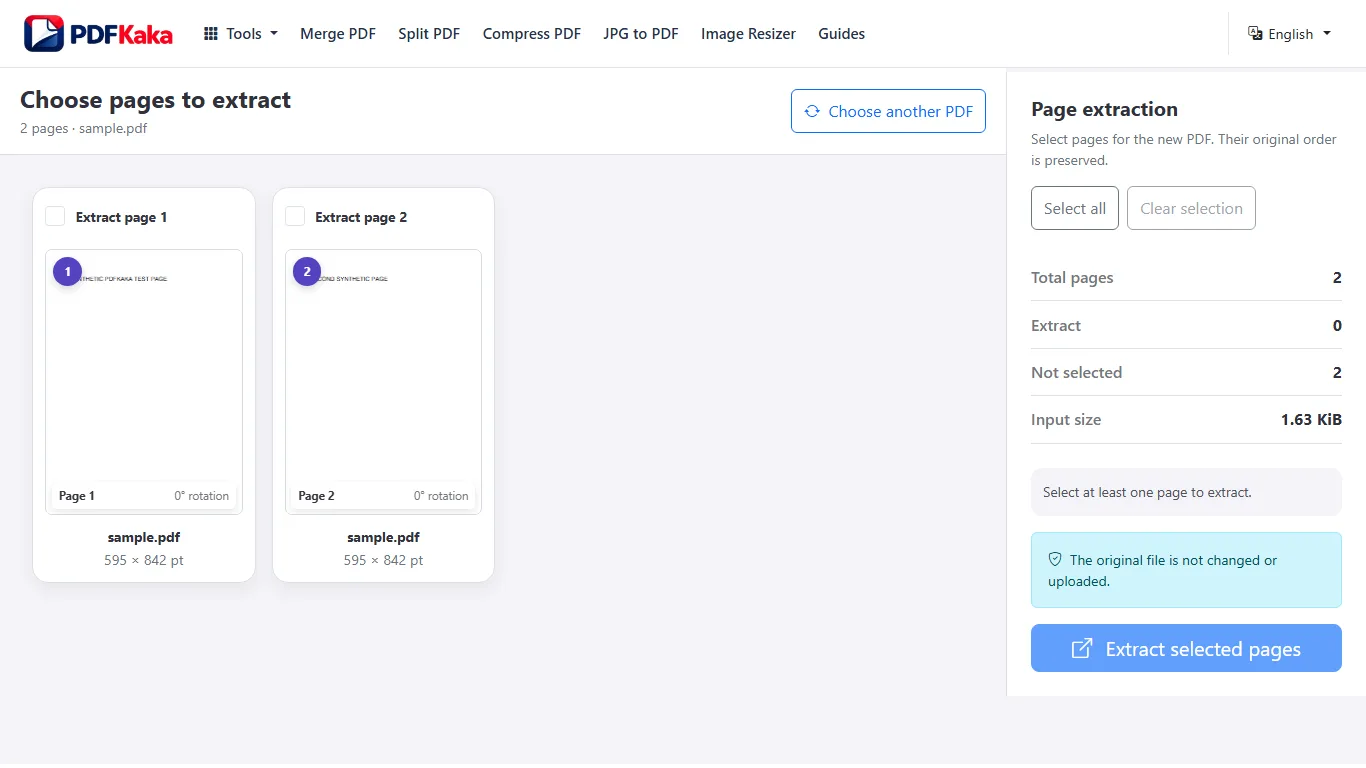
Use Extract Pages when only a chapter, appendix, form, invoice, or evidence section should become a separate PDF. Select the relevant page thumbnails and create one focused document while keeping the complete source file unchanged.

  1. Extract one page or several selected pages. Choose any useful subset from the source document. The extracted pages remain in their original source order so the new PDF is predictable and easy to review.
  2. Make a new PDF from selected pages. The result is a normal PDF that can be opened, shared, merged, or organized like any other document. Source page dimensions and visible quality are preserved.
  3. Choose PDF output instead of page images. Extract Pages copies complete PDF pages. If the goal is a JPG or PNG image for each selected page, use PDF to JPG instead.

Follow the focused browser workflow

Select the pages needed for a chapter, form, invoice, or appendix and place them together in one new PDF.

Use Extract pages for the supported operation, keep the source unchanged, and make one reviewed output rather than repeatedly processing an already changed copy.

  1. Prepare a supported source file.
  2. Choose only the settings needed for the task.
  3. Download and review the completed result.

Settings and limitations to check

Can I extract pages from a PDF online for free? Yes. Choose the pages and download one new PDF without registration or a document upload.

Can I extract a page as JPG? Use PDF to JPG for image output. Extract Pages produces another PDF containing the selected complete pages.

Does extracting pages delete them from the original PDF? No. Extraction creates a new document and leaves the selected source file unchanged.

  1. Use only the settings needed for the required result.
  2. Keep the source file available for comparison.
  3. Do not rely on an unsupported exact-size, fidelity, or security promise.

Review the completed file

Confirm the result contains only the intended pages and that their original order still makes sense.

Open the downloaded result in a separate viewer, inspect important pages or details, and repeat the workflow with adjusted settings if the output is not suitable.

  1. Confirm the expected file type and page count.
  2. Check important text, images, order, and orientation.
  3. Share or submit only the reviewed copy.

Tools used in this workflow

Frequently asked questions

What should I prepare before following this workflow?

Select the pages needed for a chapter, form, invoice, or appendix and place them together in one new PDF.

How should I verify the result?

Confirm the result contains only the intended pages and that their original order still makes sense.

Can I extract pages from a PDF online for free?

Yes. Choose the pages and download one new PDF without registration or a document upload.

Can I extract a page as JPG?

Use PDF to JPG for image output. Extract Pages produces another PDF containing the selected complete pages.

Does extracting pages delete them from the original PDF?

No. Extraction creates a new document and leaves the selected source file unchanged.

Do I need an account to use Extract pages?

No. Current PDFKaka tools work without registration or sign-in.

Are my files uploaded while I use Extract pages?

No. This working tool processes the selected files locally in the current browser session.