
Watermark PDF guides

How to add a text watermark to every PDF page

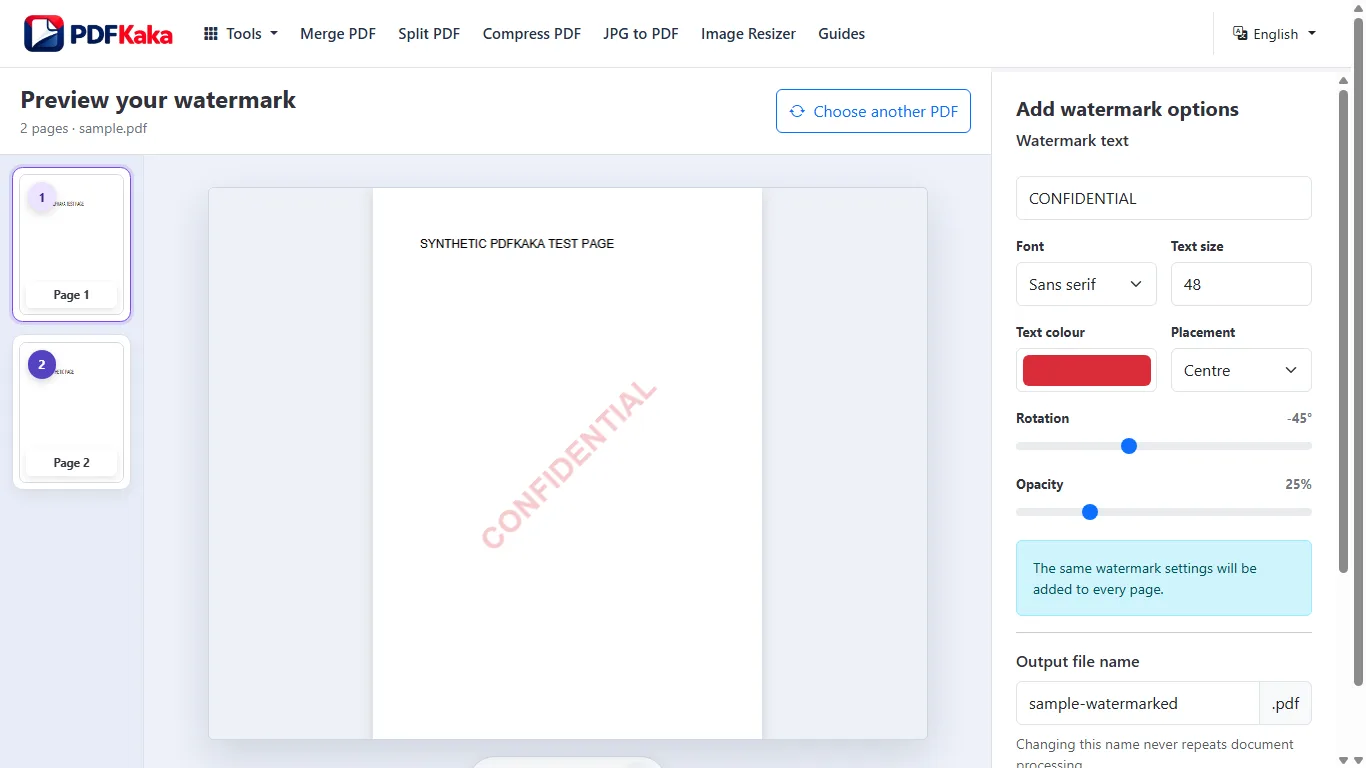
Enter a visible text mark and apply it across the PDF with chosen size, colour, opacity, position, and rotation.
Open Watermark PDF

Reviewed by PDFKaka ·

How to add a text watermark to every PDF page

What this workflow helps you do

This Guide answers a focused Watermark PDF task and connects the explanation directly to the working browser tool.

Enter a visible text mark and apply it across the PDF with chosen size, colour, opacity, position, and rotation.

Plan the task in Watermark PDF

Preview and add a visible text watermark across PDF pages. Adjust its appearance and placement before creating the watermarked copy.

Watermark PDF places visible text such as DRAFT, SAMPLE, CONFIDENTIAL, or a review label across the document. Control the colour, position, rotation, size, and opacity, then review the result before creating the watermarked copy.

  1. Watermark every PDF page consistently. A shared watermark creates a recognizable document status or ownership notice across the complete PDF.
  2. Adjust watermark visibility. Use opacity, colour, size, rotation, and placement to keep the notice visible without making the page impossible to read.
  3. Use a watermark as a notice, not protection. A visible watermark can communicate status or ownership, but it does not encrypt the document or prevent copying.

Follow the focused browser workflow

Enter a visible text mark and apply it across the PDF with chosen size, colour, opacity, position, and rotation.

Use Watermark PDF for the supported operation, keep the source unchanged, and make one reviewed output rather than repeatedly processing an already changed copy.

  1. Prepare a supported source file.
  2. Choose only the settings needed for the task.
  3. Download and review the completed result.

Settings and limitations to check

Can I watermark a PDF online for free? Yes. Add a supported text watermark and download the new PDF without registration.

Can I add an image or logo watermark? No. The current tool adds custom text watermarks rather than image logos.

Does a watermark secure the PDF? No. It is a visible label, not password protection, encryption, or access control.

  1. Use only the settings needed for the required result.
  2. Keep the source file available for comparison.
  3. Do not rely on an unsupported exact-size, fidelity, or security promise.

Review the completed file

Inspect light and dark pages to ensure the watermark is visible without hiding important content.

Open the downloaded result in a separate viewer, inspect important pages or details, and repeat the workflow with adjusted settings if the output is not suitable.

  1. Confirm the expected file type and page count.
  2. Check important text, images, order, and orientation.
  3. Share or submit only the reviewed copy.

Tools used in this workflow

Frequently asked questions

What should I prepare before following this workflow?

Enter a visible text mark and apply it across the PDF with chosen size, colour, opacity, position, and rotation.

How should I verify the result?

Inspect light and dark pages to ensure the watermark is visible without hiding important content.

Can I watermark a PDF online for free?

Yes. Add a supported text watermark and download the new PDF without registration.

Can I add an image or logo watermark?

No. The current tool adds custom text watermarks rather than image logos.

Does a watermark secure the PDF?

No. It is a visible label, not password protection, encryption, or access control.

Do I need an account to use Watermark PDF?

No. Current PDFKaka tools work without registration or sign-in.

Are my files uploaded while I use Watermark PDF?

No. This working tool processes the selected files locally in the current browser session.