PDF to JPG
How to convert every PDF page into a separate JPG
Render all selected PDF pages as numbered JPG files and download a ZIP when more than one image is produced.
On this page
- Choose the complete intended page set
- Check more than the first picture
- Use batches for a long PDF
- download one PDF page as JPG without a ZIP
- Select the page position you actually need
- Check printed numbers separately
- convert PDF to high-quality JPG images
- Set quality for the page content
- Higher settings have practical costs
- Preserve the PDF when interactivity matters
See a visual example
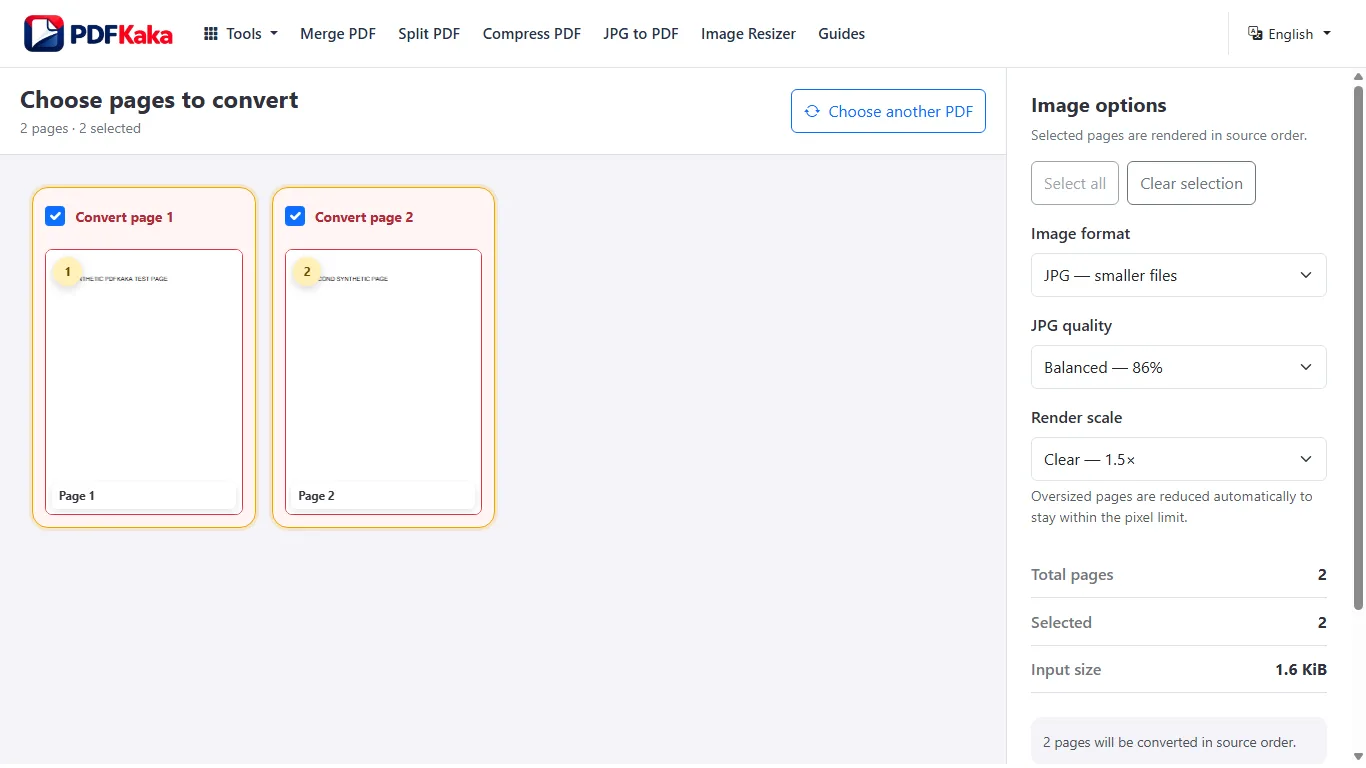
Choose the complete intended page set
- Choose the PDF and review its page count.
- Select all required pages, keeping one conversion within the 100-output-image limit.
- Choose JPG, rendering scale and quality for readable page text.
- Convert and download the ZIP when more than one image is produced.
- Extract the ZIP and compare its image count and sequence with the PDF.
Check more than the first picture
Inspect early, middle and final images and any pages with a different size or orientation. Very small text can become unclear at a low rendering scale. Each JPG is rasterized page appearance; text selection, links, form fields and vector objects do not remain interactive.
Use batches for a long PDF
The input PDF may contain more pages than one image job can export. Select smaller page ranges rather than assuming that choosing all 500 possible input pages can create 500 images in one job. Keep filenames associated with their source positions when combining separate batches.
download one PDF page as JPG without a ZIP
Select a single required page so the browser can offer one JPG directly instead of packaging multiple images.
Choose a single source page in PDF to JPG, set JPG scale and quality, then convert. With one output image the tool offers that JPG directly rather than a multi-image ZIP.
Select the page position you actually need
- Open the PDF and identify the required PDF page position.
- Select only that page in PDF to JPG.
- Choose JPG and a scale that keeps its smallest writing readable.
- Convert and download the single image.
- Open the JPG and verify its heading, orientation, dimensions and edges.
Check printed numbers separately
A cover or contents page can make the PDF’s page position differ from the printed page label. Confirm visible content rather than relying on the filename alone. A JPG is a raster image; it does not retain editable PDF text, links or fields.
convert PDF to high-quality JPG images
Render PDF pages at a suitable scale and use JPG when smaller photographic output matters more than lossless sharp edges.
Render enough pixels for the actual display or print use, then inspect fine text and line art. JPG is lossy; choose PNG when avoiding JPEG artifacts matters more than a small image file.
Set quality for the page content
- Choose the PDF pages you need.
- Select a rendering scale appropriate for the intended use.
- Choose JPG quality, or PNG for crisp rendered text and line art when its size is acceptable.
- Convert and open representative saved images at full size.
- Compare fine print, diagrams, stamps and edges with the original PDF.
Higher settings have practical costs
More pixels and higher JPG quality can increase file size and browser memory. The renderer enforces a 20-million-pixel cap per page and at most 100 output images. A very large source page may need a lower scale rather than an unrestricted high-resolution promise.
Preserve the PDF when interactivity matters
Every image output is rasterized. A higher-quality image still does not contain native PDF text objects, links or form fields. Keep the original for search, editing or further conversions.
FAQ
Why did the browser download a ZIP?
Several page images need separate files, so the tool packages them together.
Can the JPG still contain editable PDF text?
No. It is an image of the rendered page, not a PDF with interactive objects.
Why did I receive a ZIP instead of a JPG?
More than one page may have been selected. Review the source page selection before converting again.
Can I send the JPG to a PDF-only portal?
Only if that portal accepts images. Rendering a page as JPG changes the file type and removes PDF interactivity.
Is a high-quality JPG lossless?
No. JPG encoding is lossy. Inspect the result; PNG avoids JPEG encoding artifacts but can be larger.
Does a higher scale recover a blurry scanned word?
It creates a larger rendering of the source, not missing scan detail. Improve the original capture when the source is unclear.