Langkau ke kandungan utama

Crop Image Online

Select the part of an image you want to keep, resize or position the crop rectangle, and download the cropped result. Use Image Resizer when you need to change dimensions without cutting content away.

or drop one image here

One JPG or PNG up to 25 MiB

Rectangular crops · JPG or PNG output

Fail kekal dalam pelayar anda Tiada muat naik fail Akaun tidak diperlukan

How to Crop an Image Online

  1. Choose a supported image.
  2. Drag and resize the crop area, or enter exact crop values when supported.
  3. Choose a supported aspect ratio if the destination requires one.
  4. Review the retained area and output dimensions.
  5. Crop the image and download the result.
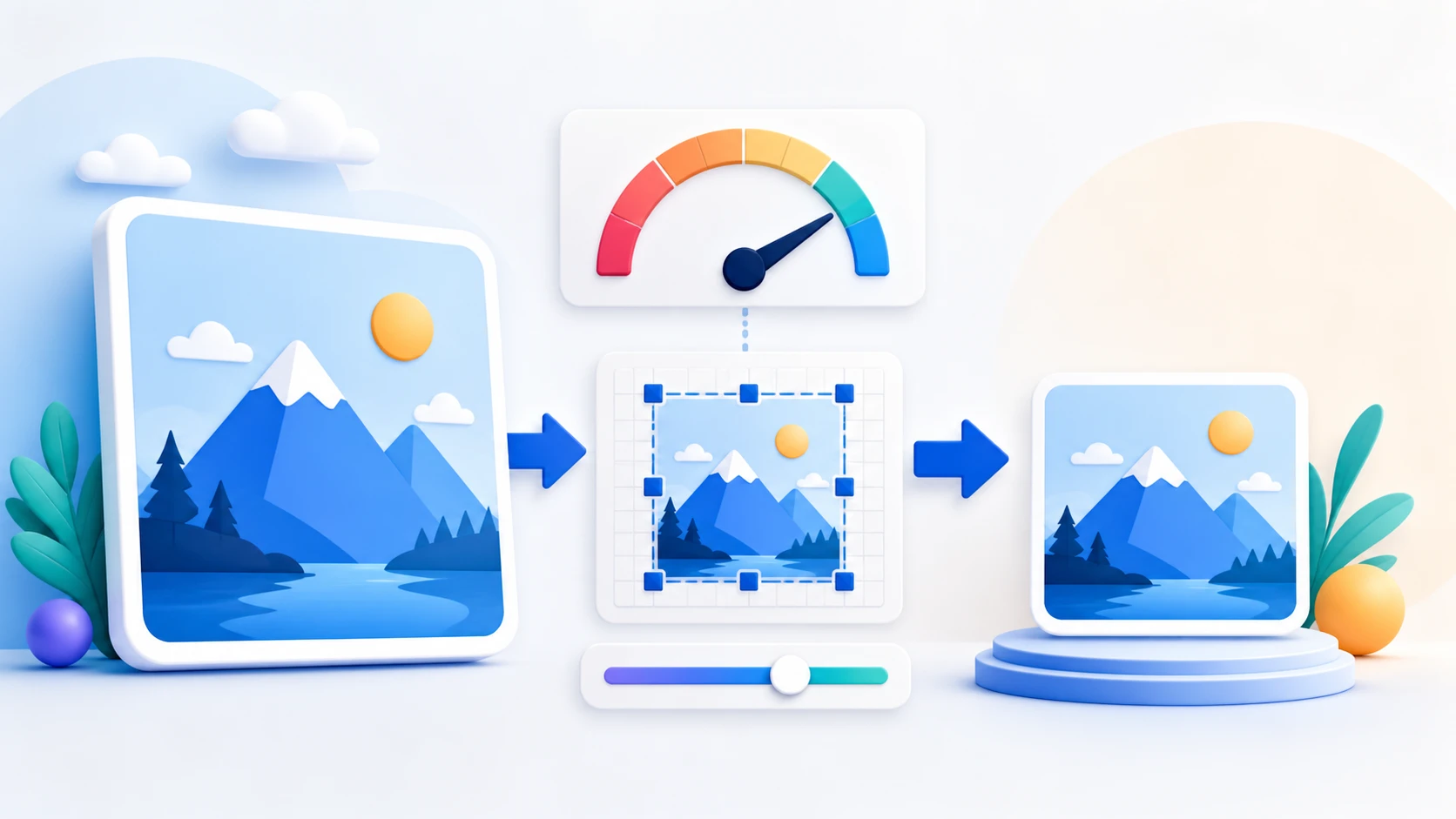
Image cropping questions

Can I crop an image to exact pixel dimensions?

Yes. Enter exact integer X, Y, width, and height values for the crop rectangle.

Can I crop to a square or aspect ratio?

Yes. Available ratios are Free, Original, 1:1, 4:3, 3:2, 16:9, 9:16, and Custom.

Does cropping resize the image?

Cropping removes pixels outside the selected region. The retained region is not scaled; its pixel width and height become the output dimensions.

Does PNG transparency remain transparent?

Yes in PNG output. JPG output cannot store transparency and uses a white background.

Can I crop an image into a circle?

No. The current tool creates rectangular crops only.

Are my images uploaded?

No. Selected image contents are processed locally in this browser.

Perlu tugasan dokumen lain? Ubah saiz imej.

Tentang alat ini

Keep only the exact part of the image you need

Crop Image changes the visible boundaries of the source by removing pixels outside the selected rectangle. It does not create missing detail or restore pixels that were already cropped away.

Berguna untuk

  • Remove empty borders, screenshots edges, or unwanted background.
  • Prepare square, portrait, or landscape images for a required placement.
  • Crop to exact pixel dimensions when that control is supported.

Baik untuk diketahui

  • The tool accepts JPG/JPEG and PNG and can create JPG, PNG, or same-as-input output.
  • Cropping is not the same as resizing; the retained pixels keep their original content unless the tool also re-encodes the output.
  • PNG output preserves transparent pixels. JPG cannot store transparency and uses a white background.
Practical guidance

Crop JPG and PNG images to a precise rectangle

Use Crop Image when you need to remove unwanted edges, make a square picture, match a required aspect ratio, or keep an exact number of pixels. The visual selection and numeric fields stay synchronized, and processing happens locally in the browser.

Choose an exact crop area in pixels

Enter X and Y coordinates with width and height, or drag and resize the crop box. The downloaded image uses the crop width and height as its output dimensions.

Lock the crop to a useful aspect ratio

Choose Original, 1:1, 4:3, 3:2, 16:9, 9:16, or a custom ratio. The selection remains inside the source image while you move or resize it.

Download JPG or PNG with clear format behavior

Keep the source format or choose JPG or PNG. PNG preserves transparent pixels; JPG offers a quality setting and places transparent areas on white.

Questions people ask about this task

Can I crop an image to an exact size?

Yes. Set the crop width and height in whole pixels. The tool crops that area without enlarging it, so the result has those exact pixel dimensions.

Can I crop an image into a circle?

No. This tool creates rectangular crops, including square crops. It does not claim to create circular masks.

Is my photo uploaded?

No. Image decoding, crop preview, encoding, validation, and download stay in this browser.