Sign PDF
How to add the same visual signature to multiple PDF pages
Place signature artwork on each required page and review every instance instead of assuming one mark applies to the whole document.
Voir un exemple visuel
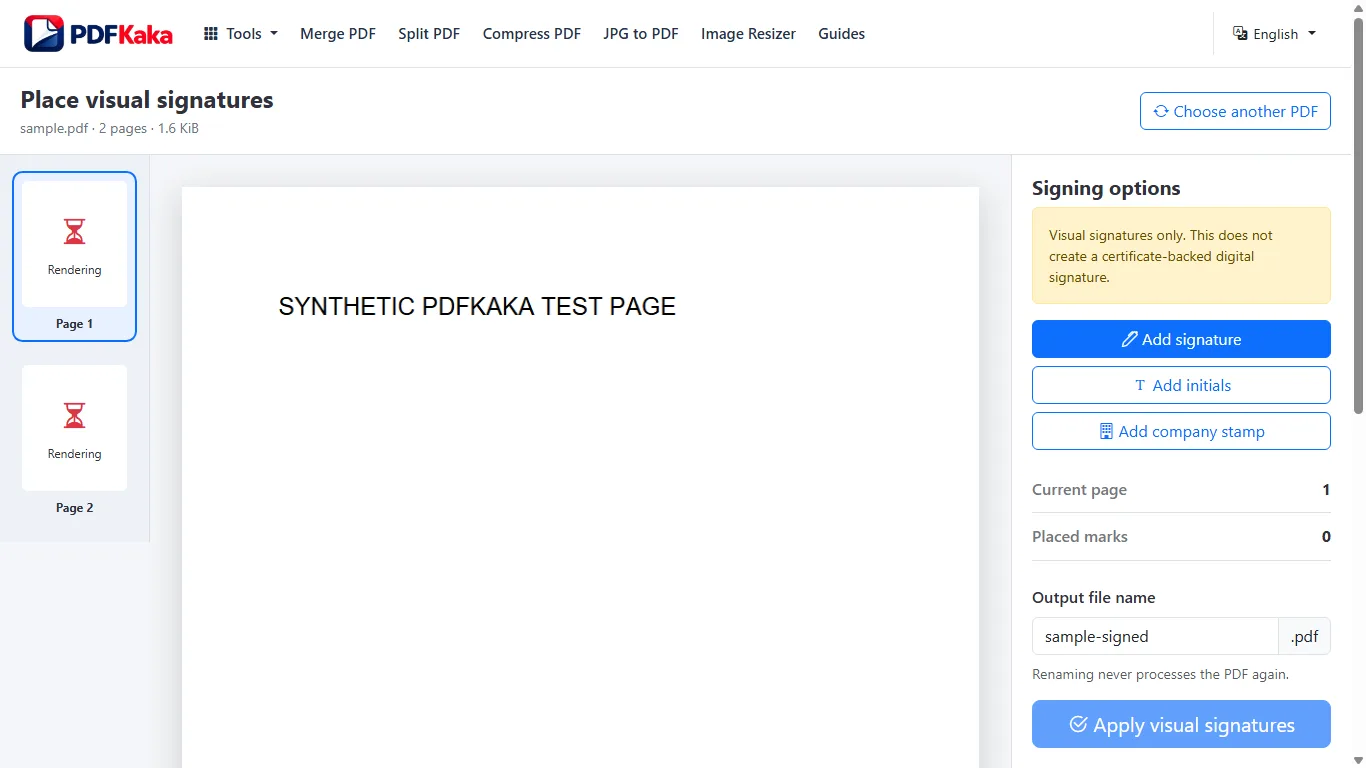
Follow the supported controls
- Choose the PDF and create or upload suitable signature artwork.
- Open the first required page, add a mark and set its size and position.
- Navigate to every other required page and add the appropriate separate mark; the job supports up to 200 placements.
- Download and inspect every marked page, including pages with different rotation, CropBox or dimensions.
Review each placement independently
A location suitable for a portrait page can overlap a table on a landscape page. Use the actual page preview rather than assuming identical coordinates fit every layout. The signature mapping accounts for displayed page rotation and crop boundaries, but the final downloaded copy remains the check that each intended line received the correct mark.
FAQ
Does one placement sign every page?
No. Add and review separate visible placements on the required pages.
Can different pages use different positions and sizes?
Yes. Place each mark to suit that page and inspect the exported result.
Is this a certificate-backed multi-page signature?
No. It adds visible artwork; cryptographic signing is a separate workflow.