Crop Image
How to crop an image to an exact size
Enter the crop width and height in pixels, then position that exact rectangle over the part of the JPG or PNG you want to keep.
See a visual example
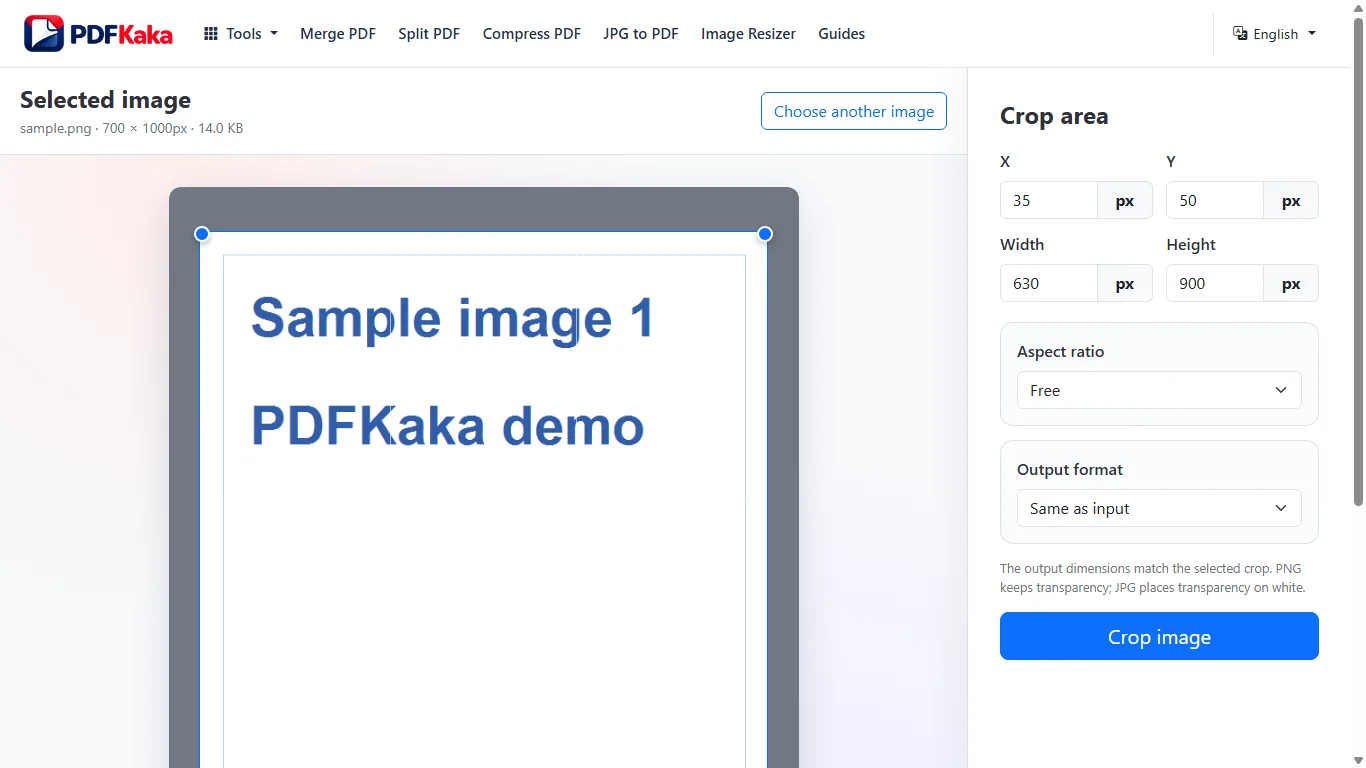
Set the rectangle the destination requires
- Choose a JPG or PNG and note its source width and height.
- Enter the required crop width and height in pixels.
- Adjust X and Y or move the frame so the important subject remains inside.
- Check that the entire rectangle fits within the source.
- Choose the output format, crop and verify the saved pixel dimensions.
Do not stretch a crop to solve a different problem
A crop removes the area outside its rectangle. It does not create missing pixels when the requested size exceeds the original. If the source is large enough but has the wrong proportions, crop first, then resize if a separate output size is required. Keep the original before either operation.
Inspect the saved edges
Check the first and last rows and columns around text, signatures, faces and logos. A numerically correct crop can still omit required content. Choose PNG when transparency is needed; JPG uses lossy encoding.
FAQ
What do X and Y control?
They position the crop’s top-left corner within the source image. Width and height describe the rectangle to keep.
Can I crop a small photo to a larger exact size?
The crop itself must fit within the source. Enlargement is a separate resize operation and cannot restore missing detail.