Crop PDF
How to Remove White Margins from a PDF Without Cutting Off Content
A scan can contain broad white margins or dark scanner edges that make the useful page look small. Crop PDF changes the visible page boundary so that extra outer area is hidden, while keeping an untouched original for comparison.
On this page
Voir un exemple visuel
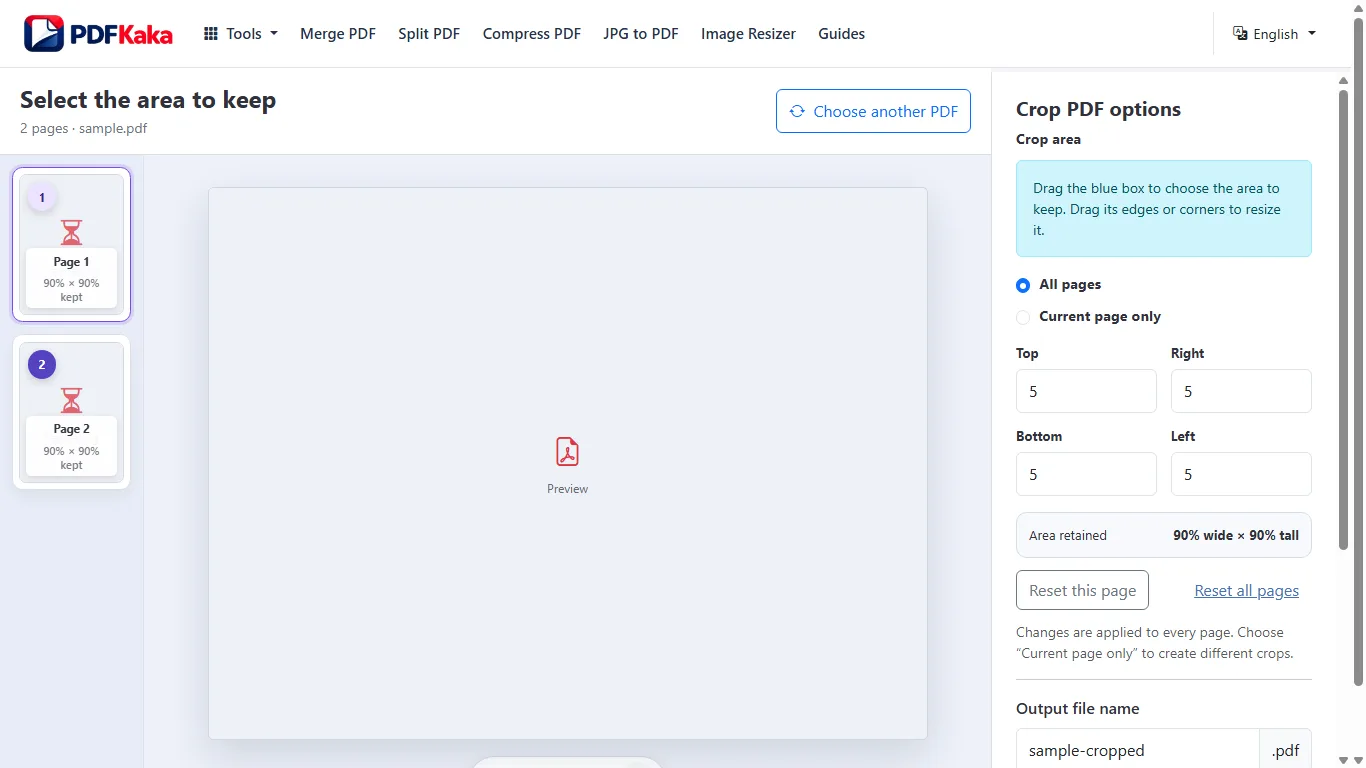
Crop the unwanted outer area
- Choose the PDF in Crop PDF and wait for the page preview.
- Choose Current page only for an outlier or All pages for a consistent layout.
- Adjust top, right, bottom and left percentages gradually while watching the preview.
- Leave room around page numbers, stamps, annotations, signatures and any writing near the edge.
- Download the cropped copy and reopen it. Check early, middle and final pages and every unusual layout.
Use small changes on mixed documents
A margin that is blank on page 1 may contain a footnote on page 6. Prefer individual page settings when the document is inconsistent. If a result hides required content, return to the original and use a less aggressive crop; repeated cropping is harder to audit.
Cropping does not securely remove information
The operation changes the PDF CropBox, which controls what is visible. Content beyond that boundary can remain in the file and may be recoverable. Do not use a crop to hide confidential information. A secure redaction workflow requires separately verified removal, not merely an edge that looks blank.
FAQ
Does cropping make scanned text sharper?
No new detail is created. The useful area may appear larger in a fit-to-page view, but its original image resolution is unchanged.
Can I crop just one page?
Yes. Select Current page only and inspect the other pages in the output to confirm they remain as intended.
Is hidden cropped content deleted?
No. Cropping is a visibility change, not secure redaction.