PDF to JPG
How to convert PDF to JPG on iPhone or Android
Choose the PDF from phone storage, select pages and image settings, and save the JPG or ZIP download.
Voir un exemple visuel
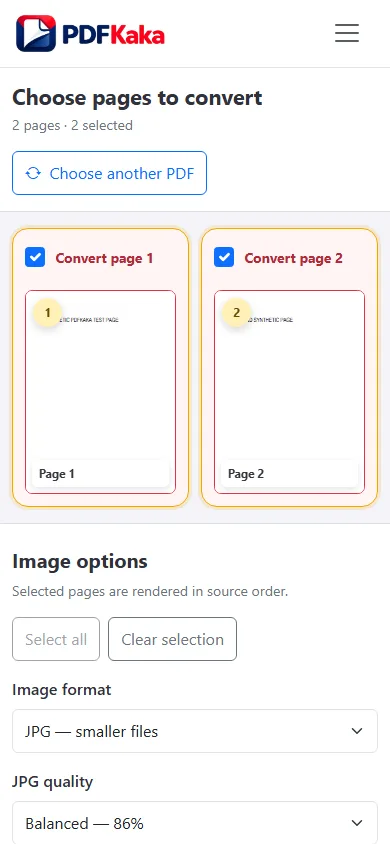
Choose and render the required pages
- Choose the PDF through Files, Downloads or the available provider and return to the browser.
- Select only the page or pages required.
- Choose JPG scale and quality that leave text readable.
- Keep the tab active while the images are rendered.
- Save the image or ZIP and reopen it from device storage.
Handle the download the phone actually gives you
Multiple page images are packaged in a ZIP, which may need extraction in Files or another supported app before an individual JPG can be uploaded. Confirm the page count, source order and smallest writing after extraction. The output is a set of images, not an editable PDF.
Reduce a heavy mobile job
High rendering scales and many pages use browser memory. Use smaller supported batches if the tab reloads, and do not exceed 100 output images or the per-page rendering cap. Return to the original PDF when changing settings rather than repeatedly recompressing an exported JPG.
FAQ
Why can I not choose the ZIP as a photo upload?
The destination usually wants an individual image. Extract the ZIP and choose the required JPG.
Will higher scale make the JPG file smaller?
It usually creates more pixels and can increase size. Choose scale for readability, then use Image Resizer if a separate byte limit is required.