PDF to PowerPoint
How to convert PDF pages into PowerPoint slides
Choose between a slide that preserves each page as an image and supported editable native text boxes over a graphics background. Use the mode that matches the presentation change you actually need.
On this page
- Choose the slide mode
- Check an existing text box in the downloaded deck
- Create the PowerPoint slides
- Choose appearance or editable native text
- A report used as a slide appendix
- Check this result before reusing it
- convert PDF to PowerPoint on a phone
- Create the PowerPoint slides
- A short handout shown on a phone
- Check this result before reusing it
- Preserve Readability When Converting PDF to PowerPoint
- What PDF to PowerPoint puts on each slide
- Small labels in a chart-heavy report
- Check this result before reusing it
Voir un exemple visuel
Choose the slide mode
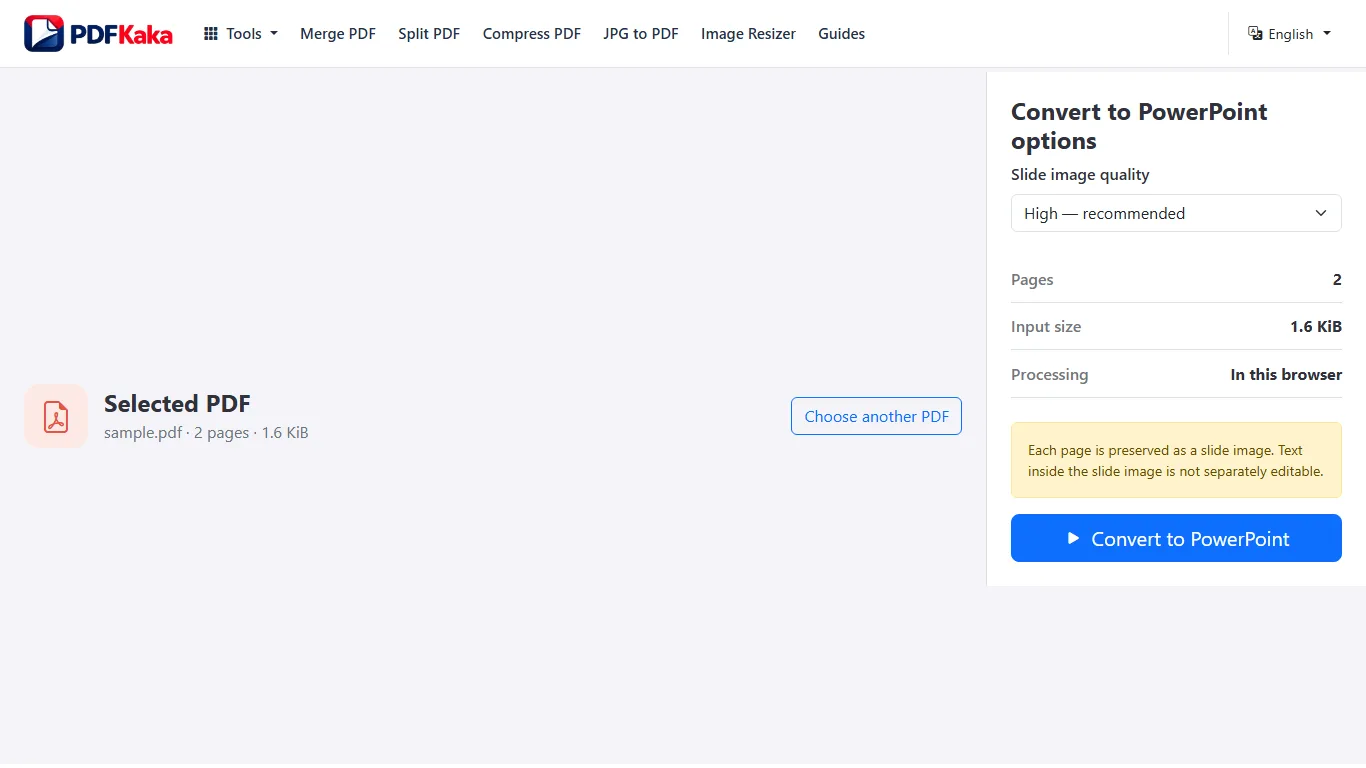
Appearance mode creates one page image per slide. Native-text mode places eligible horizontal source text in real editable text boxes while unsupported text, scans, form widgets and graphics remain in the background. It does not turn every chart or illustration into independent PowerPoint objects.
Check an existing text box in the downloaded deck
Select a word already converted from the PDF, change it, save the PPTX and reopen it. Being able to add a new PowerPoint box does not prove the original PDF text was editable. Check font substitution, line wrapping and alignment against the source.
Create the PowerPoint slides
- Open PDF to PowerPoint and select the PDF.
- Keep Preserve appearance for image slides, or explicitly choose Editable native text for supported source text boxes.
- Choose slide image quality and start conversion.
- Read the result summary, including editable-text coverage when native mode is used, then download the PPTX.
- Open the saved presentation and inspect first, middle and last slides at the intended display size.
Choose appearance or editable native text
Preserve appearance is the default and creates one page image per slide. Editable native text separates supported horizontal source text into real text boxes over a graphics background. Unsupported, rotated or nested text, scans and form widgets stay in the background; review fonts and placement.
A report used as a slide appendix
For a report appendix that should look like the original, keep appearance mode and review page order and aspect fit. If a digital heading must be changed in PowerPoint, try native-text mode and edit that existing text box; graphics and unsupported content still form the slide background.
Check this result before reusing it
- Count the slides and compare first and last pages with the PDF.
- In native mode, confirm a source sentence can be edited and is not duplicated underneath.
- Inspect cropped or rotated pages and form values, which can remain part of the background.
convert PDF to PowerPoint on a phone
Select the PDF from phone storage, choose an appearance or native-text workflow and download the PPTX. Open it in a presentation app to check page fit, readability and any text you intend to edit.
Create the PowerPoint slides
- Open PDF to PowerPoint in the phone browser and choose the PDF.
- Keep Preserve appearance for page images, or choose Editable native text for supported horizontal digital text.
- Choose a practical slide image quality and convert while the tab remains active.
- Download the PPTX and locate it in the phone’s download list or Files app.
- Open it in a compatible presentation app, check the first and last slides and test an existing text box if native mode was used.
A short handout shown on a phone
Test a three-page handout before converting a large report. Small portrait text can be difficult to read on a landscape screen even when it is correctly preserved. Review the actual slide at the intended display size, and use fewer source pages when the device cannot complete conversion.
Check this result before reusing it
- Check that the saved file opens as a presentation, not just a preview image.
- Inspect small labels after zooming and when the whole slide is fitted to the screen.
- Read the native-text coverage summary before expecting every word to be editable.
Preserve Readability When Converting PDF to PowerPoint
Use appearance mode when page appearance matters most, choose an appropriate rendering quality and compare the saved slides with the PDF. Native mode makes supported wording editable but can require font and placement corrections.
What PDF to PowerPoint puts on each slide
- Choose an appropriate rendering scale that keeps small page text readable without making the presentation unnecessarily large.
- Present or zoom several slides and compare fine detail with the source PDF.
Small labels in a chart-heavy report
Inspect a slide containing the smallest chart labels and a page with thin lines. Increasing slide image quality may improve the raster background, but it cannot invent detail missing from the source scan. In native mode, review both the background and the added text boxes at presentation size.
Check this result before reusing it
- Compare thin rules, diagram labels and white text on coloured backgrounds.
- Check aspect fit instead of stretching a portrait page to fill a landscape slide.
- Use the smallest output quality that remains readable in the real presentation environment.
FAQ
Are the original PDF words and shapes separately editable in PowerPoint?
Preserve appearance keeps the page flat. Editable native text creates real text boxes for supported source text while unsupported content remains in the graphics background; read the result coverage and test the existing words you need to edit.
What is the current input limit for PDF to PowerPoint?
One PDF up to 50 MiB and 100 pages, with a 150 MiB output limit. Browser memory and source complexity can make a smaller document more practical, especially on a phone.
What does PDF to PowerPoint create?
Preserve appearance is the default and creates one page image per slide. Editable native text separates supported horizontal source text into real text boxes over a graphics background. Unsupported, rotated or nested text, scans and form widgets stay in the background; review fonts and placement.
Does native-text mode reconstruct charts and shapes too?
No. It creates supported source text boxes over a rendered graphics background. Charts, vectors, images and unsupported text are not all converted into independent PowerPoint objects.
Does native mode recognize text in a phone photograph?
No. An image-only page remains a background image; native mode separates supported text already stored as PDF text objects.
Is any mode a guarantee of zero visual loss?
No. Appearance mode rasterizes pages and native mode also involves font/layout reconstruction. Review the saved presentation, especially small text, transparency and complex graphics.