Sign PDF
How to draw, type, or upload a signature for PDF
Choose a signature-creation method based on appearance, available device input, and whether a transparent image is already available.
On this page
See a visual example
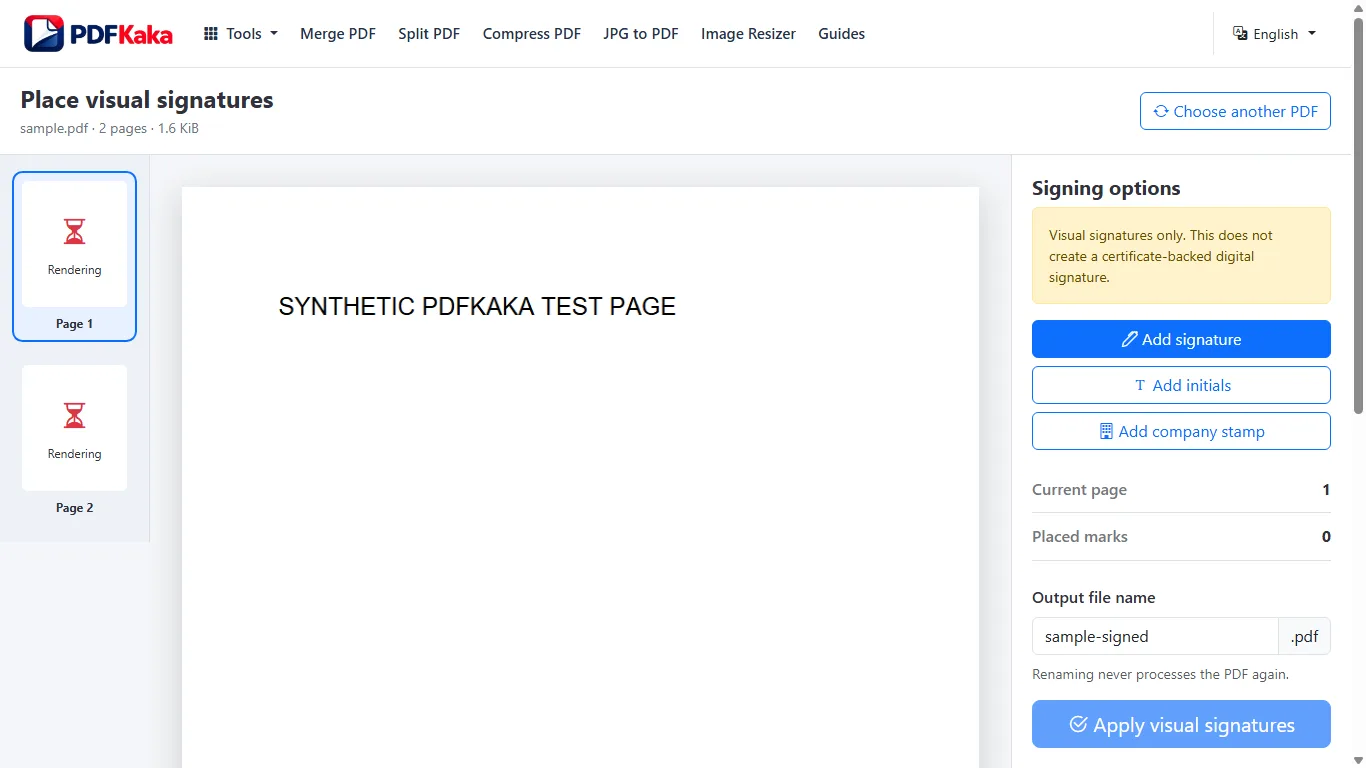
Follow the supported controls
- Choose the PDF and select a signature-creation method.
- Create the artwork and inspect its edges and background; use a transparent PNG when suitable.
- Choose the target page, position and resize the mark without covering printed names or instructions.
- Download and reopen the copy to check placement, including any rotated or cropped page.
Choose artwork that remains readable
Typing produces a clean text-based mark, drawing reflects the input surface and an uploaded image can reuse an existing signature image. A JPG may include a white rectangular background, while a transparent PNG can fit a coloured form more naturally. None of these methods verifies identity or creates cryptographic document integrity.
sign a PDF on iPhone or Android
Open the PDF on a phone, draw, type, upload, or pair a signature, place it precisely, and save a signed copy.
Choose the PDF on your phone, create signature artwork, place it on the required pages and save the visibly signed copy. Reopen the file from device storage before sharing.
Follow the supported controls
- Open Sign PDF and choose the document from Files, Downloads or the available device picker.
- Type, draw or upload the signature artwork; inspect its background and legibility.
- Choose the page, position and resize the mark, then review all required placements.
- Create the copy, save through the browser and reopen it from device storage to verify placement.
Distinguish signing on a phone from phone handoff
You can use the tool directly on the phone. The optional handoff instead lets a desktop session receive temporary signature PNG artwork from a paired phone; the PDF stays in the originating browser. Keep the relevant tabs active until the artwork arrives, and inspect the returned mark before placing it. The tool does not verify identity or create certificate-backed signing.
FAQ
Does uploading a signature image verify its owner?
No. The tool places artwork and does not establish identity.
Why does my signature have a white box?
JPG cannot store transparency and an uploaded image can include its own background. Inspect or prepare a suitable PNG before placement.
Can I type, draw or upload for the same document?
Choose the supported artwork methods and place separate marks as needed, reviewing each in the saved file.
Does optional pairing send my PDF to the phone?
No. The pairing flow transfers temporary signature PNG artwork, not the PDF.
Where is the completed copy saved?
Use the mobile browser download flow and confirm the saved file in Files or Downloads.
Does drawing with my finger create a digital certificate?
No. It creates visible artwork; certificate-backed signing is not provided.