Edit PDF
How to add a name, date, or correction note to PDF
Use a new text box to fill an empty area with a name, date, reference or explanation. If a printed value is already present, eligible existing text can instead be selected for a bounded source-text replacement.
On this page
See a visual example
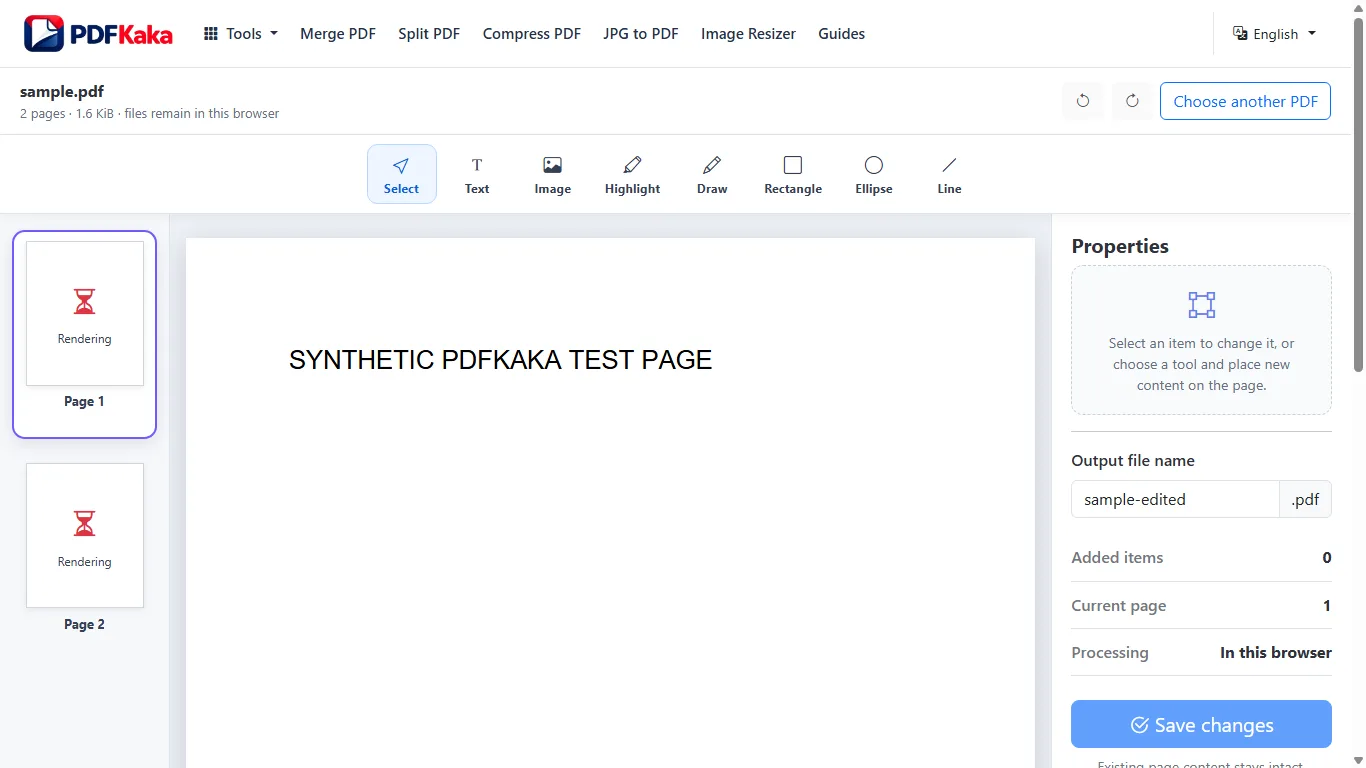
Add visible text in an empty area
- Choose the PDF and open the correct page.
- Add a text box and enter the name, date or short note.
- Position and size the addition without covering existing content.
- Save changes and reopen the output to inspect the wording and placement.
Correct an existing printed value
For an eligible source line, choose Edit existing text and click or tap a detected run, or choose a run through Find text on this page. Enter Replacement text, choose Apply replacement and inspect the rebuilt preview. Double-clicking a run focuses its replacement field. Scans, nested artwork and unsupported font glyphs are outside source editing. For a supported horizontal Latin paragraph, use Edit paragraph and wrap with an explicitly reviewed area; it cannot flow into a neighboring block or onto another page.
Check fonts and meaning before saving
New text boxes use the editor’s built-in fonts; unsupported characters produce an error before download. Existing-text replacement uses the original font and can have a different character boundary. Keep the original, confirm names and dates, and remember that saving changes invalidates an existing cryptographic signature.
add text to a PDF on iPhone or Android
Choose a PDF from phone storage and add a short visible text box where a name, date or note is needed. Keep the tab open while the page and the new copy are prepared.
Open the file, add the text box, enter the wording and position it without covering important content. Save the new copy and reopen it from Files or Downloads. Supported existing-line replacement is a separate operation; adding an overlay does not delete original words.
Add the note from a phone
- Choose one PDF through the phone’s file picker and return to the browser.
- Open the intended page, choose Add text and place a new text box.
- Enter supported text and use the available placement and size controls.
- Save changes, then reopen the downloaded PDF from Files or Downloads.
- Zoom into the added text and check that it is complete and does not overlap existing content.
Use the operation that matches the task
For a supported existing line, choose Edit existing text and tap a detected run. Find text on this page also offers an accessible list of eligible runs and a Replacement text control. Inline replacement uses eligible single-line top-level text objects and supported original-font characters. Edit paragraph and wrap can rebuild an eligible horizontal Latin paragraph inside an explicitly reviewed area, with collision and overflow checks. A scanned word is not source-editable text.
Check a small-screen result outside the editor
Phone file pickers and download locations vary. A completed progress message does not prove that the right page or font was used. Unsupported characters are blocked rather than silently exported. Keep the original and inspect the saved document before sending it.
FAQ
Should I add a text box or replace an existing line?
Add a text box in empty space for a new note. Use the source-text controls when correcting an eligible existing line; a new overlay does not remove old wording.
Can I fill a scanned blank form?
You can add visible overlays where the recipient accepts them. The scan does not become an interactive AcroForm or editable source text.
Will every name or script export?
No universal font claim is made. The editor checks supported characters and blocks an unsupported value; review the preview and downloaded result.
Does a new text box remove old text?
No. It adds visible content above the page. Use a supported source-text replacement for an eligible printed line, and a separately verified redaction workflow for sensitive removal.
Where is the edited PDF saved?
The browser controls Downloads, Files or the chosen storage provider. Reopen that actual saved copy for the final check.
Will editing preserve a digital signature?
Saving changes invalidates an existing cryptographic signature. Keep the signed original separately.