PDF to text
How to extract selectable text from a PDF
Create a UTF-8 text file from characters already stored in a digital PDF and optionally keep page headings for review.
On this page
- Extract the PDF text
- Text extraction does not replace OCR
- A digital report with a table
- Check this result before reusing it
- convert a scanned PDF to text with OCR
- Stage 1: recognize the scanned pages
- Stage 2: extract the recognized text
- Clean the TXT without losing meaning
- A scanned receipt archive
- Check this result before reusing it
- copy PDF text on a phone without login
- Extract the PDF text
- Copying a reference number from a PDF letter
- Check this result before reusing it
See a visual example
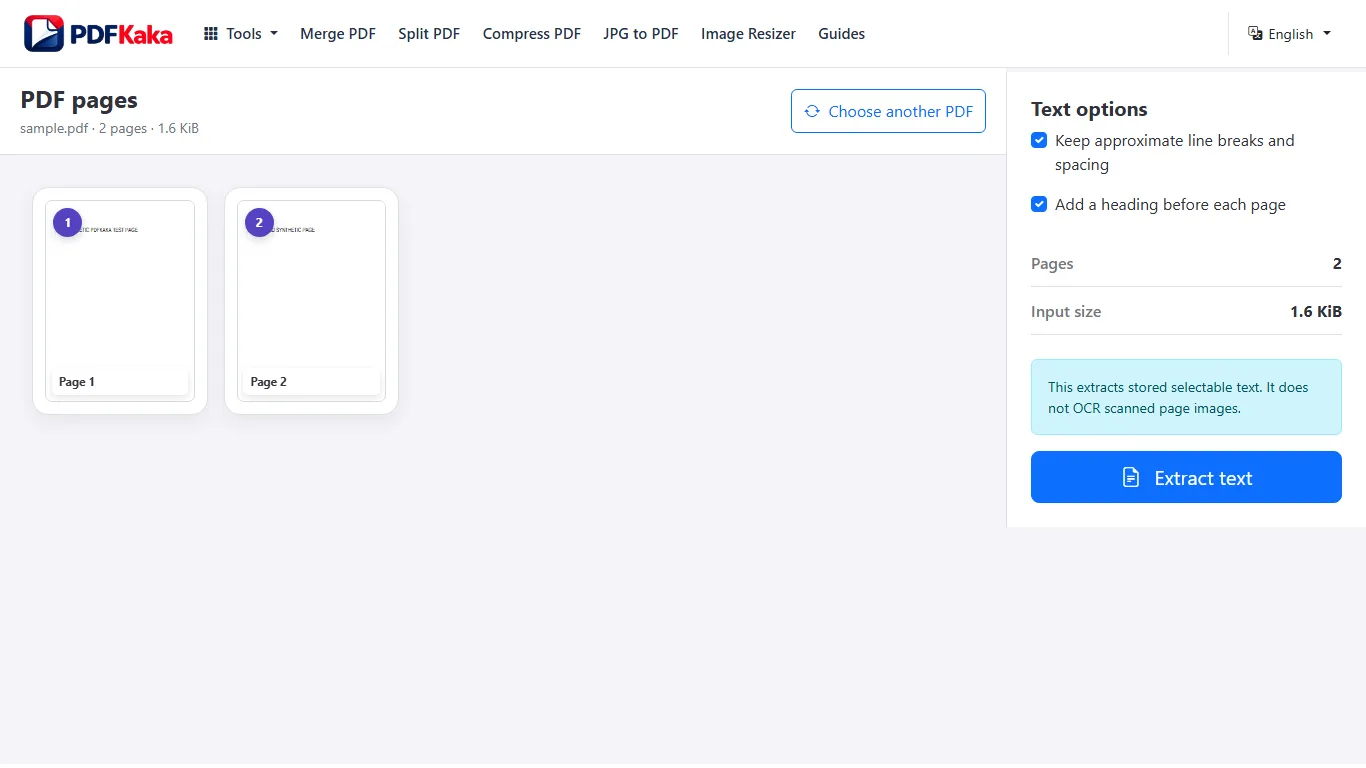
Extract the PDF text
- Open PDF to Text and select a PDF containing usable selectable text.
- Choose whether to keep approximate line breaks and spacing and whether to add page headings.
- Extract the text and review the preview, including pages with columns or tables.
- Name and download the UTF-8 TXT file.
- Compare the saved text with the first, middle and final source pages; run OCR first if required words exist only in images.
Text extraction does not replace OCR
Extracts stored selectable text only; no OCR and no page images.
A digital report with a table
Search the source for a known sentence and extract the file. In the TXT, check a normal paragraph and one table row separately: all numbers may be present while their column relationships still need repair. Use the PDF as the reference for headings, units and context.
Check this result before reusing it
- Verify a passage from the first, middle and final pages.
- Review mixed native-text and scanned pages for omissions.
- Confirm the downloaded text’s reading order before pasting it elsewhere.
convert a scanned PDF to text with OCR
A scanned PDF contains page images, while PDF to Text reads text objects already stored in the file. Converting a scan therefore requires a recognition step first.
Create and review a searchable PDF with OCR PDF, then select that output in PDF to Text and download TXT. PDF to Text reads stored text; it does not recognize image-only words by itself.
Stage 1: recognize the scanned pages
Open OCR PDF with the scanned document. The current recognizer is intended for printed English and accepts up to 25 scanned pages in one OCR job. Download the searchable result, then test several words and manually compare names, dates, and numbers with the original images.
If the source is blurred, skewed, dark, or too small, improve the page images before treating the recognized text as usable.
Stage 2: extract the recognized text
Open the reviewed OCR result in PDF to Text. Choose whether approximate spacing and page headings should be included, inspect the preview, and download the UTF-8 TXT file.
PDF to Text reads the recognized text layer created in the first stage. It does not return the page images or preserve the original visual layout.
Clean the TXT without losing meaning
Line wrapping, columns, tables, headers, and footers can create awkward reading order. Compare each corrected passage with the scan before removing line breaks or repeated text. Keep the searchable PDF beside the TXT so page context remains available.
A scanned receipt archive
After OCR, search for a receipt number and compare the amount with its page image. Extract the reviewed copy to TXT and confirm the number, amount and date still belong to the same receipt. Plain text does not preserve the original receipt layout.
Check this result before reusing it
- Verify the OCR copy contains searchable text before opening PDF to Text.
- Keep page headings during the first review when they help locate the source.
- Compare the final receipt as well as the first page.
copy PDF text on a phone without login
Extract selectable PDF text into a downloadable TXT file from a phone browser without registering.
Choose a searchable PDF from phone storage, set the spacing and page-heading options, extract and download TXT. Open the saved text in an editor to check order and characters; scans need OCR first.
Extract the PDF text
- Open PDF to Text in the phone browser and select the PDF.
- Review page previews and choose approximate spacing and page headings as needed.
- Extract text and inspect a passage from more than one source page.
- Name and download the TXT file, then find it in the browser downloads or Files app.
- Open it in a text editor and compare a name, number and final paragraph with the PDF.
Copying a reference number from a PDF letter
Use the TXT to avoid manually retyping a long reference, but compare every character with the original. If the saved file opens in an app that displays one long line, check the text editor’s wrapping setting before assuming newlines were lost.
Check this result before reusing it
- Confirm the chosen document is the searchable version rather than an image-only copy.
- Check special characters in the downloaded text editor.
- Keep the source PDF accessible while reviewing a table or two-column page.
FAQ
Does PDF to Text run OCR on scanned pages?
No. PDF to Text extracts text that already exists in the PDF. Use OCR PDF first for image-only scans.
What is the current input limit for PDF to Text?
One PDF up to 50 MiB and 500 pages, with up to 1,000,000 extracted characters. The text output must also fit the displayed output-byte limit.
What does PDF to Text create?
The converter extracts stored selectable text into UTF-8 TXT with optional approximate spacing and added page headings. It does not perform OCR or include page images, and it has no automatic repeated-header removal.
Does finding the right words mean the text order is correct?
No. A PDF can store words in an order that differs from the visual page. Check columns, captions and tables against the source.
Why does PDF to Text return little or nothing from a scan?
The pages may contain only images. Run OCR PDF first, review the recognized layer, and then extract the text.
Can I send a scanned PDF directly to PDF to Text?
You can open it, but PDF to Text does not recognize image-only words. The OCR stage is required when no selectable text exists.
Will the TXT preserve the scanned page layout?
No. TXT stores plain text, so columns, tables, spacing, and page design may need manual cleanup.
Why can a scan produce a non-empty but incomplete TXT?
Some pages may already contain text while others are image-only, or OCR may have recognized only part of a page. Compare every required page rather than assuming any non-empty output is complete.
Is a login needed to extract the text?
No account is required for the current browser workflow. The selected document is processed locally; download location and the app opening TXT depend on the phone.