PDF to Markdown
How to convert PDF to Markdown online
Extract PDF text into lightweight Markdown while understanding the limits of headings, tables, images, and reading order.
On this page
- Convert the PDF to Markdown
- Check whether the PDF contains selectable text
- Create the Markdown file
- Review structure before publishing or using AI
- A short technical report
- Check this result before reusing it
- convert and review multiple PDFs as Markdown
- Convert the PDF to Markdown
- Text extraction versus OCR for scanned pages
- Three monthly reports
- Check this result before reusing it
- convert PDF to Markdown for AI workflows
- A report with evidence tables
- Check this result before reusing it
- preserve and repair Markdown headings from PDF
- A report with chapter and subsection titles
- Check this result before reusing it
- convert a scanned PDF to Markdown using OCR
- Recognize the scan before Markdown conversion
- Convert the reviewed OCR result
- Repair structure in the Markdown
- Check the OCR text before judging the Markdown
- A scanned two-column newsletter
- Check this result before reusing it
See a visual example
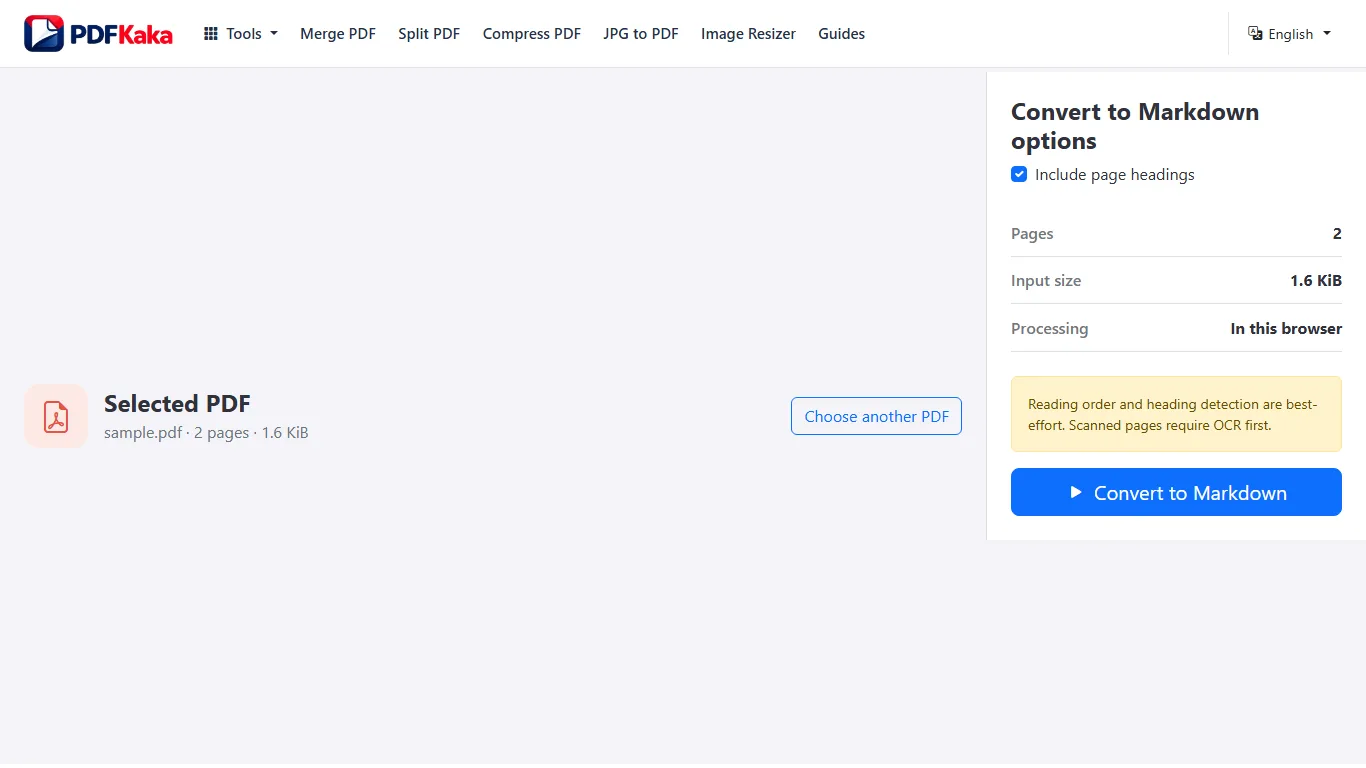
Convert the PDF to Markdown
- Test text selection on representative PDF pages; run OCR PDF first if the required pages are image-only.
- Open PDF to Markdown and select the searchable PDF.
- Choose whether added page headings should be included, then start conversion.
- Download the .md file and open it in a text editor or Markdown preview.
- Compare heading levels, reading order and structured data with the original PDF before reusing the text.
Check whether the PDF contains selectable text
Try selecting a sentence in a PDF reader. If the complete page behaves like one image, OCR is required before a useful Markdown conversion can occur.
- Open the PDF in a reader.
- Test text selection on several pages.
- Run OCR first when pages are image-only.
Create the Markdown file
Open PDF to Markdown and convert the document locally. The tool extracts text and applies conservative rules for paragraphs and likely headings rather than inventing a complex structure.
- Select the searchable PDF.
- Start the Markdown conversion.
- Download and open the MD file in a text editor.
Review structure before publishing or using AI
Correct heading levels, reading order, lists, code-like text, and missing table context. Do not assume an automated conversion preserved every relationship from the visual page.
- Compare the Markdown with the PDF.
- Repair headings and paragraphs.
- Remove private or irrelevant content before reuse.
A short technical report
Compare a section heading, a paragraph crossing a page boundary and a numbered list in both the PDF and Markdown. A line that looks like a heading because it is large is only a heuristic match; a table row extracted as prose does not become a verified Markdown table.
Check this result before reusing it
- Open the .md file in both a text editor and a Markdown preview.
- Compare a two-column passage in source reading order.
- Check that formulas, figures and captions have enough context for the next reader.
convert and review multiple PDFs as Markdown
Convert documents one at a time, preserve source boundaries and filenames, and review each Markdown result before combining a collection.
Convert one PDF at a time, give each Markdown result a traceable source filename and review it before combining files. The current Markdown tool does not provide batch multi-PDF input.
Convert the PDF to Markdown
- Create a source list with one unique filename for each PDF.
- Check each PDF for usable text or prepare its reviewed OCR copy first.
- Convert the first PDF to Markdown and download it with a matching source name.
- Review its structure before repeating the process for the next PDF.
- Combine the reviewed files only after confirming that every source is present once and in the intended order.
Text extraction versus OCR for scanned pages
No OCR. Uses selectable text and a heading heuristic; does not fully reconstruct lists, tables, images or links; simple aligned columns use geometric reading-order analysis.
Three monthly reports
Keep report-2026-01.md, report-2026-02.md and report-2026-03.md separate during review. Before concatenating them, add a source heading or file reference for each report so repeated section titles do not erase document boundaries.
Check this result before reusing it
- Match the source and output counts.
- Check for duplicated or omitted reports and accidental alphabetical reordering.
- Keep a review note for any tables or scans that required manual work.
convert PDF to Markdown for AI workflows
Extract selectable PDF text into lightweight Markdown, then remove private material and repair structure before using it with an AI system.
Convert the searchable PDF to Markdown, repair missing structure and check the text against the source before supplying it to an AI workflow. Text extraction does not verify facts or preserve every table/figure relationship.
A report with evidence tables
Keep the report title and page references alongside a passage that cites a table. Rebuild the relevant row labels and units rather than sending a stream of detached numbers. Review private or irrelevant material before moving the converted file into a separate service.
Check this result before reusing it
- Compare section boundaries, table relationships and footnotes with the PDF.
- Retain source references so generated summaries can be checked.
- Resolve OCR mistakes before using the content as reference material.
preserve and repair Markdown headings from PDF
Use best-effort heading detection as a starting point and manually restore a logical heading hierarchy after extraction.
Use detected headings as a draft, then assign a logical Markdown hierarchy in an editor. Added Page headings are navigation markers, while inferred source headings are based on text-size clues rather than full document semantics.
A report with chapter and subsection titles
A large chapter title and a smaller subsection may both be assigned a similar heading level by a simple heuristic. Review their roles and change the Markdown markers so subsections belong under the correct chapter; do not treat every large caption as a section heading.
Check this result before reusing it
- Decide whether added page headings are useful or should be removed.
- Check that each heading introduces the following passage.
- Preview the document outline and verify that headings do not jump levels accidentally.
convert a scanned PDF to Markdown using OCR
Markdown conversion needs readable text objects; a scanned PDF normally contains only page images.
Run OCR PDF first, review the searchable printed-English result and then select that PDF in PDF to Markdown. Correct recognition and reading order before relying on Markdown structure.
Recognize the scan before Markdown conversion
Open the image-only document in OCR PDF. Keep the job within the 25-page OCR limit, then search the result and compare important passages with the page images. Correct source quality problems before moving on.
Convert the reviewed OCR result
Open the searchable PDF in PDF to Markdown. The converter uses existing text and applies best-effort heading and paragraph rules. It does not reconstruct every table, image, or visual layout.
Repair structure in the Markdown
Check heading levels, paragraph order, lists, table content, and repeated headers. OCR errors can become Markdown structure errors, so correct recognition mistakes before relying on the file for documentation or an AI workflow.
Check the OCR text before judging the Markdown
Search the OCR result for a few phrases from different pages before conversion. Names, figures, punctuation, column order, and headings deserve separate checks because a plausible-looking Markdown file can still contain recognition or reading-order errors. Keep the searchable PDF beside the Markdown while correcting the structure.
A scanned two-column newsletter
Search the OCR copy for a phrase from the bottom of each column. Then compare the Markdown’s paragraph order with the image. Correctly recognized individual words can still arrive in the wrong column sequence, so matching one search result is not enough.
Check this result before reusing it
- Verify OCR content before treating a missing Markdown heading as a formatting issue.
- Compare numbers, names and column transitions with the scan.
- Retain page references while rebuilding tables or figure context.
FAQ
Does PDF to Markdown OCR scanned pages?
No. Use OCR PDF first when a scanned document does not already contain usable selectable text.
What is the current input limit for PDF to Markdown?
One PDF up to 50 MiB and 100 pages, with up to 1,000,000 extracted characters. There is no multi-file batch input in this tool.
What does PDF to Markdown create?
The converter uses stored selectable text and a heading-size heuristic. It has no OCR and uses geometry for simple aligned column order and infers headings; lists, tables, images and links are not fully reconstructed. Review complex or rotated layouts and correct the downloaded Markdown where needed.
Why do punctuation characters have backslashes in the MD file?
Markdown-sensitive punctuation can be escaped so source text is not accidentally interpreted as formatting. Inspect the rendered Markdown as well as the raw text.
Can I select all PDFs and get one Markdown ZIP?
No. Convert the documents individually in the current Markdown workflow. Image Converter has a separate image-batch feature, which does not imply batch support here.
Does Markdown conversion send the document to an AI model?
No. Conversion runs locally in the browser. Any later transfer to a separate AI service is a separate action under your control.
Does the tool recover the PDF’s complete tagged heading tree?
No. The current output uses a conservative text-size heuristic and optional page markers, not a guaranteed recovery of the original semantic structure.
Can PDF to Markdown run OCR on a scanned PDF?
No. Use OCR PDF first, review the searchable result, and then send that PDF to PDF to Markdown.
Why do OCR mistakes affect Markdown headings?
The Markdown converter interprets recognized text and layout clues. A misread heading can therefore become an ordinary paragraph or an incorrect heading level.
Will scanned tables become Markdown tables automatically?
Do not expect reliable table reconstruction. Review the extracted text and rebuild tables manually when structure matters.
Should I correct recognition errors before or after Markdown conversion?
Check the OCR result first so recognition problems are separated from Markdown formatting problems. Correct remaining text and structure in the downloaded MD while comparing it with the source.