PDF reader
How to Open a Local PDF in Your Browser
If the PDF is already in Downloads or Files, you can read that local copy in PDFKaka without uploading it or creating another PDF. The reader opens a file you choose; it does not fetch a document from a website address.
On this page
See a visual example
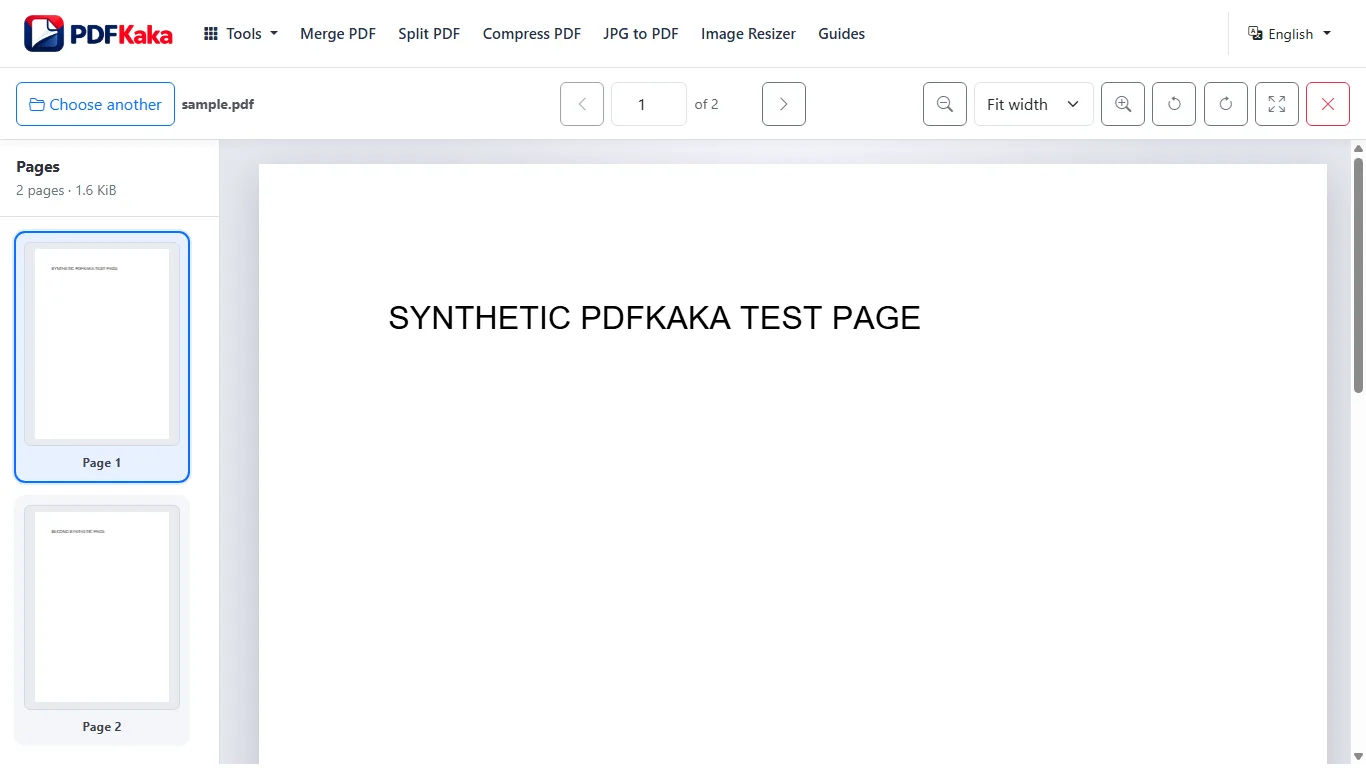
Open the copy that is already on your device
- Open PDF Reader and choose one PDF from Downloads, Files, or another location offered by your device.
- Wait for the first page and page count. Use the next/previous buttons, page field or thumbnails to reach the page you need.
- Choose a fit mode or zoom level that makes the smallest important text readable. Rotate the view if a scan is sideways.
- Use the reader’s restart control to open another document, or close the tab when you finish.
On a phone, return to the browser after choosing the file. Downloads stored in a cloud provider may first be fetched by that provider; the reader itself still works with the local file handed to it.
Reading does not save changes
Temporary rotation and zoom do not alter the PDF. To save rotated pages, use Rotate PDF; to add a note, use the appropriate editing tool. The reader does not print, annotate, sign, convert or download another copy.
When the document will not open
The reader accepts one PDF up to 50 MiB and 500 pages, with a rendering limit of 40 million pixels. A damaged file, password protection or an unusually demanding page can still fail. Keep the original, test it in another trusted reader, and use a smaller copy when device memory is the problem. Renaming a non-PDF file to .pdf does not convert it.
What stays on your device
During normal reader use, selected PDF contents are processed locally rather than uploaded to PDFKaka. The site still loads its own assets and may make analytics requests. Where your original file is stored and what you share afterward remain controlled by your device and other services.
FAQ
Does “without downloading” open a PDF from a URL?
No. This workflow reads a PDF already available through your device’s file picker. If a website provides the PDF, save or otherwise obtain that file first.
Will rotating the view fix the saved PDF?
No. View rotation is temporary. Use Rotate PDF and check its downloaded result when the actual page orientation must change.
Can I open another PDF after an error?
Yes. Select a valid PDF again or restart the reader. Keep the source unchanged if it appears damaged.
Does zoom make the PDF file larger?
It changes only the current view. The reader creates no new output file.
Can I save temporary page rotation here?
No. Use Rotate PDF when the saved orientation must change.