Add page numbers
How to Add PDF Page Numbers Without Covering Existing Text
A clear bottom edge on the first page does not guarantee space on every page. Choose the numbering position after checking the document’s footers, tables, signatures and pages with a different orientation.
On this page
See a visual example
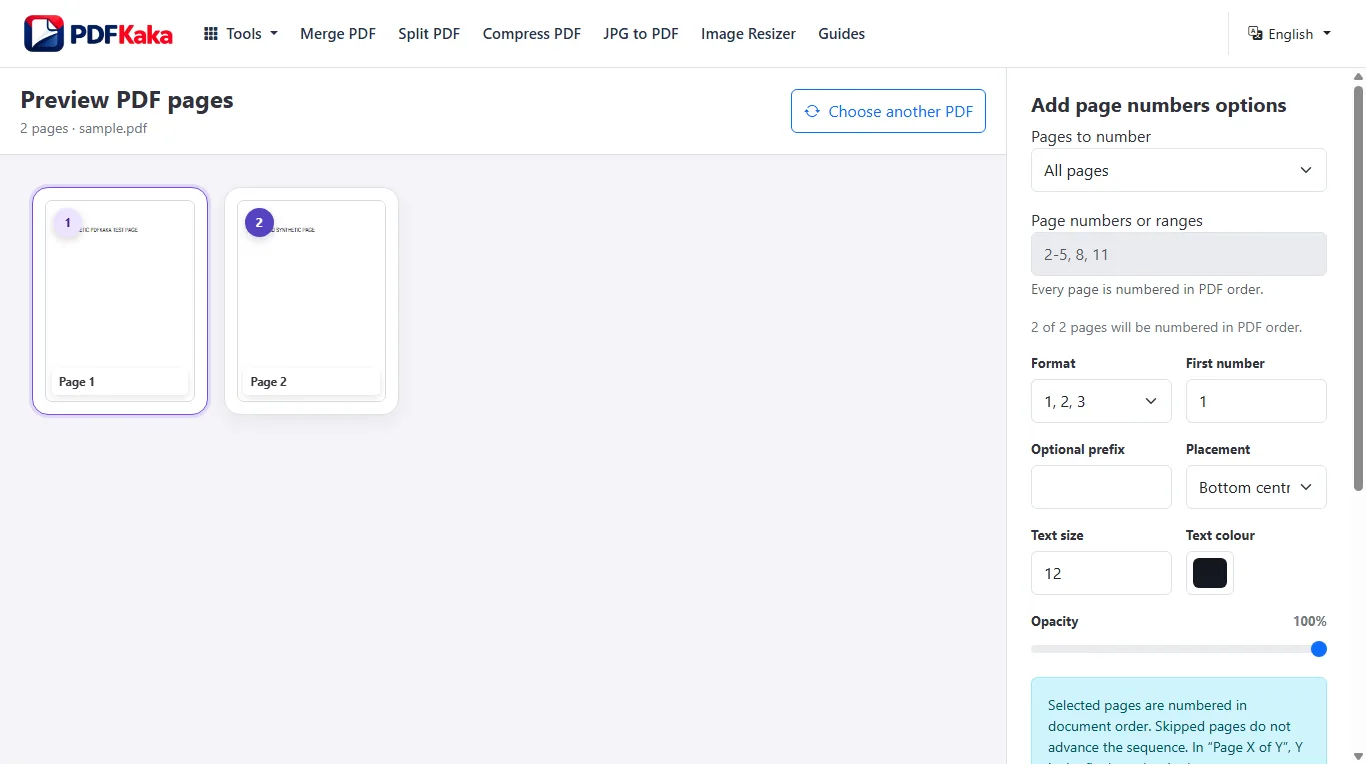
Find a consistently empty area
Review pages with the densest content before selecting a corner or edge. Avoid existing footer text, barcodes and signature boxes. A smaller font can help, but a number that is too faint or too small is not useful. Use a different placement or separate jobs when layouts are inconsistent.
Set the source pages and printed labels
- Choose the final PDF after reordering, rotating and removing pages.
- Enter the ascending source page range that should receive labels; exclude a cover if it should remain unnumbered.
- Set the first generated number, optional prefix, label format, position, font size, colour and opacity.
- Create and download the numbered PDF.
- Open the result and inspect the first, second and final numbered pages plus every page with a busy header or footer.
Page selection and number labels are different
For example, in an eight-page file, selecting source pages 2 and 5 with a starting value of 7 gives those two selected pages labels 7 and 8. A format that includes the total uses the final generated number, 8 in this example. That value follows the selected sequence, not the source document's page count. Confirm the result with the chosen format before sharing.
Check overlap in the downloaded PDF
The tool adds new text without moving the original page content out of the way. Inspect the saved result at normal reading size and zoom in on tables, footnotes and signatures. If there is overlap, return to the original and change position or size; adding another set of numbers over the first result can create duplicates.
Check the prefix as well as the number
A long prefix or Page X of Y label takes more space than a plain digit. The current prefix uses a built-in Latin font. If a label does not fit, shorten it or change position and recreate the result from the original rather than adding a second set over the first.
FAQ
Can I preview the final placement before creating the PDF?
The current tool does not render a final placement preview. Inspect the downloaded result and retry from the original if the label overlaps content.
Can I skip a cover and start at 1?
Yes. Select the source pages after the cover and set the first generated number to 1. Verify the first and last numbered pages.
Will the tool make room by moving my footer?
No. It adds page-number text and does not reflow existing text or move other page objects.