Organize PDF
How to Rearrange PDF Pages in the Correct Order
Choose the PDF from your device, move pages with dragging or Move earlier and Move later, and save a reorganized copy. The page-order operation runs in your browser.
On this page
- Write a simple target sequence
- Use page-level rather than file-level ordering
- combine and arrange pages from multiple PDFs
- Interleave pages instead of moving whole files
- Example: a report followed by its evidence
- Prepare non-PDF sources separately
- organize PDF pages on iPhone or Android
- Use precise controls on a narrow screen
- Keep the task within device resources
See a visual example
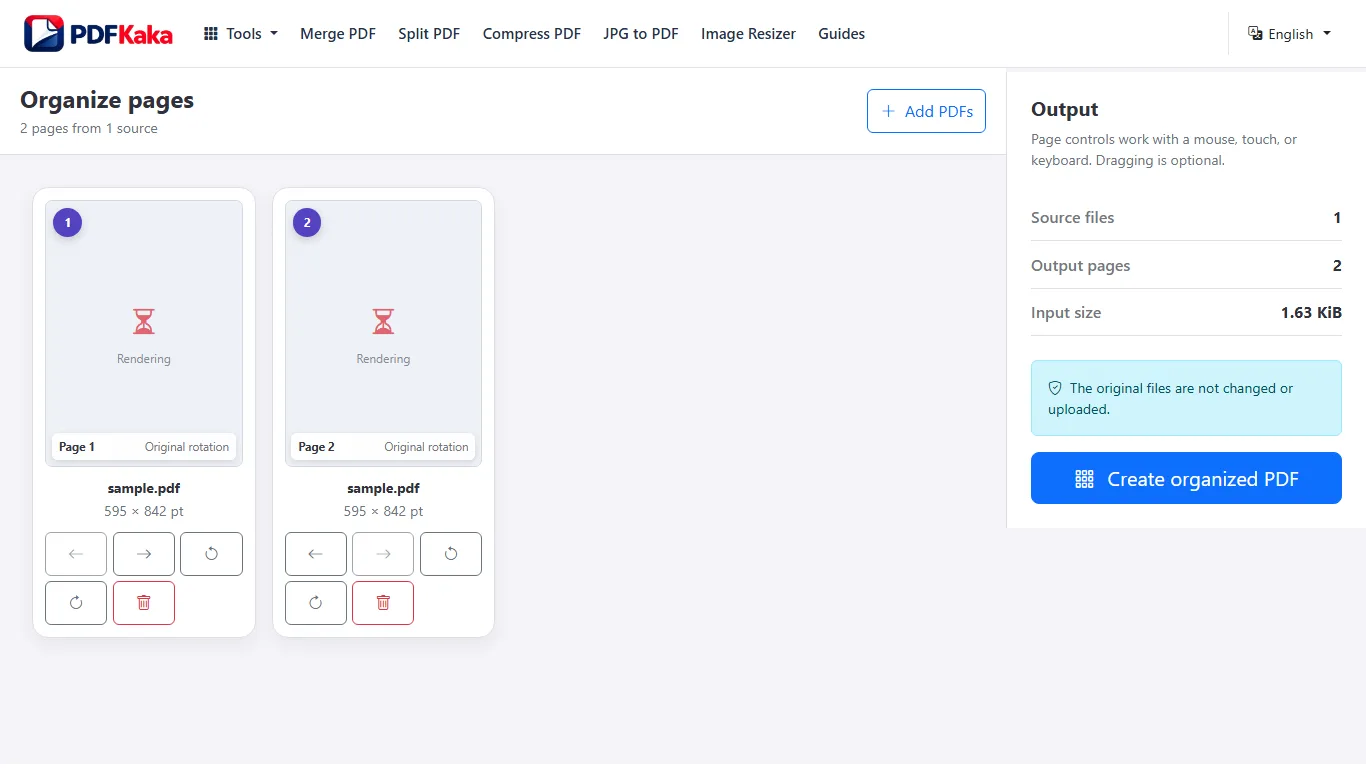
Write a simple target sequence
For a five-page document, a plan such as cover, introduction, section A, section B, appendix is easier to verify than a series of unrecorded moves. PDF positions change as pages move, while any printed page labels remain visible on their original pages.
- Choose the PDF in Organize PDF.
- Inspect the thumbnails and identify pages by content.
- Move each page into the target sequence.
- Check adjacent pages and correct any orientation issues.
- Save and reopen the organized PDF; compare its full sequence with the plan.
Use page-level rather than file-level ordering
Merge PDF is suitable when complete source files already have correct internal order. The organizer moves individual pages, including across several PDF inputs. Neither moving a page nor generating new visible numbering reflows its original text.
combine and arrange pages from multiple PDFs
Add multiple PDFs directly to one Organize workspace, then move individual pages across source boundaries into the required sequence. An initial merge is unnecessary.
Open Organize PDF and add the source PDFs directly. Move individual pages across source boundaries, rotate or remove as needed, then save one combined document.
Interleave pages instead of moving whole files
- Add the PDFs to Organize PDF, up to 20 sources within the displayed limits.
- Identify each required page by source and content.
- Move individual pages with dragging or Move earlier and Move later.
- Rotate or remove pages only where needed.
- Save and reopen the combined PDF to verify sequence, page count and critical features.
Example: a report followed by its evidence
Place report pages first and move each evidence page immediately after the section that cites it. Merge PDF would keep each source PDF together; the organizer supports these individual-page moves without an initial merge.
Prepare non-PDF sources separately
This workspace accepts PDFs. Convert a photograph with JPG to PDF before adding it. The job supports up to 25 MiB per PDF, 100 MiB total input and 500 pages; those limits do not guarantee sufficient memory on every phone.
organize PDF pages on iPhone or Android
Use mobile-friendly page controls to reorder and rotate a PDF from phone storage.
Choose the PDF sources, use Move earlier and Move later when touch dragging is difficult, correct rotation and save. Reopen the downloaded result from Files or Downloads.
Use precise controls on a narrow screen
- Choose the PDFs through the phone’s file picker and return to the browser.
- Inspect thumbnails and identify the intended first and last pages.
- Use Move earlier and Move later for precise page ordering.
- Rotate sideways pages or remove unwanted ones.
- Save the organized PDF and reopen the actual download.
- Check page transitions and zoom into any small text or form values.
Keep the task within device resources
Multiple PDFs can be added directly; loose images need conversion to PDF first. High page counts and complex sources use browser memory. Preserve originals and retry a smaller supported set if the phone reloads the tab. A completed download still needs page-count and content checks.
FAQ
Can I undo a mistaken plan by changing the original?
Keep the original intact and correct the workspace or start a new job from that source.
Do I need separate output files for a reordered PDF?
No. The organizer creates one PDF. Split PDF creates several parts.
Can pages from two PDFs be interleaved?
Yes. Individual pages can move across the source boundaries in the organizer.
Does it preserve my original files?
It creates a separate result. Retain the source documents, especially signed originals.
Do I have to drag pages with my finger?
No. Use Move earlier and Move later to change their order.
Will a moved page’s printed number update?
No. Printed numbers are existing page content. Add new visible numbers only after the final order is correct.