Hoppa till huvudinnehållet

Remove PDF Pages Online

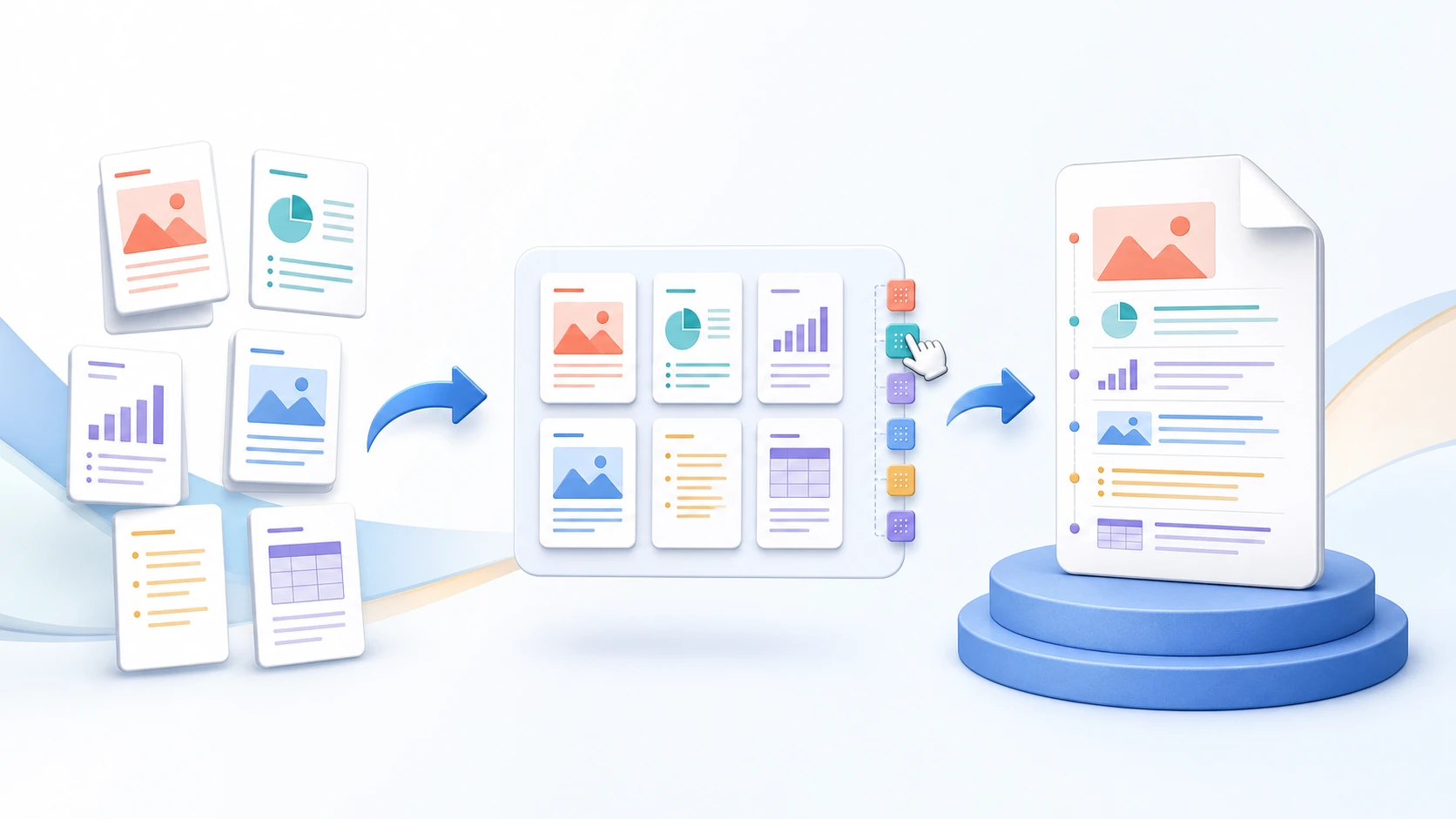
Select unwanted pages in the thumbnail preview and create a new PDF from the pages that remain. Review what will be kept before processing. Removing a whole page does not redact sensitive information that remains on other pages.

or drop one PDF here

Up to 50 MiB and 500 pages

Filerna stannar i din webbläsare Ingen filuppladdning Inget konto krävs

How to Remove PDF Pages

  1. Choose a PDF containing the pages you want to review.
  2. Mark the pages you want to remove in the thumbnail view.
  3. Review the remaining page sequence and confirm that all required pages are still present.
  4. Create the cleaned PDF.
  5. Download and reopen the result before sharing it.
Remove pages questions

Can I remove several PDF pages at once?

Yes. Select several page thumbnails before creating the cleaned PDF.

Can every page be removed?

No. At least one page must remain in the output.

Does Remove Pages change my original PDF?

No. Remove Pages creates a new PDF from the pages that remain; the original source file is not overwritten.

Is removing a page the same as redacting information?

No. Removing a page removes the complete page from the new document. It does not remove sensitive information from other pages you keep.

Will removing pages always make the PDF much smaller?

Not necessarily. File size depends on what remains in the PDF, including images, fonts, and other document content.

Will the remaining pages lose quality?

Retained PDF pages are copied into a new PDF and are not rendered as images.

Laddas mina filer upp till PDFKaka?

No. Selected file contents are processed locally in this browser during the normal workflow.

Behöver du en annan dokumentuppgift? Ordna PDF.

Om detta verktyg

Create a cleaned PDF from the pages that remain

Remove Pages rebuilds the output from the pages you keep. It is best when only a few unwanted pages need to be discarded and the rest of the document should remain together.

Användbart för

  • Delete blank, duplicate, outdated, or unnecessary pages.
  • Prepare a shorter copy of a report, form, or scanned document.
  • Review page thumbnails before creating the cleaned output.

Bra att veta

  • At least one page must remain in the output.
  • Removing a page is not the same as redacting content on a retained page.
  • Compatible AcroForm fields, bookmarks, named destinations and page labels are remapped to retained pages. XFA page selection or reordering and duplicate copies of interactive form pages are rejected when their structure cannot be preserved.
Practical guidance

Delete unwanted pages from a PDF copy

Remove Pages is designed for documents where most pages should remain. Mark blank scans, duplicate pages, expired attachments, or other unwanted pages in the visual workspace, then create a cleaned PDF from everything that is left.

Remove PDF pages with a visual check

Page thumbnails make it easier to identify what is being removed than typing page numbers from memory. Review neighbouring pages so similar-looking scans are not selected accidentally.

Delete pages without changing the original

The tool creates a separate cleaned PDF. The source document on your device is never overwritten, which gives you a safe copy to return to if the wrong page was selected.

Remove pages and reorganize the result

When the remaining pages also need a different order, create the cleaned copy first and open it in Organize PDF, or use Organize PDF to perform both tasks in one page-level workspace.

Questions people ask about this task

Can I remove pages from a PDF online for free?

Yes. Select the pages to delete and create a new PDF containing the remaining pages without an account.

Can every page be removed?

No. At least one page must remain because an output PDF cannot be created with no pages.

Does removing a page reduce the quality of the other pages?

No image recompression is applied to retained pages. They are copied into the cleaned document.

delete PDF pages on a phone or iPhone

Review page thumbnails on a phone, mark the pages to remove, and download a separate cleaned PDF.

Choose the PDF, inspect its thumbnails and mark only pages that should be deleted. Remove them, save and reopen the new PDF from Files or Downloads.

Delete deliberately on a small screen

  1. Select the PDF from phone storage.
  2. Identify unwanted pages by content, not only tiny thumbnails.
  3. Mark only those pages and review the selection.
  4. Remove the marked pages and download the new copy.
  5. Reopen it and confirm page count, first/last pages and all required attachments.

Keep pages that only look empty

A pale scan can contain a signature, stamp, reverse-side note or faint writing. Inspect uncertain pages at readable size before deletion. The tool does not automatically detect blank pages, and at least one page must remain.

Questions about delete PDF pages on a phone or iPhone

Will deletion change my original file?

It creates a separate result. Keep the original until the subset is accepted.

Can I remove all pages?

No. A valid result needs at least one remaining page.

remove blank pages from a scanned PDF

Identify truly blank scan pages in the thumbnail workspace while keeping faint notes, backs of forms, and intentional separators.

Inspect the source, manually mark only genuinely unnecessary blank pages in Remove Pages and create a new copy. The tool does not automatically detect blanks.

Confirm that a page is really unnecessary

A nearly blank scan may contain a faint signature or reverse-side note. A completely blank page may also be an intentional separator or preserve duplex printing. Check the document’s purpose before deciding to remove it.

  1. Open the PDF and inspect each suspected blank page at a readable zoom.
  2. Confirm it contains no required faint writing, stamp or continuation.
  3. Mark only pages that should be removed.
  4. Create and download the result.
  5. Reopen it and verify the remaining sequence and any duplex-print expectations.

Use a complete-source reference

Record where removed pages sat if the document is cited elsewhere by PDF position. Deletion shifts later positions but does not rewrite printed page numbers. Keep the full source if legal, archival or submission requirements need it.

Questions about remove blank pages from a scanned PDF

Does the tool automatically find blank scans?

No. Page inspection and selection are manual.

Should every blank page be deleted?

No. Some have structural, printing or archival purposes. Decide according to the recipient’s requirements.

remove multiple pages from one PDF

Select several blank, duplicate, or unnecessary pages in one review and create a PDF from everything that remains.

Choose the source, mark every unwanted thumbnail and review the set before removing. Save one copy containing the unmarked pages in their original order.

Plan the pages to remove

  1. Choose the source PDF and identify unnecessary duplicates or attachments.
  2. Mark the unwanted pages in one selection.
  3. Check the complete marked set before processing.
  4. Remove and download the new PDF.
  5. Verify that the saved page count equals source count minus removed count.
  6. Inspect the transitions where pages were deleted.

Example: two duplicate attachments

If a ten-page source contains unwanted duplicates at positions 4 and 9, removing those two should leave eight pages. Confirm the visible content at both deletion points; later PDF positions shift once a page is removed.

Keep required structures and evidence in view

The remaining pages are copied into a rebuilt PDF rather than flattened into screenshots. Check necessary form values, navigation and page labels in the actual output. The rebuilt result is not the original cryptographically signed document.

Questions about remove multiple pages from one PDF

Can I change the order while removing?

Use Organize PDF when ordering also needs to change. Remove Pages retains the order of the remaining pages.

Can I delete every page?

No. At least one page must remain.

Does Removing PDF Pages Change Page Quality?

Keep retained PDF pages in their original form instead of rebuilding them as lower-quality page images.

Remove Pages copies the remaining PDF pages into a rebuilt file rather than rendering them as screenshots. Check visible quality and required document features separately; a rebuilt subset is not byte-for-byte identical to the original.

Check page appearance and document behavior separately

Text and vector graphics on retained pages remain PDF content rather than becoming a new page image. That does not guarantee every unusual document-level structure survives every source. Form values, bookmarks, page labels and cryptographic signatures have different requirements.

  1. Keep the original and remove only the unwanted pages.
  2. Download and open the saved subset in a separate viewer.
  3. Compare fine text, diagrams, stamps and images on representative retained pages.
  4. Test required fields and navigation.
  5. Retain the original signed or archival file where required.

Why page positions change

Deleting earlier pages shifts later PDF positions. Existing printed page numbers remain page artwork and may therefore have gaps. Add new visible numbers only if the recipient wants them, after the final page sequence is correct.

Questions about does Removing PDF Pages Change Page Quality?

Does deleting pages recompress every page into a picture?

No. This workflow copies retained PDF pages instead of rasterizing them.

Is the new file the same signed original?

No. Keep the original cryptographically signed document separately.