OCR PDF
How to make a scanned PDF searchable with OCR
Recognize supported printed English text on image-only pages and add a searchable text layer to a new PDF.
On this page
- Run OCR on the PDF
- What the current OCR can reliably recognize
- A scanned invoice
- Check this result before reusing it
- run OCR on a multipage PDF
- Run OCR on the PDF
- A 20-page scanned report
- Check this result before reusing it
- OCR a PDF privately without uploading it
- What OCR adds to a scanned PDF
- A scan on a shared computer
- Check this result before reusing it
- OCR a scanned PDF before Word conversion
- Run OCR on the PDF
- A scan that needs two deliverables
- Check this result before reusing it
- make a scanned PDF searchable
- Capture readable source pages first
- Searchable is not perfectly transcribed
See a visual example
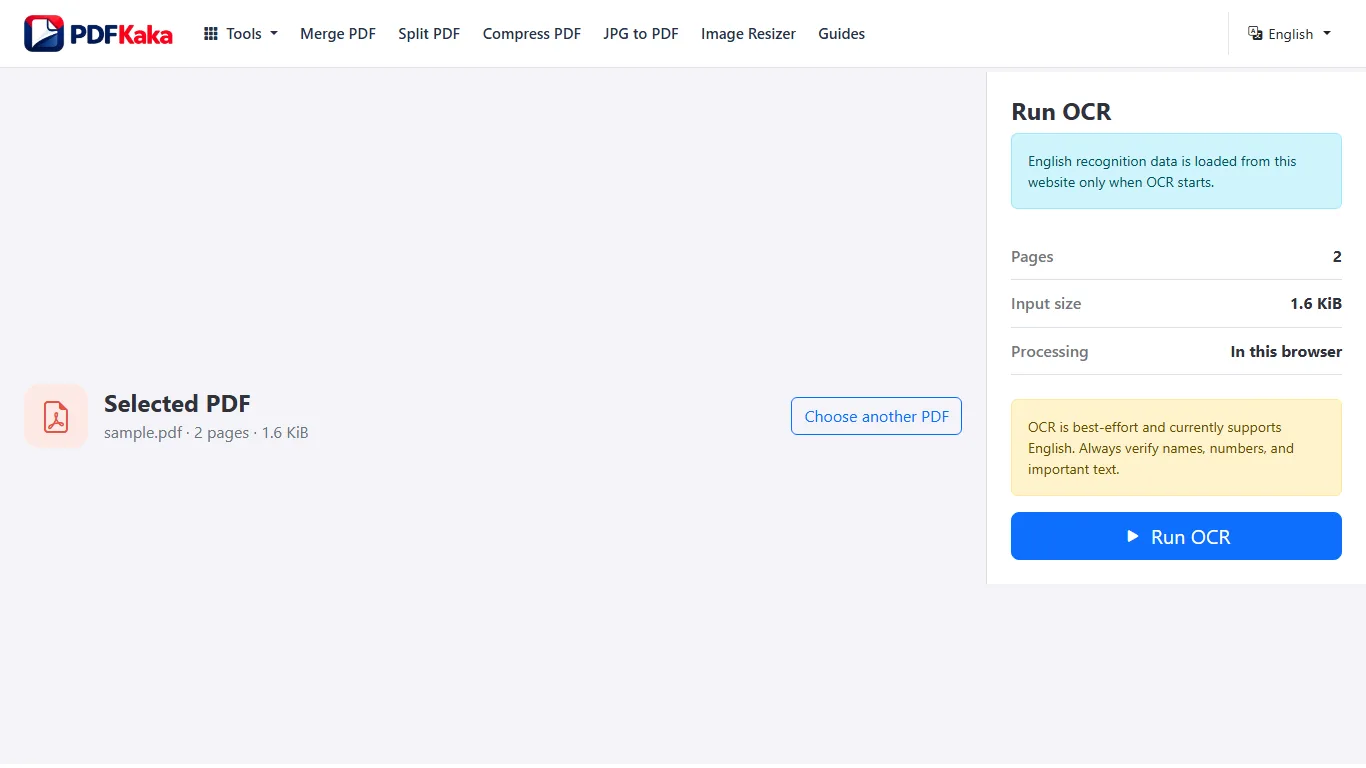
Run OCR on the PDF
- Open OCR PDF and select an upright scan of printed English within the displayed OCR page limit.
- Start recognition and keep the browser tab open while the engine processes the pages.
- Download the searchable PDF when recognition finishes.
- Open the saved file, search for known phrases and copy a short passage to check selection.
- Compare names, dates, identifiers, amounts and page order with the original scan before relying on the recognized text.
What the current OCR can reliably recognize
Printed English OCR only; recognition is best-effort. Handwriting and other languages are not supported as reliable workflows.
A scanned invoice
Search the OCR output for the invoice identifier, then select the amount and paste it into a plain-text editor. Compare it character by character with the page image. The visual scan can look correct while a hidden recognized character is wrong.
Check this result before reusing it
- Search for phrases from different source pages.
- Check that the selection highlight aligns with the intended words.
- Retain the original scan alongside the searchable derivative.
run OCR on a multipage PDF
Process a supported multipage scan within the displayed page and device-memory limits, then review more than the first page.
Prepare an upright multipage scan within the 25-page OCR limit, run recognition and review early, middle and final pages. A successful first-page search does not prove the whole file is correct.
Run OCR on the PDF
- Check page count, orientation and scan clarity before opening OCR PDF.
- If needed, create a smaller page subset so the OCR job contains at most 25 pages.
- Select the PDF, start English recognition and keep the tab active.
- Download the completed searchable PDF.
- Search and copy passages from early, middle and final pages, then compare identifiers, totals and page order with the originals.
A 20-page scanned report
Choose a known phrase on pages 1, 10 and 20 and include at least one page with a different layout. A landscape table or faint appendix needs its own check even when the ordinary prose pages recognize well.
Check this result before reusing it
- Compare output page count with the submitted subset.
- Inspect orientation and word-selection alignment on representative pages.
- For a longer archive, keep subset filenames and page ranges traceable.
OCR a PDF privately without uploading it
Run the current English OCR engine in the browser so the selected PDF does not need to be sent to PDFKaka.
OCR processing of the selected PDF runs in this browser. The browser can download the local engine and English recognition data from PDFKaka, while the document itself does not need to be uploaded.
What OCR adds to a scanned PDF
- Review the searchable copy locally and remove sensitive files from shared device storage when appropriate.
Check this result before reusing it
- Keep the tab open until engine loading and recognition finish.
- Do not assume offline operation before the required assets have loaded.
- Review the downloaded file and its storage location before sharing.
OCR a scanned PDF before Word conversion
Run OCR first to create searchable text, review recognition errors, and then use PDF to Word for a best-effort editable DOCX.
Use OCR PDF when you need a searchable intermediate copy to review, then send that reviewed output to PDF to Word. If you only need DOCX, PDF to Word’s integrated English OCR mode can perform recognition directly.
Run OCR on the PDF
- Choose whether a searchable PDF intermediate is needed; otherwise use OCR mode directly in PDF to Word.
- For the intermediate workflow, run OCR PDF on a supported printed-English scan within its page limit.
- Download the searchable PDF and compare recognized names, numbers and passages with the source.
- Open that reviewed PDF in PDF to Word and choose an appropriate editable mode.
- Download the DOCX, edit an existing word and repair reading order or table structure while comparing it with the scan.
A scan that needs two deliverables
For an archive needing both a searchable PDF and an editable letter, keep the OCR PDF as a reviewed intermediate and create the DOCX from it. If a code is wrong in the recognized text, record that correction rather than assuming the later file format will recover the original characters.
Check this result before reusing it
- Validate recognition before judging Word layout.
- Check that the Word file contains native text rather than appearance-mode page images.
- Review amounts and source table relationships separately from paragraph formatting.
make a scanned PDF searchable
A scan normally contains page images rather than selectable characters. OCR adds a best-effort text layer that can be searched and copied.
Scan to PDF only places images into a PDF. To add searchable printed-English text, save that image PDF, open it in OCR PDF, run recognition and inspect the new searchable copy.
Capture readable source pages first
Use even lighting, sharp focus and square framing. Scan to PDF does not automatically correct perspective, remove shadows or recognize text. Poor source capture can remain poor after OCR.
- Capture or choose the document images and arrange them in Scan to PDF.
- Create and download the image-based PDF.
- Open that saved PDF in OCR PDF within its displayed limits.
- Run printed-English recognition and download the OCR result.
- Search distinctive names, dates and numbers in the saved PDF and compare them with the page image.
Searchable is not perfectly transcribed
OCR PDF adds a searchable text layer to rebuilt page appearances. Recognition can misread letters, columns and numbers; English is the supported recognition scope, and handwriting or arbitrary scripts are not promised. Keep the capture original and review any extracted text before reuse.
FAQ
Does PDFKaka OCR handwriting or every language?
No. The current OCR is intended for printed English and uses best-effort recognition. Handwriting and other languages are not supported as reliable workflows.
What is the current input limit for OCR PDF?
One PDF up to 50 MiB, with a maximum of 25 pages for the OCR job. Reduce a longer document to the pages needing recognition before starting; do not interpret the general PDF-tool page limit as the OCR limit.
What does OCR PDF create?
The current recognizer is intended for printed English and is best effort. It creates rendered page images with a searchable text layer, rather than preserving native PDF objects or interactive form structure. Handwriting and other languages are not reliable supported workflows.
Does a searchable PDF mean the scan image was turned into editable document layout?
No. The output combines rendered page images with recognized text for search and selection. Use Word OCR when a best-effort editable DOCX is the next goal.
Can a 100-page PDF use the full OCR workflow in one job?
No. The OCR job has a 25-page limit even though other PDF tools can accept longer documents. Submit a supported subset needing recognition.
Why can the tool still make network requests?
The browser may load application code, the OCR engine and English recognition data from this website. Those asset requests are different from uploading the selected PDF’s contents.
Is the separate OCR PDF step mandatory before every scanned Word conversion?
No. PDF to Word includes an English OCR option. A separate reviewed searchable PDF is useful when it is also a required output or a checkpoint in your workflow.
Does Scan to PDF add searchable text automatically?
No. OCR PDF is a separate optional step.
Should I trust a recognized amount without checking?
No. Compare important numbers, names and identifiers with the visible source.