PDF to PowerPoint
Is a PDF Editable After Conversion to PowerPoint?
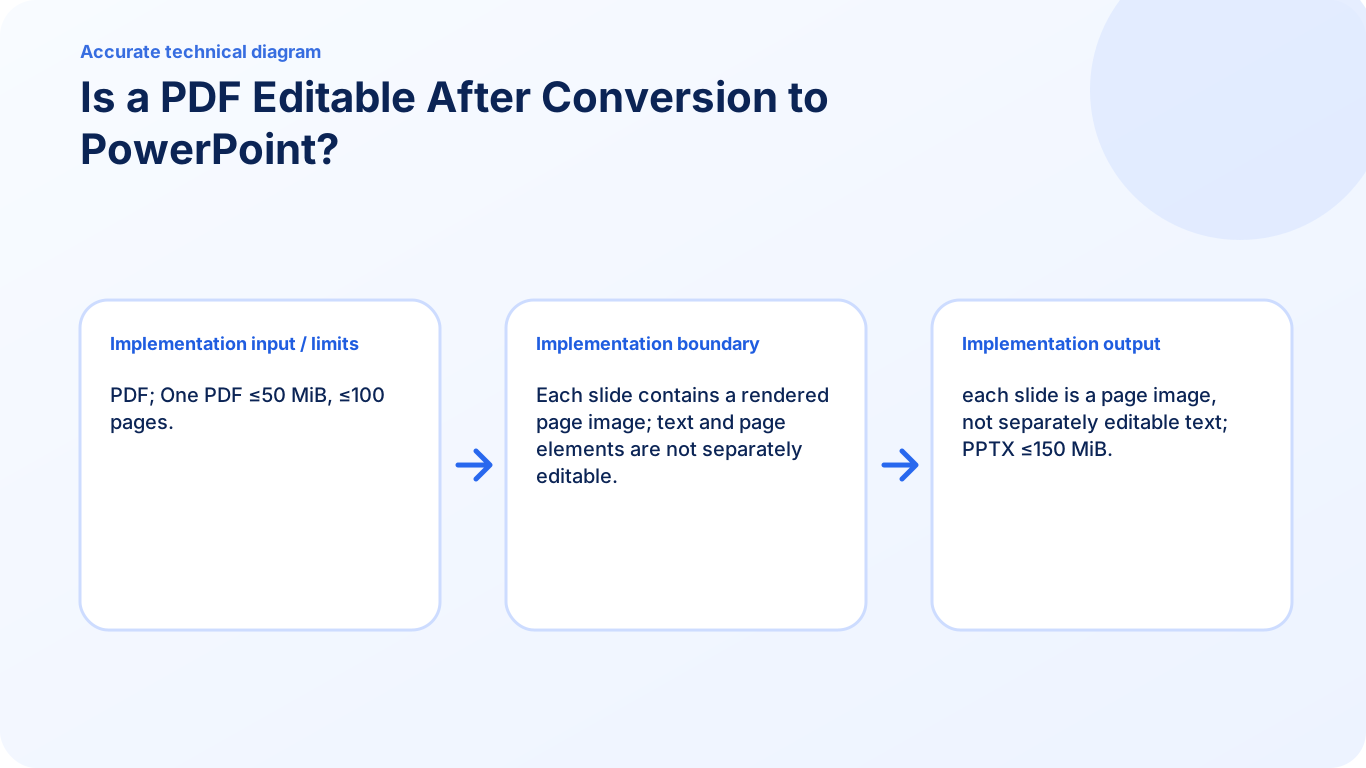
It depends on the chosen mode. Preserve appearance creates flat page images; Editable native text creates real text boxes only for supported source text and keeps the remaining page content in a graphics background.
On this page
See a visual example
Complete the workflow in order
- Open PDF to PowerPoint and select the PDF.
- Keep Preserve appearance for image slides, or explicitly choose Editable native text for supported source text boxes.
- Choose slide image quality and start conversion.
- Read the result summary, including editable-text coverage when native mode is used, then download the PPTX.
- Open the saved presentation and inspect first, middle and last slides at the intended display size.
Choose what must be editable
Preserve appearance is the default and creates one page image per slide. Editable native text separates supported horizontal source text into real text boxes over a graphics background. Unsupported, rotated or nested text, scans and form widgets stay in the background; review fonts and placement.
What can change in native-text mode
Supported source text becomes normal PowerPoint text boxes. You can edit an existing sentence, change its font or reposition it. The converted runs are removed from the rendered background so they are not intentionally duplicated beneath the editable boxes. The result summary reports how much text was converted.
What remains in the graphics background
Scans, images, charts, form widgets, nested content and unsupported text remain part of the background. Native mode is not a general conversion of every PDF object, and font substitution or text placement can still need manual repair.
Keep appearance mode when it fits the task
Appearance mode remains the default. Each page is a flat slide image that can be moved or resized, and you can add new PowerPoint objects around it. Higher image quality affects rendering detail, not whether the original words become text boxes.
Prove editability with an existing amount
In native mode, open the PPTX and select the source text box containing an amount such as Invoice Amount: 1000. Change the amount, save, close and reopen the presentation. Confirm that the original amount is not still visible beneath the new text; adding a separate box above a flat page would not be the same test.
Check this result before reusing it
- Select an existing source sentence rather than a newly added annotation.
- Read how many slides contain native text and inspect the remaining background-only content.
- Keep forms, scans, rotated text and nested objects in mind when assessing coverage.
FAQ
Can I edit the PDF text inside the PowerPoint slide?
Preserve appearance keeps the page flat. Editable native text creates real text boxes for supported source text while unsupported content remains in the graphics background; read the result coverage and test the existing words you need to edit.
Can I add new editable content on top of the page image?
Yes. PowerPoint can add normal text boxes, shapes, and other objects above or beside the imported image.
Does a higher slide quality create editable objects?
No. It changes rendering detail, not the slide's object structure.
Why are some words editable while others are still part of an image?
Native mode supports a bounded set of horizontal visible PDF text objects. Unsupported text, nested content, scans and form widgets are retained in the background so the page is not silently emptied.