Redact PDF
How to Redact Selected Areas in a Scanned PDF
Scanned words are pixels rather than searchable text runs. Manual regions let you deliberately cover an account number, signature or other visible area without depending on OCR recognition.
Voir un exemple visuel
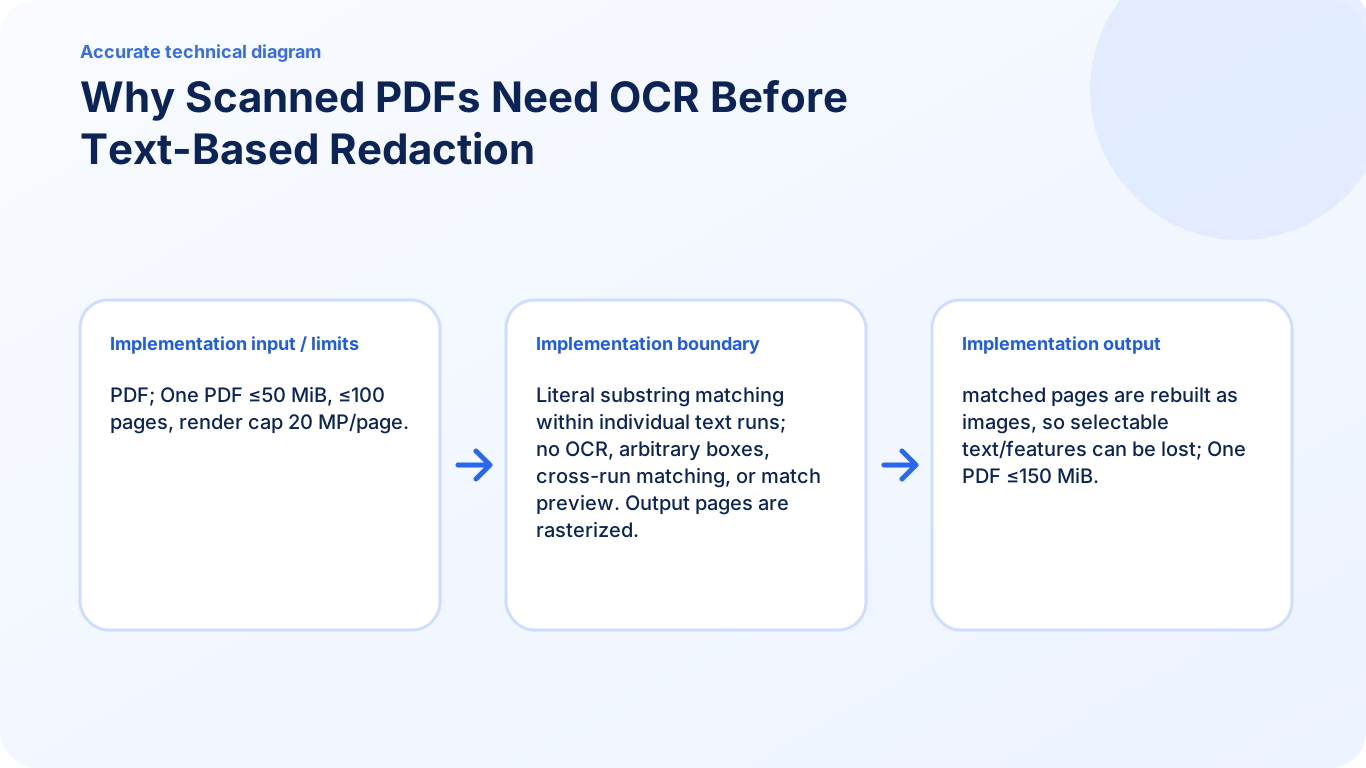
Follow the supported controls
- Open the scan in Redact PDF and inspect the page at a useful zoom.
- Select the page and draw a region around the complete sensitive area, or enter left, top, width and height percentages.
- Leave enough coverage around glyph edges and review each selected area, including rotated or handwritten content.
- Create the image-only copy and inspect every region and every page in the downloaded file.
OCR and manual coverage solve different tasks
English OCR can make some scan text searchable, but recognition can misread digits, split phrases or miss handwriting. Manual coverage works directly on a visible region and does not require a recognized text layer. It still depends on choosing every sensitive area and reviewing the actual output; neither method automatically establishes that the entire document is safe to share.
FAQ
Must I run OCR before covering a scanned area?
No. Manual region selection can cover visible scan pixels directly.
Will the tool automatically find all names in my scan?
No. Search reads selectable PDF text runs and does not automatically recognize scanned words.
Can the result keep searchable OCR text underneath?
No. Redaction creates a new image-only PDF without copying the original text layer.