Redact PDF
How to verify PDF redaction before sharing
Redaction verification starts with the file that will actually be shared. Check visible coverage and all relevant pages; a failed search is only one observation and cannot by itself establish that confidential information is gone.
On this page
See a visual example
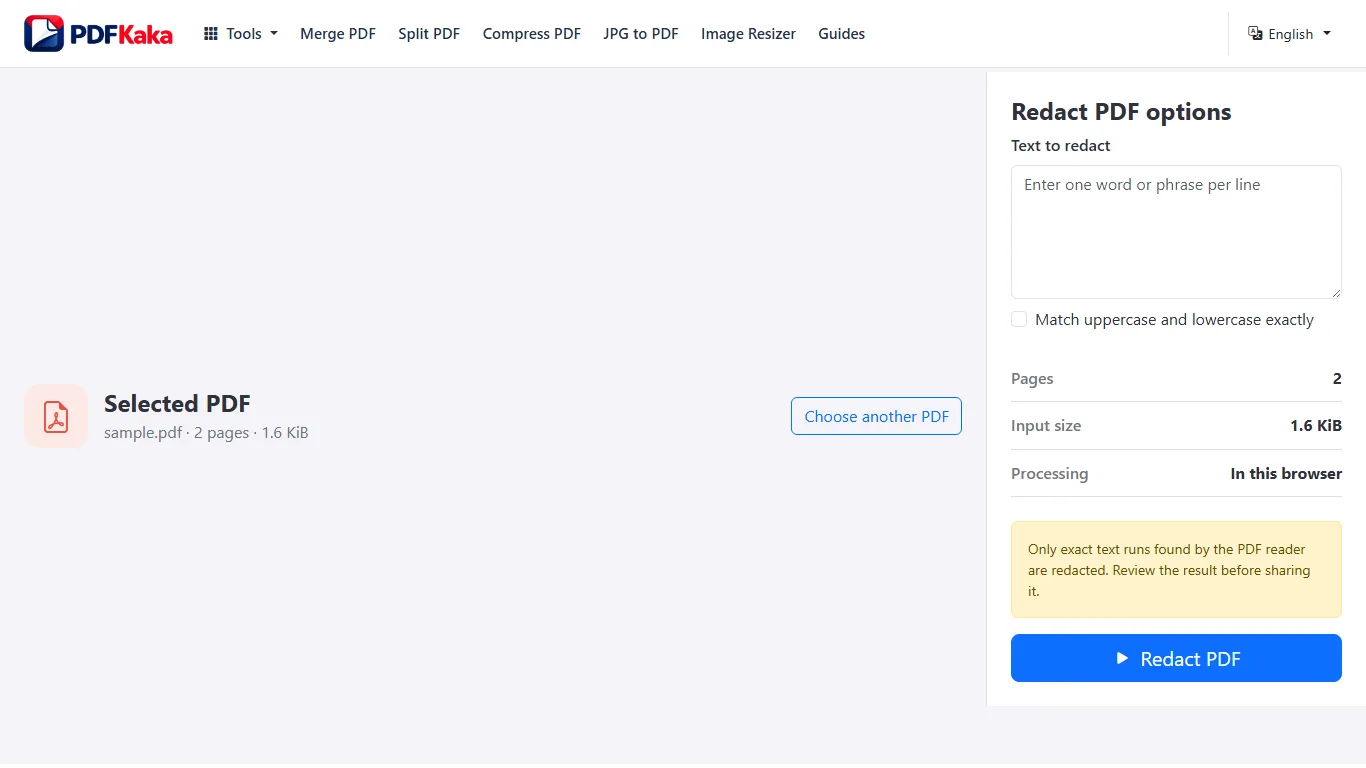
Verify the right file
Use a distinct output filename and reopen it from the browser’s actual download location. A correct-looking editor preview does not prove that the downloaded artifact contains the same changes.
Check beyond a text search
A scan can have no searchable text before any redaction. Conversely, a black overlay can leave original text underneath. Review the saved page image and the scope of the workflow used. This tool rebuilds an image-only PDF; that also removes selectable text, forms and links rather than preserving them.
For a synthetic test, verify that the selected region is completely covered while nearby public text is still readable. Do not upload confidential source material simply to create a demonstration or support screenshot.
Follow the supported controls
- Keep a private list of sensitive items and the page positions where each occurs.
- Save the redaction output as a distinct file and reopen that exact file outside the active workspace.
- Inspect each covered area at readable and higher zoom, including glyph edges, rotated text and selected scan regions.
- Review all other pages and repeated occurrences, then share only the checked copy.
Match the check to the actual output
The new document contains rendered page images and does not copy source text or interactive structures. That means selection and search are absent across the whole output, including unredacted visible words. Use visual comparison to establish what was covered and what remains, and review document recipients and filenames so the original is not sent by mistake. Compare PDF percentages can flag appearance differences but do not decide whether sensitive content is gone.
FAQ
Why is an empty search result insufficient?
Every page in this output is image-only, so even visible unredacted words may be unsearchable.
Does a coverage count prove every sensitive item was found?
No. It counts matched runs and selected areas, not all possible sensitive occurrences.
Should I inspect only the pages that matched?
No. Review every page and the complete sensitive-item list, including scan and graphic content.