PDF to Word
How to Convert a Scanned PDF to Word Using OCR
An image-only scan must gain a reviewed text layer before it can become a useful editable Word document.
On this page
See a visual example
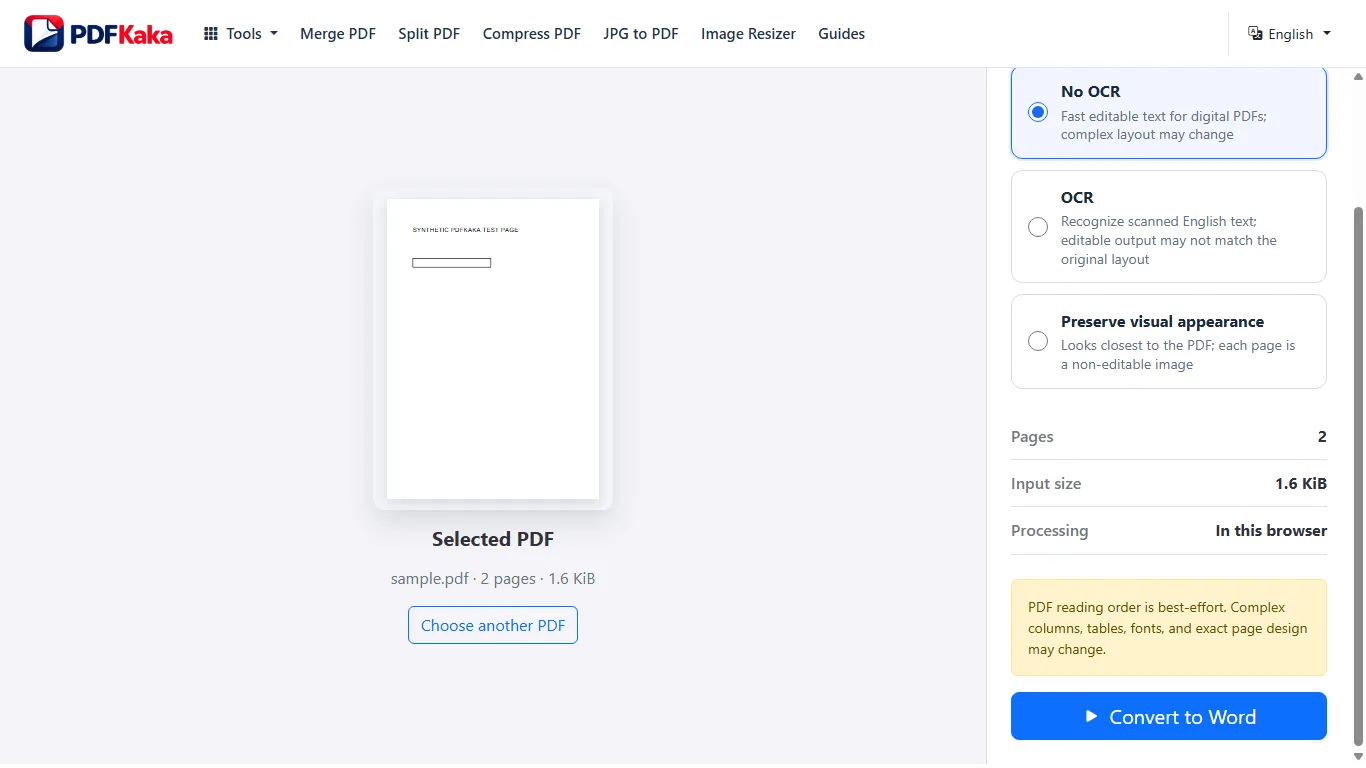
Choose OCR in PDF to Word
Open the scan in PDF to Word and choose English OCR for scanned pages. The OCR mode supports up to 25 scanned pages and is intended for printed English. It places recognized text into the DOCX as part of the same conversion workflow.
Convert the scanned PDF to DOCX
Start the conversion after selecting OCR mode. The converter uses recognized text and available document structure to build a DOCX. It cannot recover layout information that the scan and OCR did not establish.
Repair the Word document
Check columns, tables, paragraph order, fonts, page breaks, and any text placed over graphics. Keep the scan available while editing so recognition and layout changes can be checked against the source.
Separate recognition errors from Word layout repair
OCR determines which recognized characters reach the DOCX; PDF to Word then rebuilds an editable document from the available text and page structure. In Word, correct names, dates, and numbers, then review columns, tables, images, fonts, and page breaks as a separate layout task.
A scanned invoice with similar characters
Compare an account code such as AB10O with the original image, checking the digit zero and letter O separately. Then inspect the amount column and currency symbols. A plausible sentence elsewhere does not verify identifiers or financial values in the same document.
Check this result before reusing it
- Confirm the OCR job stays within the 25-scanned-page limit.
- Edit a recognized word in the DOCX to confirm the text is native.
- Rebuild complex scan tables and compare every required total with the source image.
FAQ
Does PDF to Word recognize scanned text on its own?
Yes. Choose the English OCR mode in PDF to Word for supported image-only pages, then carefully review the recognized DOCX text.
Why does the DOCX layout differ from the scan?
OCR recovers text, while Word needs flowing document structure. Columns, tables, fonts, and exact positioning are best-effort.
Can handwriting become editable Word text?
PDFKaka's current OCR is intended for printed English; handwriting is not a supported reliable workflow.
Must I run OCR PDF before choosing Word OCR?
No. PDF to Word has its own supported English OCR mode. The separate OCR PDF tool is useful when you also need a searchable PDF to review or reuse.