PDF to Word
How to convert PDF text into an editable Word document
Choose an editable DOCX when you need to change supported native text. Choose page-image appearance output when visual similarity matters more than editing. Neither choice guarantees reconstruction of every original PDF layout.
On this page
- Choose editability or appearance
- Test an existing Word object
- Complete the workflow in order
- What the Word conversion can preserve
- Editable Word output versus preserved page appearance
- An invoice and a two-column report
- Check this result before reusing it
- convert PDF to Word on iPhone or Android
- Convert the PDF to Word
- A two-page application letter
- Check this result before reusing it
See a visual example
Choose editability or appearance
Native conversion can create editable paragraphs and supported simple tables/column order. Complex tables, drawing relationships, unusual fonts and rotated or grouped content still need review. A page-image DOCX keeps the page as an image; its words are not independent Word text.
For scanned input, recognition is a separate accuracy step. Current OCR is for printed English. Do not promise Arabic or another OCR language because the website interface can display it.
Test an existing Word object
Open the downloaded DOCX and change an existing sentence or table cell—not merely a new text box added above a page image. Save, close and reopen the document. Check that the changed content remains editable and that rows, amounts and reading order still make sense.
Complete the workflow in order
- Open PDF to Word and select the PDF; wait for the page-type check.
- Choose No OCR for native selectable text, OCR for supported printed-English scans, or Preserve visual appearance for page images.
- Start conversion and read any scanned-page or output-limit message.
- Download the DOCX and open it in Word or a compatible document editor.
- Edit an existing sentence to confirm it is native text, then compare columns, tables, field values and page breaks with the PDF.
What the Word conversion can preserve
- Extract existing selectable PDF text into DOCX paragraphs that can be edited after the reading order is reviewed.
- Compare the DOCX with the PDF and correct columns, tables, headers, line breaks, and missing characters.
Editable Word output versus preserved page appearance
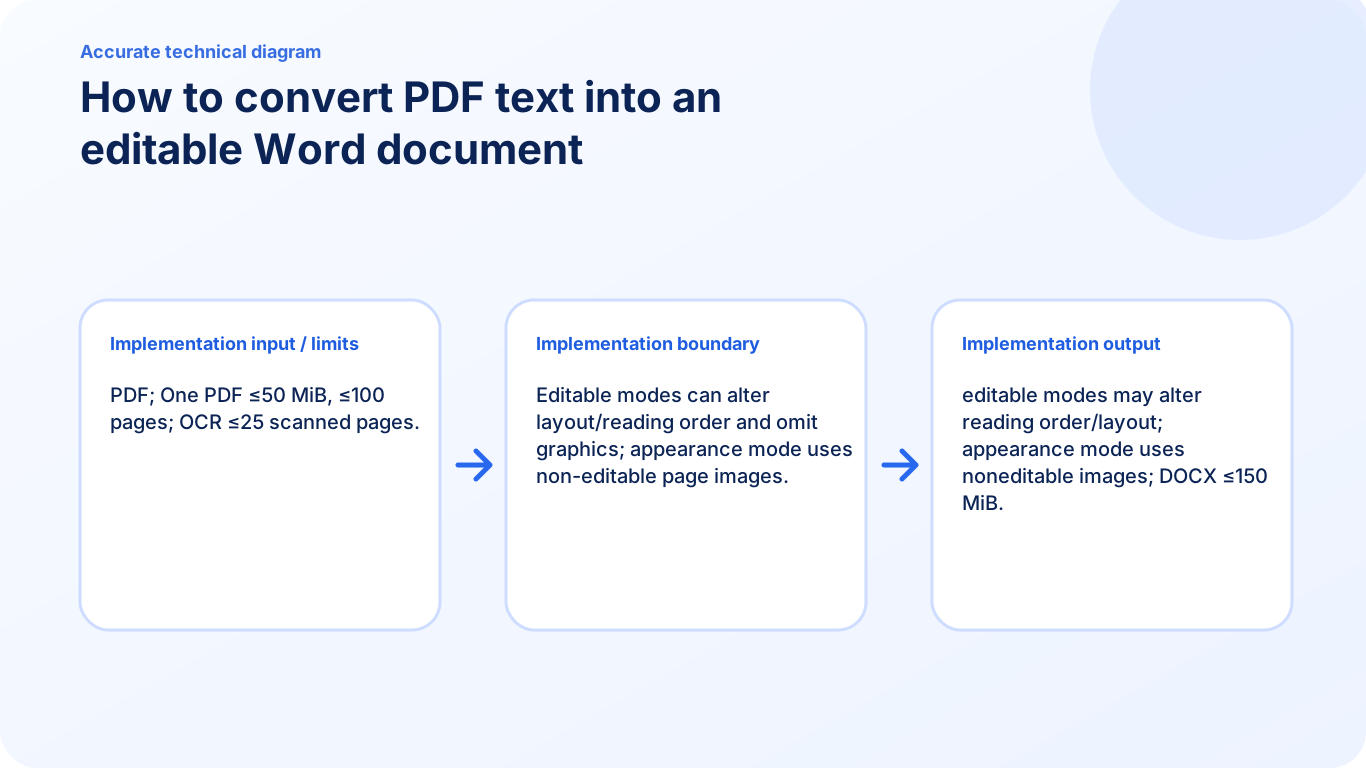
No OCR creates editable paragraphs, inferred simple aligned tables and best-effort column order from native text. OCR recognizes supported printed-English scans. Graphics and exact layout are not reconstructed in editable output; Preserve visual appearance creates page images.
An invoice and a two-column report
In an invoice, edit a value in a converted table cell rather than adding text over a page image. In a two-column report, read the complete left column before the right and check that the last left-column sentence has not been interleaved with the first right-column sentence.
Check this result before reusing it
- Click inside an existing paragraph or cell and change its text.
- Check column order, totals and any source form values included as text.
- Compare charts and figures with the PDF: editable mode does not reconstruct all graphics or complex merged tables.
convert PDF to Word on iPhone or Android
Choose a searchable PDF from phone storage and download a best-effort editable DOCX from the browser.
Select the PDF in the mobile browser, choose No OCR, OCR or Preserve visual appearance, convert and download. A compatible Word app is needed to inspect and edit the saved DOCX; the browser result message alone does not prove editability.
Convert the PDF to Word
- Open PDF to Word on the phone and select the PDF from storage.
- Read the page-type check and choose No OCR for native text or OCR for supported English scans.
- Start conversion and keep the tab active; use a smaller representative document if the phone cannot complete the job.
- Download the DOCX and open it in a compatible document app.
- Change an existing word, then review column order, tables and the final page before saving.
A two-page application letter
Test conversion on a short letter before a large attachment set. In the phone document app, tap an existing sentence and edit it. If the entire page selects as one image, appearance mode was used; return to the converter and choose an editable method when supported.
Check this result before reusing it
- Confirm the phone saved a .docx file and the editor opened it successfully.
- Check both pages, not just the thumbnail of page one.
- Keep source and converted copies separate while correcting text.
FAQ
Will the Word document keep the PDF layout exactly?
Not always. Editable conversion can change layout or reading order, while appearance-focused output may use page images that are not separately editable.
What is the current input limit for PDF to Word?
One PDF up to 50 MiB and 100 pages. Editable English OCR supports at most 25 scanned pages within that document. The tool reports a limit before offering an unsupported output.
What does PDF to Word create?
No OCR creates editable paragraphs, inferred simple aligned tables and best-effort column order from native text. OCR recognizes supported printed-English scans. Graphics and exact layout are not reconstructed in editable output; Preserve visual appearance creates page images.
Are all PDF tables guaranteed to become Word tables?
No. The converter infers simple aligned tables conservatively. Wrapped, merged, irregular or image-only tables can remain paragraphs or need manual reconstruction.
Why can I move a page but not edit its words?
The page may be an image from Preserve visual appearance mode. No OCR or supported English OCR produces editable text instead, with layout differences to review.