Flatten PDF
What Does Flattening PDF Form Fields Mean?
The word “flatten” is used broadly, but PDFKaka applies it specifically to supported interactive form fields.
On this page
- What PDFKaka flattens
- What the word does not cover here
- Keep an editable source
- Test the fields that matter
- Keep form technology in mind
- flatten interactive PDF form fields
- Follow the supported controls
- Inspect values before removing interactivity
- Does Flattening PDF Form Fields Affect Page Quality?
- Follow the supported controls
- Separate page resolution from field appearance
See a visual example
What PDFKaka flattens
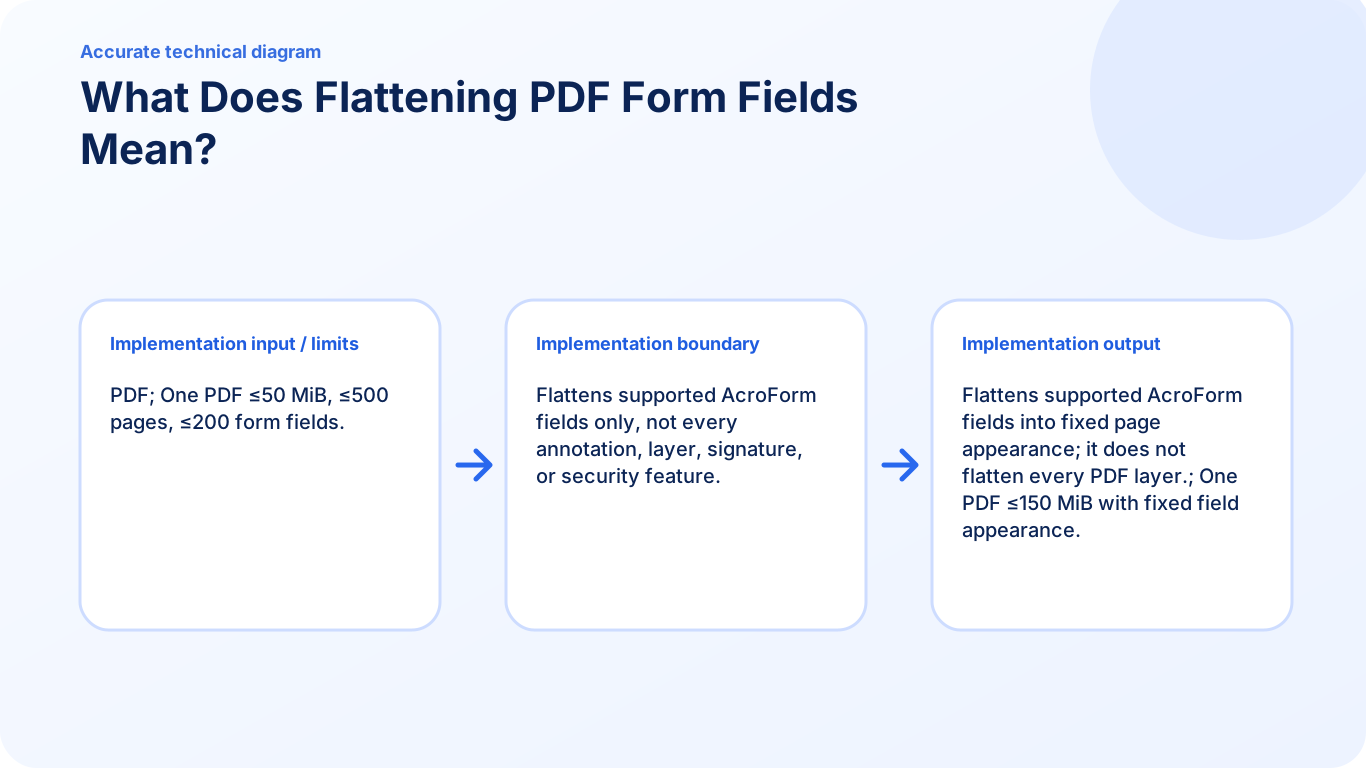
The tool handles supported AcroForm text, checkbox, radio, dropdown, and list fields. It creates a new PDF in which the current field appearance is fixed on the page.
This can help when a completed form should display consistently to a recipient who does not need to change the entries.
What the word does not cover here
PDFKaka does not promise to flatten every comment, drawing, layer, attachment, cryptographic signature, or security setting. A PDF can contain many interactive structures beyond AcroForm fields, and those are outside this tool's verified scope.
Keep an editable source
Check every value before flattening and retain the original completed form. If a name, date, checkbox, or selection is wrong afterward, the reliable correction path is to return to the editable source and create another flattened copy.
Test the fields that matter
Use a copy containing representative text fields, checkboxes, radio buttons, dropdowns, and list fields. After flattening, reopen the output and confirm that every expected value is visible. Keep the original form when later edits, validation, calculations, or another submission round may be required.
Keep form technology in mind
This workflow targets compatible AcroForm appearances. Dynamic XFA forms and unsupported custom appearance fonts may require another application. Flattening is not a substitute for redaction or encryption, and editing a cryptographically signed PDF can invalidate its signature.
flatten interactive PDF form fields
Complete and review supported form fields first, then turn their current values into fixed page content.
Complete and review compatible AcroForm fields, then create a flattened copy in which their visible values are fixed page content. Retain the editable form separately.
Follow the supported controls
- Fill and download a completed form, then verify text, checkboxes and choices.
- Open that completed copy in Flatten PDF and confirm that compatible fields are detected.
- Create and download the flattened copy.
- Reopen it in a PDF viewer; check that all expected values remain visible and the fields are no longer interactive.
Inspect values before removing interactivity
Flattening fixes the current field appearances, including a mistakenly entered value or blank checkbox. Correct errors in the editable form first. Dynamic XFA and unsupported custom appearance fonts are outside the verified workflow. This operation targets AcroForm fields; it is not a general removal of comments, layers, attachments or sensitive information.
Does Flattening PDF Form Fields Affect Page Quality?
Fix supported field values into the PDF page without rasterizing every page into a lower-resolution image.
Flatten PDF fixes compatible form appearances without intentionally rasterizing every page. Inspect both the existing page content and the flattened values because custom fonts and field appearances can behave differently.
Follow the supported controls
- Keep the editable completed form and open a copy in Flatten PDF.
- Check that text, checkbox and choice values display correctly before flattening.
- Create the flattened PDF and reopen it at normal reading size and higher zoom.
- Compare small field text, clipped long answers and checkbox marks with the original; return to the editable source for corrections.
Separate page resolution from field appearance
Flattening is different from image-based compression. Existing text and page images are not deliberately converted into a lower-resolution page screenshot. Field appearance generation is still a separate concern: unsupported fonts, non-Latin characters or unusual controls can prevent a faithful result. A smaller file is not the purpose of this operation.
FAQ
Which PDF fields can PDFKaka flatten?
The verified scope is supported AcroForm text, checkbox, radio, dropdown, and list fields.
Does flattening remove every PDF layer and annotation?
No. The tool does not promise to flatten every annotation, optional-content layer, signature, or security feature.
Why should I keep the editable form?
Flattened field appearances are not meant for normal form editing, so corrections should begin from the editable source.
Can I correct a flattened field normally?
Use the editable original, correct it and create another flattened copy.
Does flattening add encryption?
No. It changes field interactivity, not access permissions.
Does it flatten every annotation and layer?
No. The verified scope is compatible AcroForm field appearances.
Are all pages converted into JPEG images?
No. This AcroForm flattening workflow does not intentionally rasterize every page.
Does that guarantee every field looks identical?
No. Review custom appearances, font characters and long answers in the downloaded result.
Will flattening always make the PDF smaller?
No. File-size reduction is not guaranteed or the primary purpose.