Redact PDF
How PDFKaka Redacts Selectable PDF Text
Use literal text matches or manually selected page regions to cover intended content, then inspect the rebuilt image-only PDF. The tool does not automatically identify every sensitive value or provide a universal secure-redaction guarantee.
On this page
See a visual example
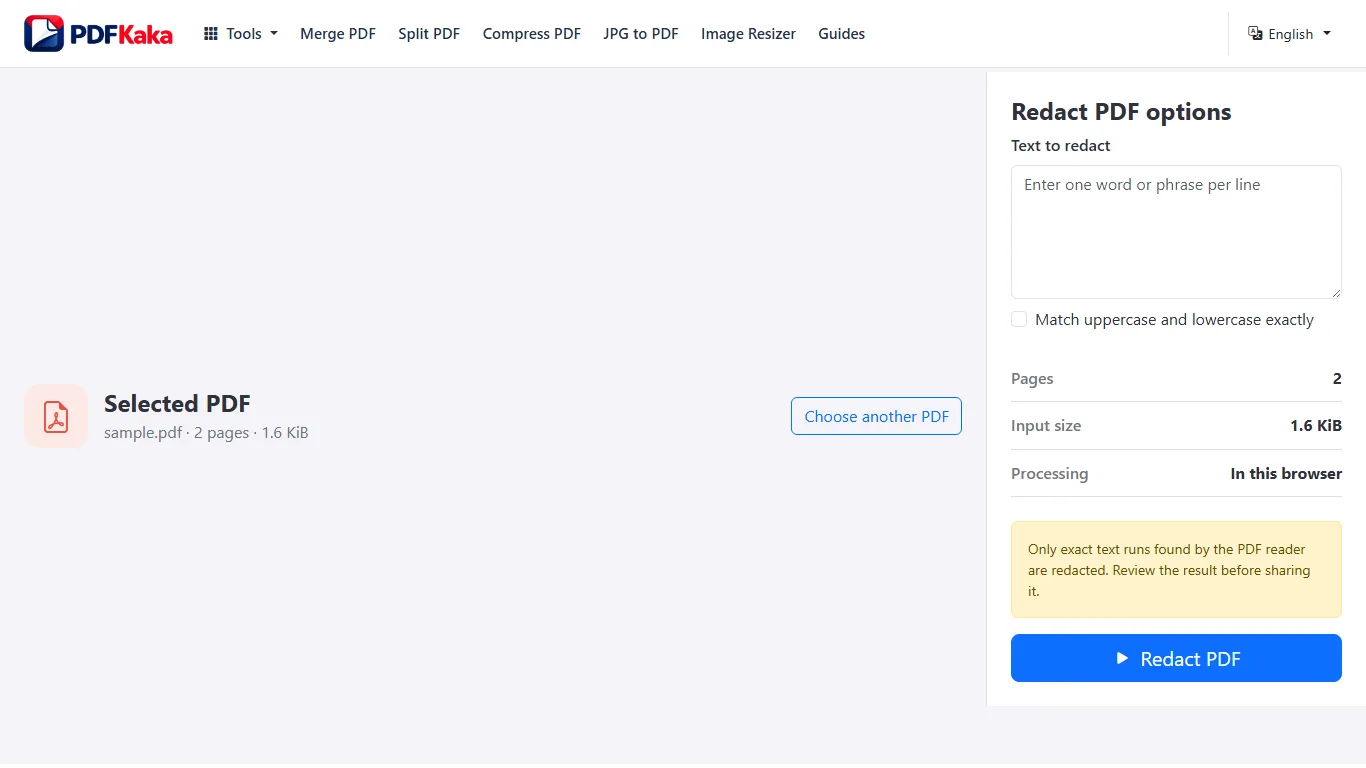
Select and review coverage
A printed identifier may share one text run with neighboring words. The conservative match can cover that whole run. Review the larger area before export. For a scan or unmatched word, use a manual rectangle over the intended region.
Check every occurrence and page. A text search cannot detect handwriting, text inside images or values that use different spacing or formatting.
Inspect the saved redaction
- Reopen the downloaded file and zoom into the covered region and its edges.
- Check that no required neighboring content was unintentionally covered.
- Review all pages for other occurrences.
- Do not treat an empty text search alone as proof of safe removal. Keep the source separately.
Follow the supported controls
- Choose the PDF and inspect every page containing sensitive information.
- Enter one literal term per line where selectable text exists; review the complete matched runs and case setting.
- Draw manual regions or enter page percentages for scanned text, graphics or other areas search cannot cover; resolve unmatched requested terms.
- Create the new image-only PDF, then reopen it and inspect all covered regions and every remaining page before sharing.
Understand the larger coverage
PDF text can store a whole line as one run. Matching a short account number therefore covers the entire containing run rather than estimating character widths. Rotated and skewed runs use transformed coverage; unsupported geometry stops output. The result does not copy source text or document structures, but all visible sensitive areas still need review.
redact and review a PDF before sharing
Prepare a private list of sensitive items, review deliberate coverage and check the separately saved output against that list before sharing.
List sensitive items, review full text-run matches and manual image regions, then inspect the downloaded copy against that list. Matching and a completed progress indicator do not prove that every sensitive item was found.
Review against the source list
Check account numbers, names, addresses, signatures, handwriting and repeated appearances separately. Text search does not inspect scanned pixels, and similar-looking terms can differ in spacing or PDF segmentation. The exported copy intentionally loses searchable text throughout, so a failed search for the original value is not evidence that its visible pixels were covered.
redact a PDF on a phone
Use literal text matching and manual page areas from a mobile browser, then review the saved image-only copy at a readable zoom.
Choose the PDF from phone storage, review literal-run matches and use manual regions for visible areas search cannot find. Save the image-only copy and inspect it at readable zoom before sending.
Use percentage fields for precise small-screen regions
On a small screen, left, top, width and height percentages provide an alternative to dragging a rectangle. Check the selected page number before adding each area and inspect every region in the preview. Keep the tab open while processing; reopen the downloaded copy from device storage and verify that the saved file is the one you intend to share.
FAQ
Can matching cross separate PDF text runs?
No. Split phrases may need different terms or manual page regions.
What happens if one requested term is not found?
Output is blocked. Correct or remove unmatched terms and select the intended area manually.
Does the result keep searchable text and forms?
No. Every page is rebuilt as a losslessly embedded image; source text and interactive structures are not retained.
Is a black overlay added in Edit PDF enough?
No. An ordinary overlay can leave the original text or image underneath; use the dedicated redaction workflow and inspect the rebuilt output.
Should I check only the reported matches?
No. Review every page and all sensitive items, including images and occurrences the search did not find.
Which copy should I share?
Share only the separately saved output after visual review; keep the sensitive original separately.
Can I cover scanned text on the phone?
Yes, using a deliberately selected manual area; scanned text is not detected automatically.
What if a search term is not found?
Remove or correct the unmatched term and use a reviewed manual area when appropriate; unmatched requested terms block output.
Can empty search results verify the saved copy?
No. The entire output is image-only. Inspect the visible areas and every page.