Crop PDF
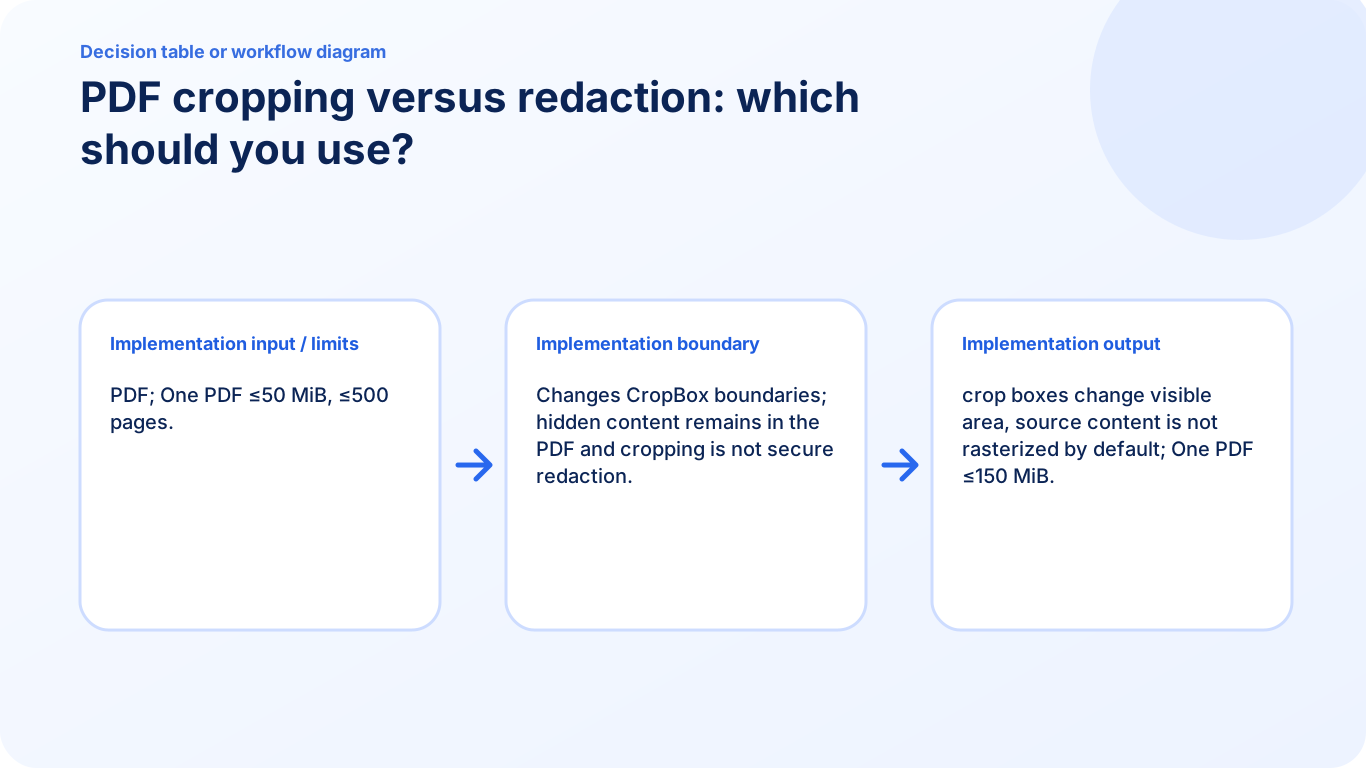
PDF cropping versus redaction: which should you use?
Use cropping for layout and visible boundaries, but use a verified redaction method for sensitive information because hidden cropped content may remain recoverable.
See a visual example
Follow the supported controls
- Identify whether the unwanted area is merely a border or contains sensitive content.
- Use Crop PDF for visible margins and keep an original for correction.
- For sensitive content, review full matched runs or select manual areas in Redact PDF.
- Inspect every exported page. An empty search in an image-only redaction result is not proof that every sensitive pixel was covered.
Compare the actual outputs
A crop can make a confidential footer disappear from normal view while leaving its text in the file. A redaction output intentionally loses selectable text and interactive features throughout because it is rebuilt from covered page images. Redaction still requires deliberate coverage and review; neither a black appearance nor a completed progress bar proves that all occurrences were identified.
FAQ
Can a cropped footer still be recovered?
Underlying content can remain beyond the CropBox, so cropping should not be used for confidential removal.
Can Redact PDF cover a scanned area?
Manual page regions can cover visible scanned or graphical areas; search does not identify them automatically.
Will the redacted copy keep fillable fields?
No. The new image-only output does not preserve form fields, links or searchable source text.