PDF to text
How to clean line breaks after PDF-to-text extraction
Join line wraps that came from fixed page positions while preserving real paragraphs, lists, headings, and page boundaries.
On this page
See a visual example
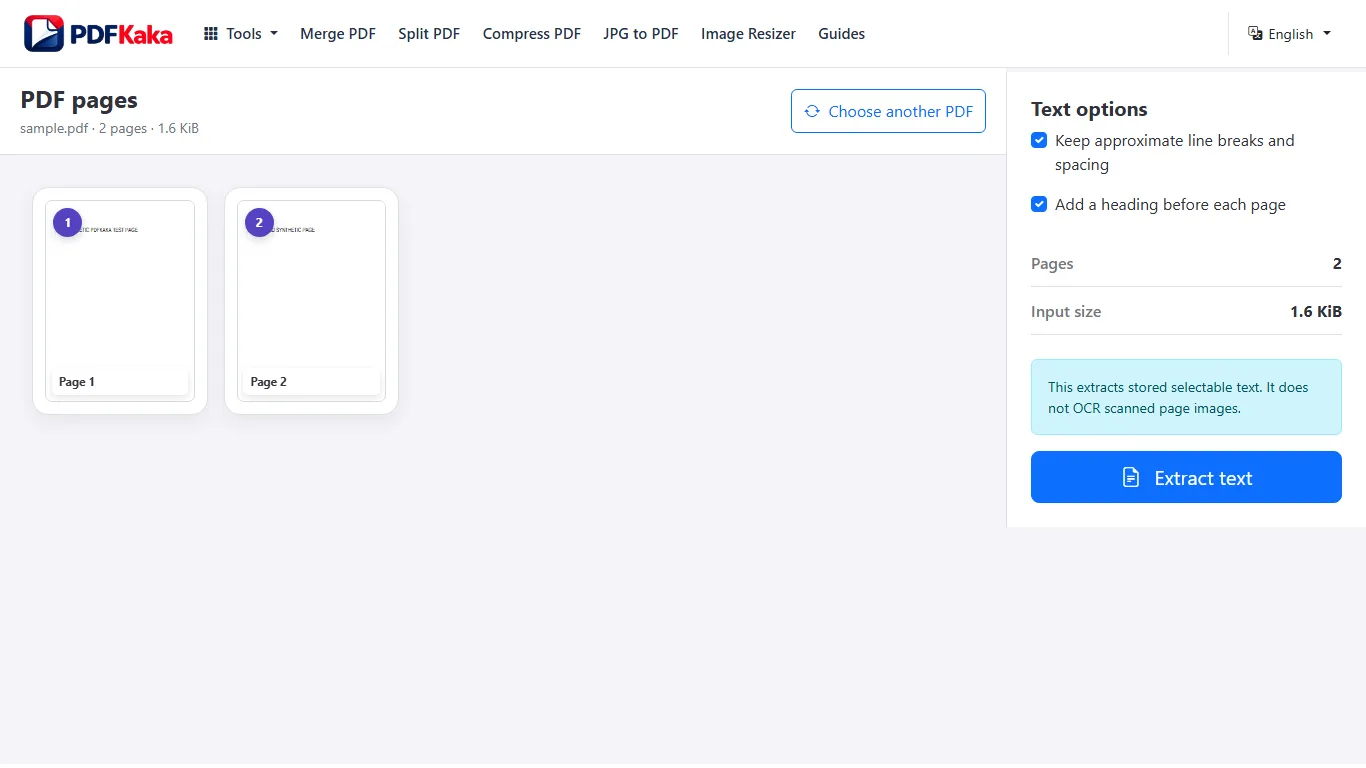
Complete the workflow in order
- Open PDF to Text and select a PDF containing usable selectable text.
- Choose whether to keep approximate line breaks and spacing and whether to add page headings.
- Extract the text and review the preview, including pages with columns or tables.
- Name and download the UTF-8 TXT file.
- Compare the saved text with the first, middle and final source pages; run OCR first if required words exist only in images.
What to inspect when clean line breaks after PDF-to-text extraction
- Join line wraps that came from fixed page positions while preserving real paragraphs, lists, headings, and page boundaries.
- Read the cleaned text beside the PDF so removed breaks do not accidentally join separate content.
Text extraction does not replace OCR
Extracts stored selectable text only; no OCR and no page images.
A paragraph interrupted at the page edge
If a sentence ends with “risk” on one PDF line and continues with “management” on the next, joining that wrap can make the TXT easier to read. A heading followed by a list item should remain separate, and a hyphen may be part of a real compound word rather than a removable wrap marker.
Check this result before reusing it
- Keep an unedited extraction as a reference.
- Test any replacement on a short passage before applying it to the document.
- Read the first and last sentence around each repaired boundary.
FAQ
Does PDF to Text run OCR on scanned pages?
No. PDF to Text extracts text that already exists in the PDF. Use OCR PDF first for image-only scans.
What is the current input limit for PDF to Text?
One PDF up to 50 MiB and 500 pages, with up to 1,000,000 extracted characters. The text output must also fit the displayed output-byte limit.
What does PDF to Text create?
The converter extracts stored selectable text into UTF-8 TXT with optional approximate spacing and added page headings. It does not perform OCR or include page images, and it has no automatic repeated-header removal.
Does turning off approximate layout automatically fix every paragraph?
No. It reduces layout spacing, but it cannot reliably distinguish every true paragraph break from a visual line wrap or recover complex column order.