PDF Forms
How to fill a PDF form online for free
Complete supported interactive text, checkbox, choice, and radio fields and download a filled PDF copy.
On this page
See a visual example
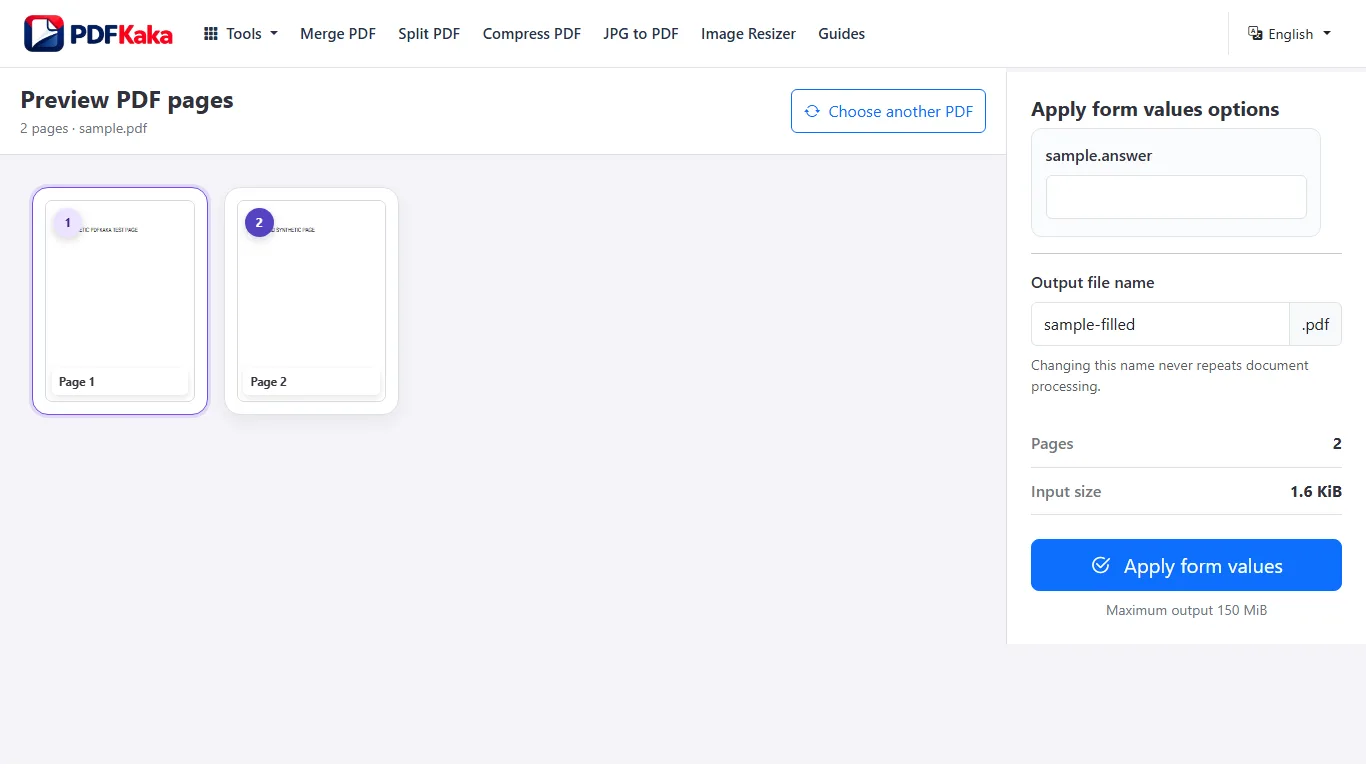
Follow the supported controls
- Choose a PDF that contains compatible interactive AcroForm fields.
- Review detected field names and types; fill text, checkbox, radio, dropdown and list controls as appropriate.
- Check dates, long answers and selections in the controls before creating the filled copy.
- Download and reopen the completed PDF to check the visible values; retain an editable source.
Check values in the downloaded appearance
The field list is the editing interface; a separate completed-form preview is not rendered before download. Long answers, choice labels and checked states should be reviewed in a PDF viewer. Read-only, button, signature and unsupported custom fields are not ordinary editable controls here. Dynamic XFA and unsupported appearance fonts require another workflow.
fill out a PDF form on a phone
Choose an interactive PDF from phone storage, complete supported fields, and save the filled document.
Open an interactive PDF from phone storage, complete the detected field controls and save a filled copy. Reopen the file to check that typed values and selected choices are visible.
Use the field list for mobile entry
Move through the detected controls rather than tapping visually blank areas of the page. Phone keyboards can change punctuation or enter a long answer unintentionally, so check dates and identifiers before saving. The browser download screen varies; keep the tab open and confirm that you share the completed file rather than the untouched original.
FAQ
Will the completed fields remain editable?
The PDF Forms output remains interactive; use Flatten PDF separately when fixed values are required.
Can I fill a scan with no fields?
Not as an interactive form. Edit PDF can add visible text boxes when that is suitable for the recipient.
Are all languages and custom form fonts supported?
No. Non-Latin values and custom appearance fonts can exceed the supported font path; inspect the result or use an application designed for that form.
Can I fill a photographed paper form by tapping blank spaces?
A photographed form has no interactive fields unless they were added separately. Use an appropriate overlay workflow when required.
Will checkboxes and dropdowns work?
Compatible AcroForm checkbox, radio, dropdown and list controls are supported. Review their saved appearances.
Can I preview the whole completed form before downloading?
The current workflow edits fields in a control list; reopen the downloaded PDF for the final appearance check.