HTML to PDF
How HTML Content Flows Across PDF Pages
Long HTML can span several PDF pages, but the current converter rebuilds supported content instead of printing a fully styled browser page.
On this page
See a visual example
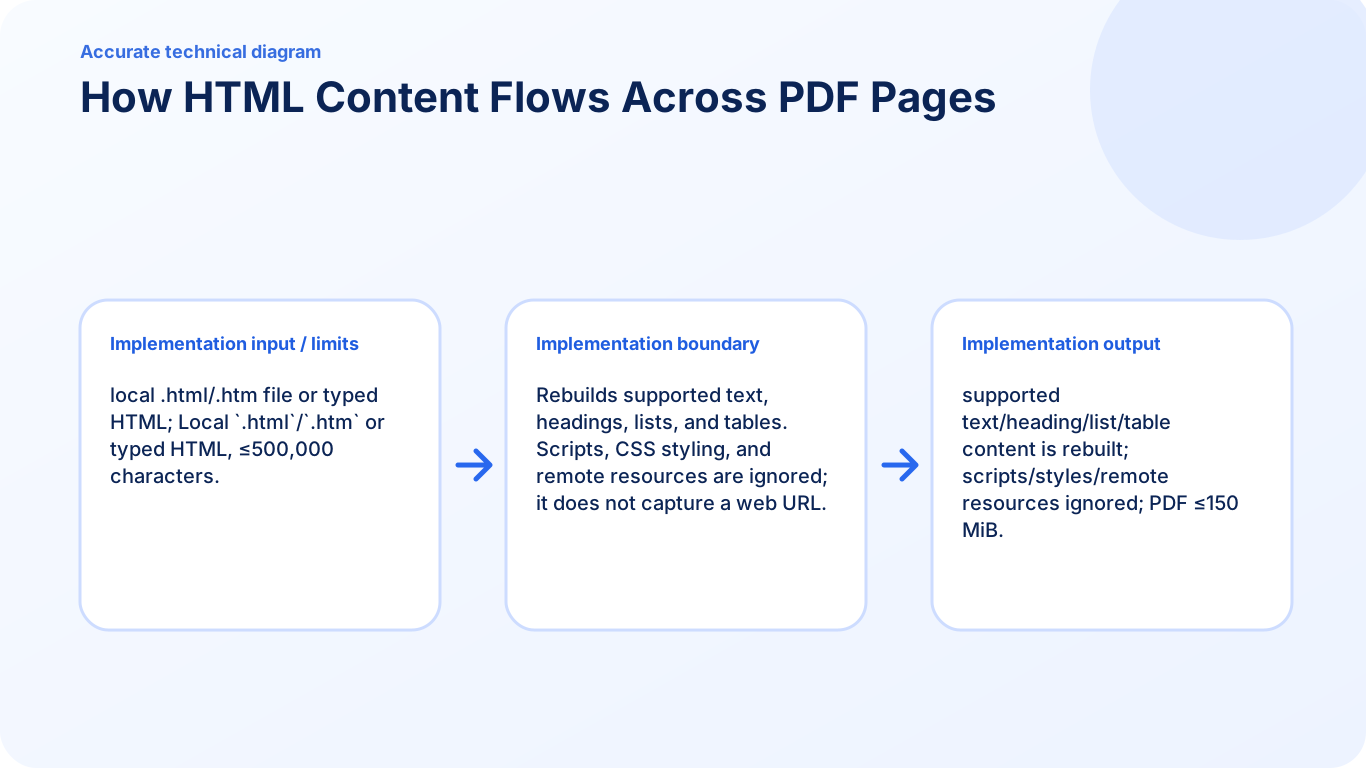
What HTML to PDF reads from the source file
The converter reads supported semantic content from typed HTML or a local HTML file and rebuilds that content into PDF pages. Paragraphs and other supported blocks flow onto later pages when the current page is full. This differs from taking a browser screenshot or printing a live web page.
Why CSS page-break rules do not control the result
CSS styling is ignored in the current safe conversion path. Rules such as break-before, break-after, page-break-before, and page-break-after therefore should not be presented as reliable controls. Scripts, remote stylesheets, remote images, forms, and embedded pages are also outside the supported output.
Improve an awkward boundary
Keep the HTML self-contained and use clear semantic blocks. Shorten or divide a long passage, move a heading with the content it introduces, and simplify a table that does not fit cleanly. Convert again after each structural change, then inspect every transition between pages. The tool does not expose a manual page-break marker or a print-CSS preview.
Check the finished document
Review headings, list sequences, table rows, and the first and last lines on each page. Also check that content depending on CSS or a remote resource has not disappeared. Retain the HTML source so the structure can be revised without editing the PDF itself.
Review a heading near a page boundary
If a section heading appears at the bottom of page 2 while its paragraph starts on page 3, shorten or reorganize the preceding visible content and convert again. Adding break-before to the heading will not force a page in this renderer. Keep a note of the first and last line around the boundary while comparing revisions.
Check this result before reusing it
- Check heading-to-paragraph relationships at every page transition.
- Verify table continuation rows and the final total after pagination.
- For a document reaching the page limit, divide the source into meaningful documents rather than shrinking text until it becomes unreadable.
FAQ
Can I force a PDF page break with CSS?
No. The current converter ignores CSS styling, so CSS page-break properties are not supported controls.
Does PDFKaka capture the layout of a live web page?
No. It rebuilds supported self-contained HTML content and does not fetch or print an arbitrary website.
What should I change when a heading is stranded at the bottom of a page?
Revise the self-contained HTML structure or shorten the surrounding content, convert again, and inspect the new page boundary.
Is there a manual page-break button or supported HTML marker?
No. The current flow paginates its supported blocks automatically; it does not expose a manual page-break marker.