Compress PDF
How to compress a PDF on iPhone or Android
Choose a PDF from phone storage, use a conservative compression level first, and save the smaller copy locally.
See a visual example
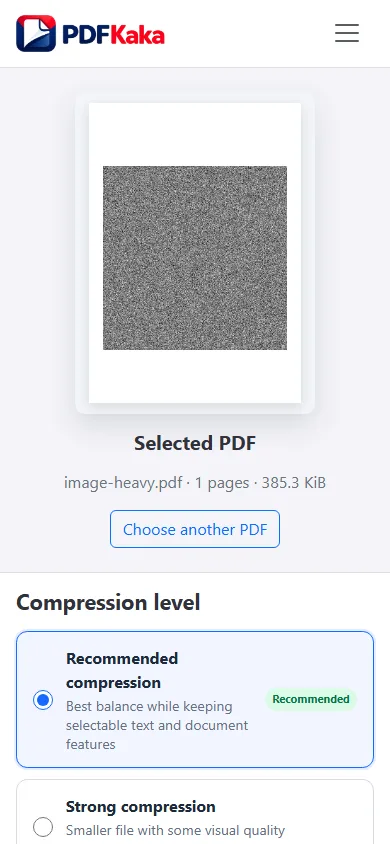
Choose a useful mobile compression mode
- Select one PDF from the phone’s file picker and return to the browser.
- Start with Recommended, which tries to preserve PDF structure rather than turn every page into a picture.
- With the intended mode selected, choose Compress PDF and wait for the result before comparing its size.
- Check the resulting size before trying a stronger mode.
- If the destination accepts a raster copy, try Strong or Maximum on a separate copy.
- Download and reopen the result from Files or Downloads; inspect fine print and the last page.
Protect features you still need
Strong and Maximum rebuild pages as images. Searchable text, links, forms, accessibility information, annotations and cryptographic signature validity can be lost. A smaller file is not a useful result if the recipient needs those features or cannot read an important number.
When a phone cannot finish
Browser memory depends on page complexity as well as file size. Keep the tab active, close unnecessary apps or tabs, and retry a smaller supported document when the browser reloads. Repeating compression on an already degraded copy usually adds damage; return to the original.
FAQ
Why did Recommended produce little reduction?
The PDF may already be efficiently compressed or contain mostly compact text and vector graphics. A page count alone does not predict savings.
Does a smaller file mean the text is still searchable?
No. Search the saved result when that matters, especially after a stronger raster mode.