PDF to JPG
How to Prepare a PDF Page as a JPG Under 50 KB or 100 KB
Export the PDF page you need as an image, then apply a separate image-byte limit. The PDF-to-image renderer controls appearance and resolution; it does not promise an exact 50 KB or 100 KB output.
On this page
Voir un exemple visuel
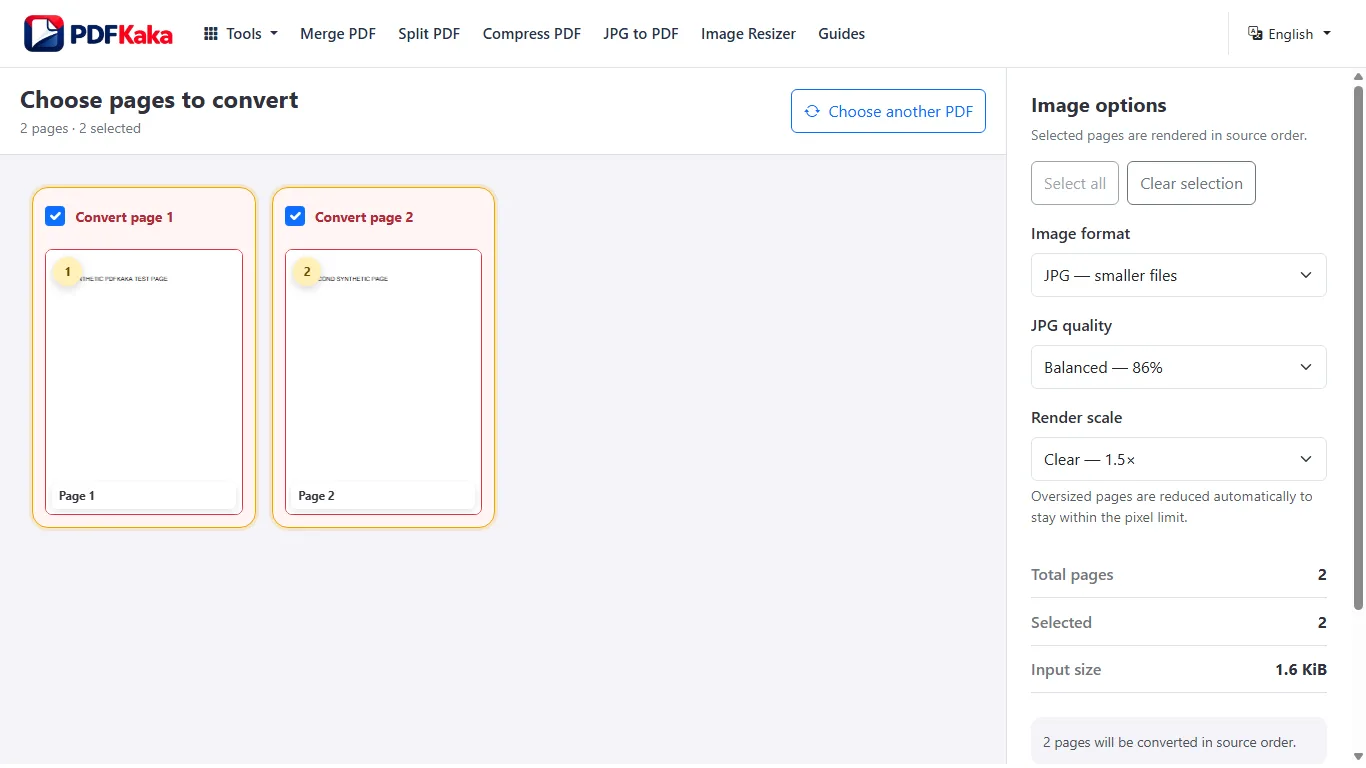
Export first, then apply the byte limit
Select the intended PDF page in PDF to JPG and choose a readable image quality. After downloading, pass that JPG to Image Resizer. A 50 KB maximum means no more than 50,000 bytes here; 100 KB means 100,000 bytes.
Do not reduce resolution blindly to hit a number. Small print, signatures and document edges must still be usable. A stricter portal requirement can be impossible at the original dimensions.
Render only the pages you need
Open PDF to JPG, choose the PDF and select the required page range. Choose JPG and a rendering scale and quality that leave small writing readable. Convert and download the single image, or download and extract the ZIP when there are several images. Each output is a picture of a page, not editable PDF text.
Apply the upload limit to the JPG
- Open the downloaded page image in Image Resizer.
- Select Target KB and enter the maximum. Enable the optional width and height settings if the portal also requires exact pixel dimensions.
- Resize and download the JPEG. The tool chooses its encoding settings automatically.
- Inspect the actual bytes and pixel dimensions in the saved file’s properties.
- Open the saved image and check names, document numbers, stamps and the smallest important writing.
The resizer uses decimal KB: a 50 KB target means at most 50,000 bytes and 100 KB means at most 100,000 bytes. KiB uses 1,024 bytes per unit instead. Always measure the saved result and check the destination’s actual rule; a portal can apply other image checks too.
Reject an unreadable image even if it fits
Photographs, dense text and noisy scans compress differently. If a low ceiling makes the page unreadable, reduce unnecessary margins or improve the original scan where appropriate, then render again. Do not crop required identity details or change a mandated aspect ratio merely to reduce bytes.
PDF to JPG does not include a direct file-size target. The two steps require downloading the image and opening it in the resizer; this guide does not imply an automatic tool-to-tool transfer.
FAQ
Can PDF to JPG alone guarantee a 50 KB image?
No. Rendering scale and JPG quality affect size, but page detail also matters. Apply a maximum with Image Resizer afterward.
Do I need to resize every page in a ZIP?
Only resize the image files you actually need to submit. Extract the ZIP before selecting an individual image in the resizer.
Does a small JPG keep searchable PDF text?
No. A JPG stores pixels. Keep the PDF if selectable text, links or form fields are needed.