Compress PDF
How to reduce the size of a scanned PDF
Compress scanned or photo-heavy pages where image quality can be traded carefully for a smaller document.
See a visual example
Identify the scan’s real problem
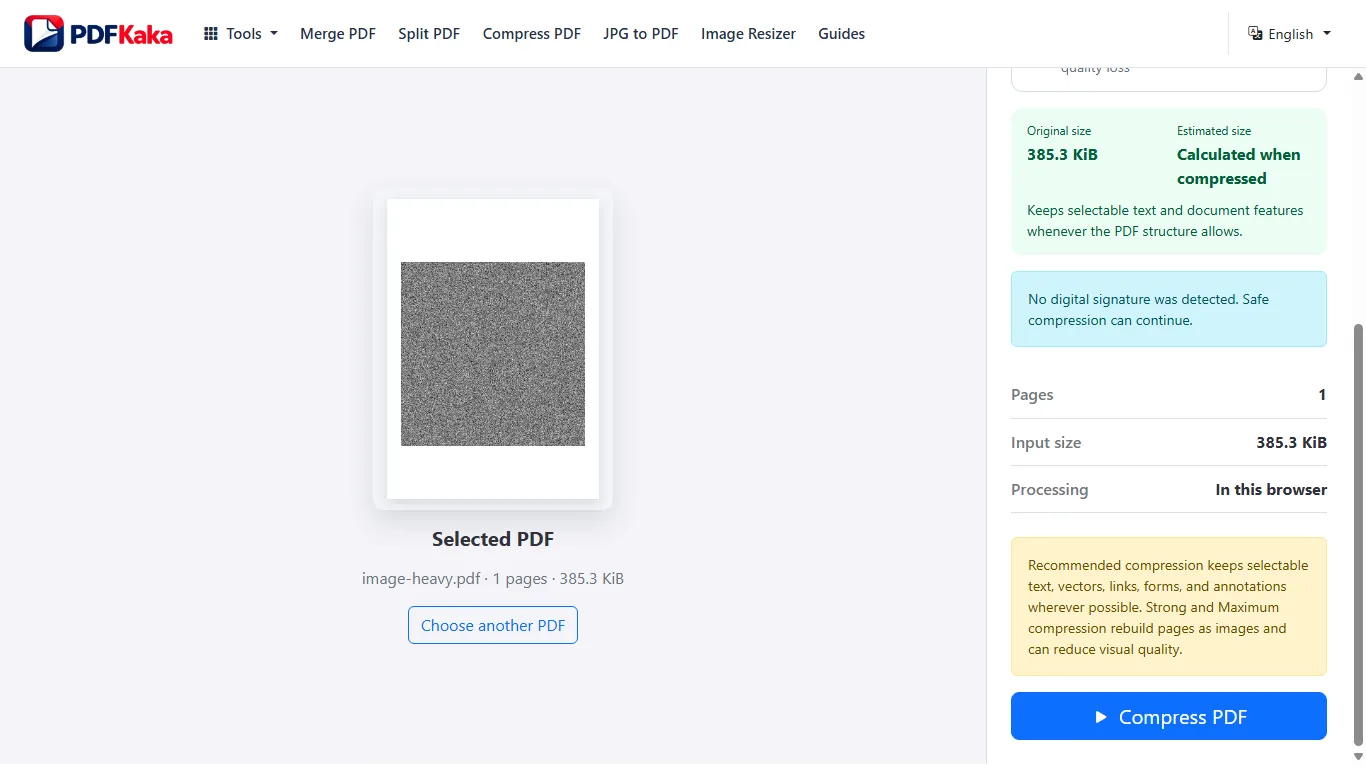
A scan is usually one image per page. Excess resolution and photographic noise can create large files, but blur and missing characters cannot be repaired by compression. Replace a poor capture when possible before making a smaller sharing copy.
- Choose the original scanned PDF.
- Try Recommended and check the saved size.
- With the intended mode selected, choose Compress PDF and wait for the result before comparing its size.
- If more reduction is required, test Strong or Maximum on a separate copy.
- Inspect faint notes, small writing, stamps and page edges in the result.
- Search a known phrase if the original had OCR and searchability must survive.
Keep the right source for later work
An OCR scan can contain both page images and an invisible text layer. Raster rebuilding can discard that layer and other document features. Keep the original when anyone will need search, copying, forms or signature verification; a readable image copy may still be appropriate for an upload portal.
FAQ
Can compression fix a blurry scan?
No. It removes or re-encodes information; it does not recover missing image detail.
Why did text search stop working?
A stronger mode can rebuild pages as images and remove the existing OCR text layer. Return to the original when searchability is required.