Rotate PDF
How to rotate a PDF on iPhone or Android
Choose a PDF from phone storage, correct sideways pages in the mobile workspace, and save a rotated copy.
See a visual example
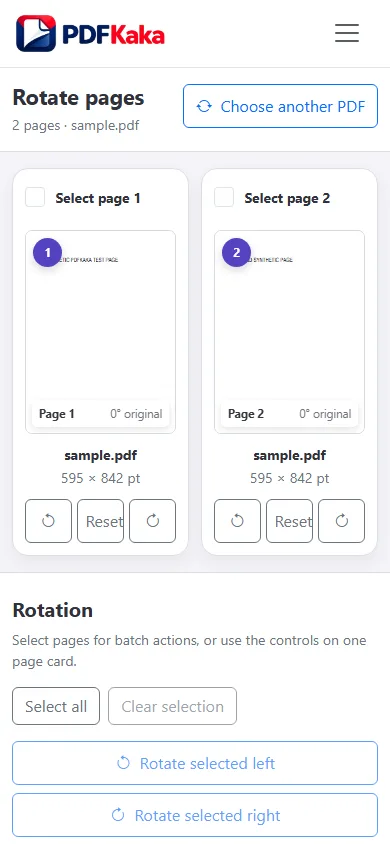
Use buttons rather than a temporary device rotation
- Choose the PDF through the phone’s file picker.
- Identify and select the sideways pages.
- Use Rotate left or Rotate right, checking each page thumbnail.
- Save the rotated PDF.
- Reopen the downloaded copy and inspect upright text on the corrected pages.
Separate phone-screen rotation from PDF orientation
Turning the phone or changing the reader’s temporary view does not necessarily modify the document. Rotate PDF saves the page rotation in a new copy. Keep the original, and check mixed-orientation pages before sharing.
FAQ
Do I need to drag the page to rotate it?
No. Use the explicit left/right controls.
Will this fix a slightly tilted camera scan?
No. The controls use 90-degree steps. Recapture or deskew the source through a workflow that supports it.