Przejdź do głównej treści

Edit PDF Online

Replace compatible existing text using its original PDF font, or add new text, images, highlights, drawings and shapes. Apply each source replacement to update the actual PDF preview, then review spacing before saving. Eligible horizontal Latin paragraphs can wrap within a reviewed area; the rest of the page does not reflow.

or drop one PDF here

Up to 50 MiB and 500 pages

Processing stays in this browser

Pliki pozostają w przeglądarce Bez przesyłania plików Konto nie jest wymagane

How to Edit a PDF Online

  1. Choose a supported PDF.
  2. Wait for text detection, choose Edit existing text and click or tap a compatible run, or use Find text on this page and its accessible run list.
  3. Enter replacement text and choose Apply replacement, or use Edit paragraph and wrap for an eligible paragraph inside a confirmed area. Use Add text, Image or drawing tools for separate additions.
  4. Review the edited pages and remove any unwanted additions.
  5. Create and download the edited PDF.

Edit PDF questions

What can I add to the PDF?

Add text, JPG or PNG images, highlights, freehand drawings, rectangles, ellipses, and lines.

Can I rewrite existing PDF text?

Yes, for compatible visible single-line text runs. Apply replacement changes the source object and updates the actual preview, retaining its original font. Eligible horizontal Latin paragraphs can also wrap inside a reviewed area. Scans, grouped artwork and page-wide reflow are unsupported.

Can I edit more than one PDF page in the same job?

Yes. Apply compatible source-text replacements and add objects across multiple pages. Undo, Redo and Revert run help review changes.

What happens to an existing digital signature?

Saving any edit invalidates the existing cryptographic signature.

Can I fill named PDF form fields here?

Use PDF Forms when the document contains supported interactive form fields.

Are my PDF and added images uploaded?

No. The PDF and added JPG or PNG images are processed locally in this browser.

Potrzebujesz wykonać inne zadanie z dokumentem? Czytnik PDF.

O tym narzędziu

Choose source-text replacement or new content

Compatible source runs can be replaced directly. New text boxes, JPG or PNG images and review marks have separate move, resize, rotation, layering and duplication controls. Undo and Redo include source replacements.

Przydatne do

  • Add reference text, dates, labels, images, highlights, or shapes.
  • Build and review additions across multiple pages.
  • Create an updated copy without changing the original source file.

Warto wiedzieć

  • Source replacement supports compatible visible single-line text runs. Scans, grouped artwork, complex scripts and page-wide reflow are unsupported. Edit paragraph and wrap supports eligible horizontal Latin text inside a reviewed area and rejects overflow or collisions. Missing font characters block export.
  • Saving any edit invalidates an existing cryptographic signature.
  • PDF forms with named fields are a different workflow from free-position overlay editing.
Practical guidance

Add text, images, highlights, drawings, and shapes to PDF pages

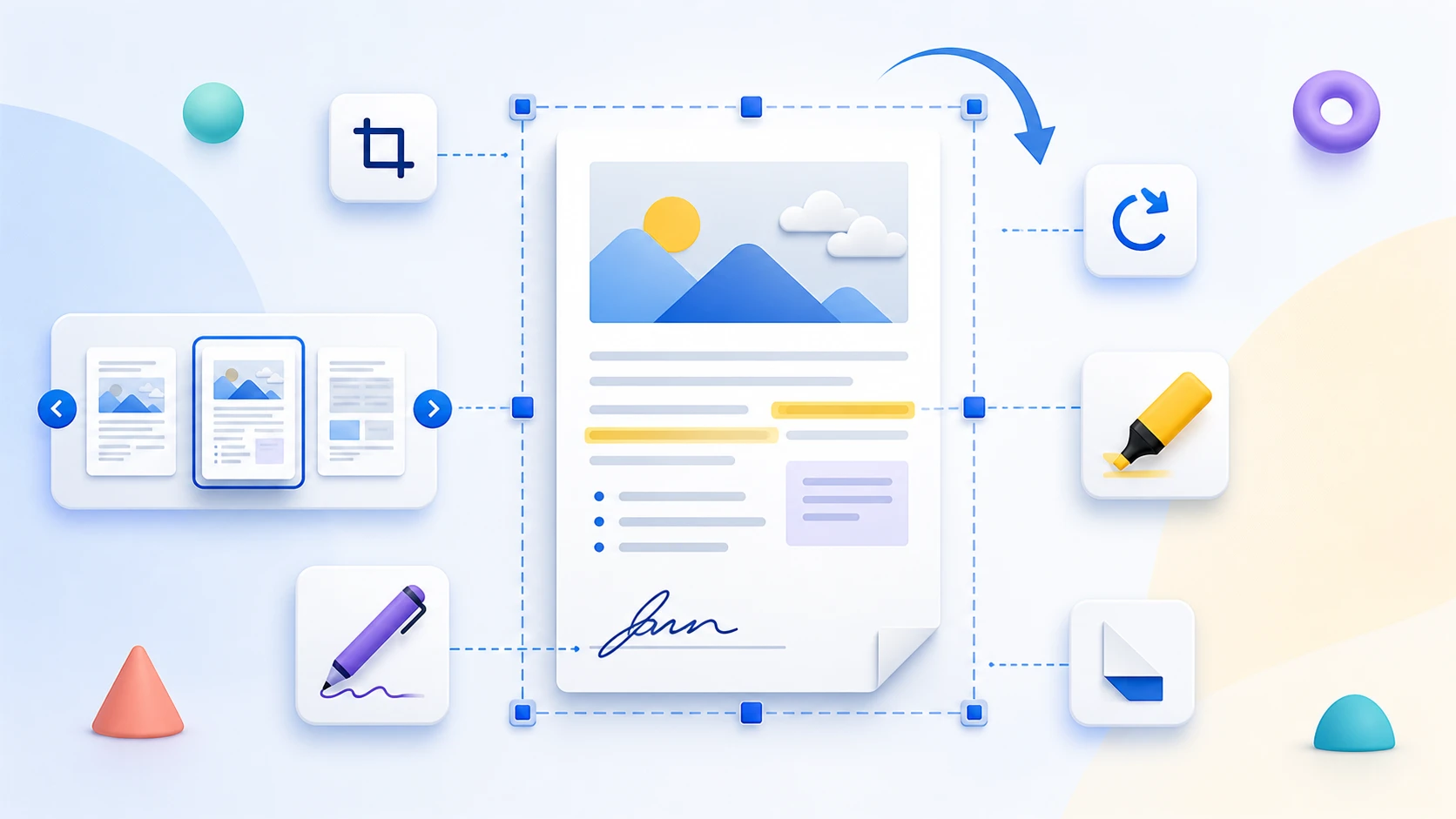
Edit PDF can correct compatible original text runs and wrap eligible horizontal Latin paragraphs inside a reviewed area. It can also place new content over one or more PDF pages. Add text, JPG or PNG images, highlights, freehand drawings, rectangles, ellipses, and lines; then move, resize, rotate, layer, duplicate, or remove those additions before saving a new copy.

Add text and images to any required page

Choose a page, place a text box or a JPG or PNG image, and adjust the addition without changing the source PDF. Text controls include standard font families, size, bold, italic, colour, opacity, and rotation; added images can be moved, resized, rotated, layered, duplicated, or deleted.

Mark up pages with highlights, drawings, and shapes

Place a highlight area, draw a freehand line, or add a rectangle, ellipse, or straight line. Adjust the supported colour, fill, line width, opacity, and rotation settings, then inspect the page preview before saving.

Review additions across multiple pages

Move between page thumbnails and add more than one item before saving. Use undo and redo while editing, manage overlapping additions with the layer controls, and reopen the downloaded PDF to confirm every item is on the intended page.
Questions people ask about this task

Can I edit existing PDF text online?

Yes, for eligible original text. Wait for detection, select a run and apply its replacement, or use Edit paragraph and wrap for supported horizontal Latin text inside a confirmed area. Original-font, glyph, collision and overflow checks apply. Scans, complex scripts and whole-document reflow remain unsupported.

Can I edit more than one PDF page in the same job?

Yes. Move between the page thumbnails and add text, images, highlights, drawings, or shapes to the required pages before saving one edited copy.

What happens to an existing digital signature?

Saving any edit changes the PDF and invalidates its existing cryptographic signature. The editor warns when it detects a digital signature and cannot preserve that signature.

Are my PDF and added images uploaded?

No. The PDF editing and image embedding run in this browser without registration; review the downloaded copy before sharing it.