How to Rotate PDF Pages
- Choose a supported PDF.
- Select the page or pages that need rotation.
- Rotate them in the supported 90-degree steps.
- Review the complete page sequence and orientation.
- Create and download the corrected PDF.
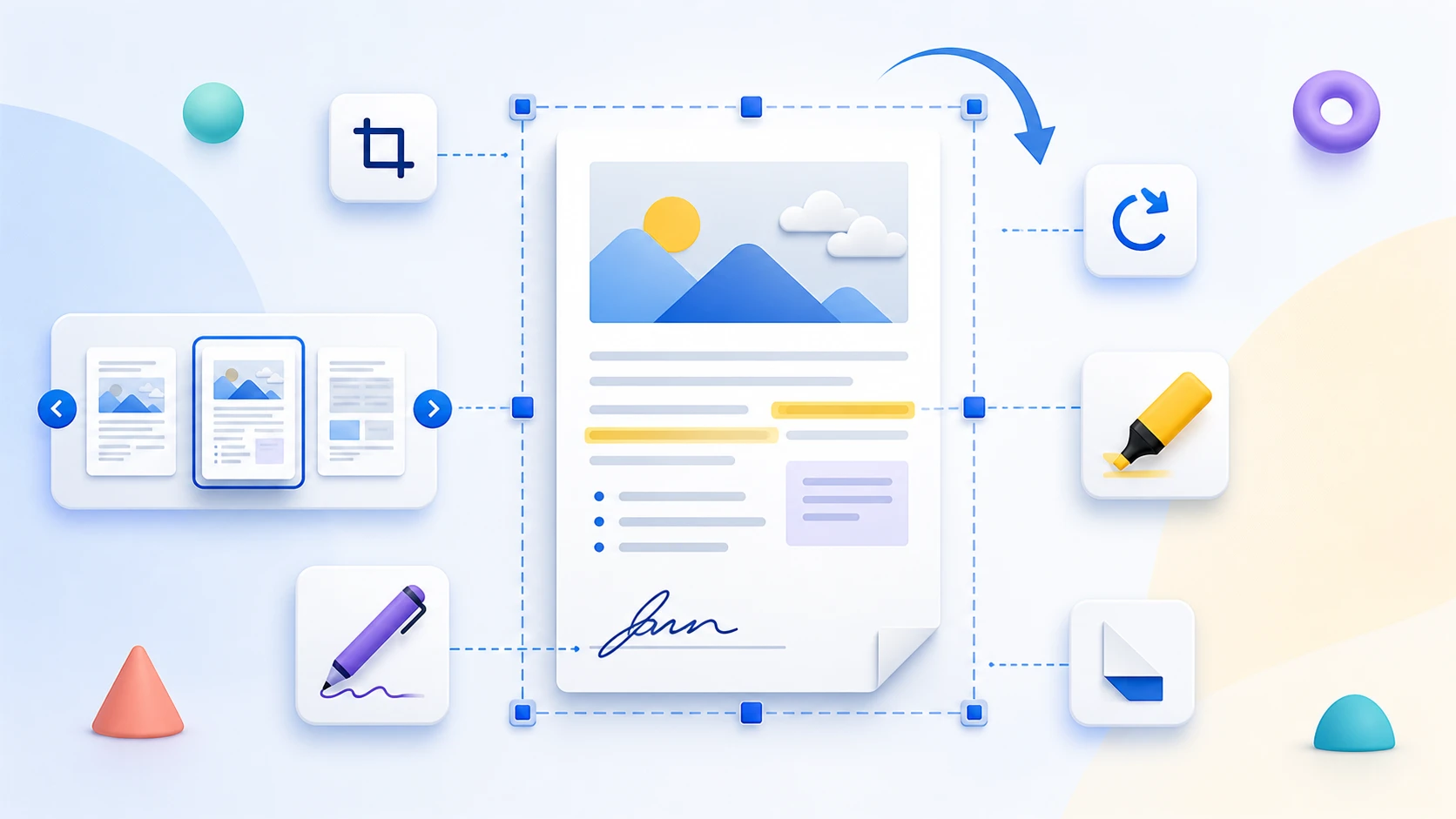
Rotate individual PDF pages in the supported 90-degree steps, review the orientation, and save the corrected page rotation into a new PDF.
or drop one PDF here
Up to 50 MiB and 500 pages
Yes. Rotate individual selected pages left or right in 90-degree steps.
Yes. Use Select all, then rotate the complete selection.
No. The tool updates page-rotation metadata without cropping or resizing the copied page.
Yes. Rotate PDF is intended to create a saved corrected output, while a viewer rotation can be temporary.
No image recompression is applied. Original PDF pages are copied and their rotation metadata is updated.
No. Selected PDF contents are processed locally in this browser.
Bạn cần xử lý tài liệu khác? Sắp xếp PDF.
Rotate PDF changes page rotation in the output document. It is different from temporarily rotating the view inside a PDF reader.
Use Rotate PDF when scanned or exported pages are sideways or upside down. Choose individual pages or the complete document, apply left or right quarter-turns, preview the orientation, and save a corrected PDF without rendering the page content as images.
Apply different rotations to individual thumbnails when only some pages are incorrect. This is common in mixed portrait-and-landscape scans.
Use the complete-document controls when the entire PDF was scanned or exported in the wrong orientation.
The rotation is written into a new PDF. This differs from temporarily turning a page inside a reader, which changes only the current view.
Yes. Rotate selected pages or the complete document and download the corrected PDF without registration.
Yes. Rotate individual pages left or right until every thumbnail has the required orientation.
No. The page content is not rasterized or recompressed; saved quarter-turn rotations are applied to the PDF pages.
The generated document passed browser validation.
Correct sideways and upside-down PDF pages locally, including documents where different pages need different rotations.
Choose the PDF, select the pages to rotate and use Rotate left or Rotate right. Save the new PDF and reopen it; rotating the reader view alone does not change the file.
The controls rotate in 90-degree steps. They do not straighten a scan tilted by a few degrees or rearrange its text. A sideways image inside an otherwise upright page may require editing the original capture rather than rotating the whole page.
Reader rotation is temporary viewing state. Use Rotate PDF to save page orientation.
No. This operation changes orientation, not source sequence.
Apply different left or right quarter-turns to selected pages in a mixed-orientation document.
Select only the sideways page and use its left/right rotation control or the selected-page buttons. Save and reopen the result to confirm that neighboring pages kept their intended orientation.
A table can intentionally use landscape paper while remaining readable. Rotate only when the content is sideways for its intended viewing direction; do not force every page into the same orientation merely because page shapes differ.
Select the required pages and apply the same left/right operation, then review each result.
No. The PDF page rotation controls use 90-degree increments, not arbitrary-angle deskew.
Save PDF page rotation locally without installing Acrobat or rendering source pages into lower-quality images.
Use Rotate PDF in the browser, choose the source and rotate the required pages in 90-degree steps. Download the corrected copy and reopen it to verify saved orientation.
This workflow is useful for sideways pages; it does not provide arbitrary-angle deskew, paragraph editing or certificate signing. Processing selected document bytes is local to the browser during the normal workflow, while the website still requests assets and can make ordinary analytics requests.
No, this supported browser workflow can save 90-degree page rotations.
No. Keep cryptographically signed originals separately; saving modifications changes the document.