How to Extract PDF Pages
- Choose a supported PDF.
- Select the page or pages you want in the new document.
- Review the selected pages and confirm the resulting page count.
- Create the extracted PDF.
- Download and reopen the result to verify the selection.
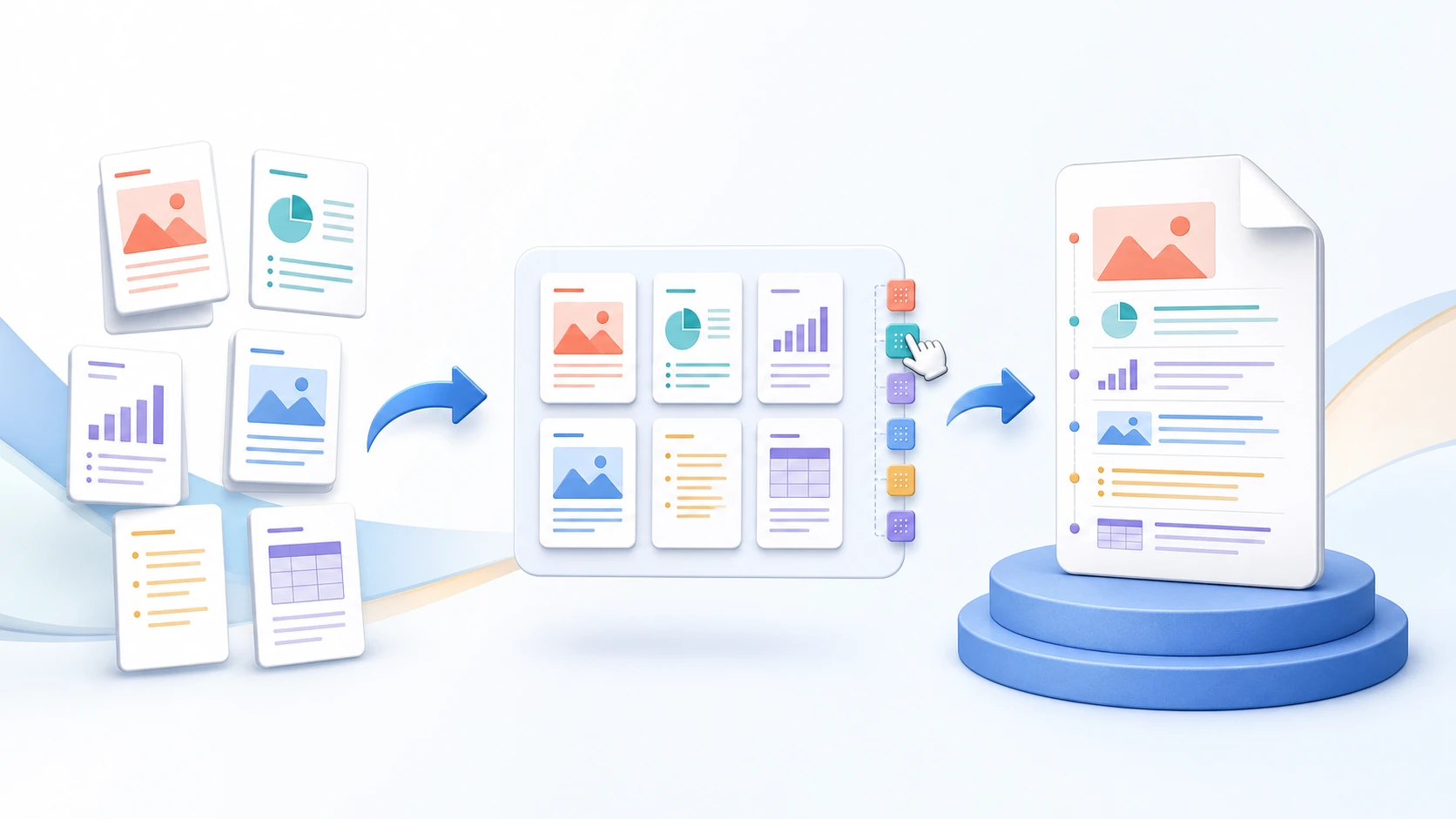
Select one or more pages from a PDF and create a new PDF containing only those pages. Preview the selection first and download the extracted copy without turning the task into a full-document split.
or drop one PDF here
Up to 50 MiB and 500 pages
Yes. Select the single page you need and create a one-page PDF.
Yes. Select any required page thumbnails, including non-consecutive pages.
Extract Pages keeps the selected pages in source order. Use Organize PDF when the output needs a different sequence.
No. Extract Pages creates a new PDF and does not remove pages from the original source document.
Extract Pages creates one focused PDF from only the pages you select. Split PDF divides the complete source document into multiple output files according to its split rules.
Use PDF to JPG when the selected pages need to become image files rather than another PDF.
No. Selected file contents are processed locally in this browser during the normal workflow.
Nog een documenttaak nodig? Pagina’s verwijderen.
Extract Pages creates a focused document from selected source pages. It is useful when the rest of the source PDF is not needed in the new file.
Use Extract Pages when only a chapter, appendix, form, invoice, or evidence section should become a separate PDF. Select the relevant page thumbnails and create one focused document while keeping the complete source file unchanged.
Choose any useful subset from the source document. The extracted pages remain in their original source order so the new PDF is predictable and easy to review.
The result is a normal PDF that can be opened, shared, merged, or organized like any other document. Source page dimensions and visible quality are preserved.
Extract Pages copies complete PDF pages. If the goal is a JPG or PNG image for each selected page, use PDF to JPG instead.
Yes. Choose the pages and download one new PDF without registration or a document upload.
Use PDF to JPG for image output. Extract Pages produces another PDF containing the selected complete pages.
No. Extraction creates a new document and leaves the selected source file unchanged.
The generated document passed browser validation.
Select the pages needed for a chapter, form, invoice, or appendix and place them together in one new PDF.
Open the source in Extract Pages, mark the required thumbnails and create the new PDF. Selected pages stay in their original order; extraction creates one focused document rather than several split files.
If an appendix starts at PDF position 12 and ends at 16, include all five positions. A printed label such as “A1” is not necessarily position 1. Include a separate cover only if the recipient needs it; do not accidentally omit a blank-looking continuation or signature page.
Extract Pages keeps selected pages in source order. Organize PDF changes their order; Split PDF divides the complete source into several contiguous parts. Retain the source and test any forms, navigation or other document features that matter in the saved subset.
Yes. The selected pages become one PDF in their original source order.
No. A separate result is created; keep the unchanged source as the reference.
Choose the source from phone storage, select the required thumbnails, and save one extracted PDF.
Select the PDF from Files or Downloads, mark the required pages and create the extracted copy. Save and reopen that actual download on the phone before sharing it.
A small thumbnail can hide a continuation page or a nearly blank signed sheet. Inspect the actual page when uncertain. The selected pages retain source order; use Organize PDF for a different sequence. Keep the original until the recipient has the complete required document.
The browser and phone control the download location. Check Files, Downloads or the selected storage provider.
No. It makes one PDF from the selected pages. Use Split PDF when separate files are required.
Select one source page and create a standalone PDF while keeping the complete original unchanged.
Choose the source, select exactly one thumbnail and extract it. Download the result and verify that it has one page containing the intended content, rather than a similarly numbered cover or appendix.
Extraction copies a PDF page rather than turning it into a screenshot. Use PDF to JPG only when the recipient actually wants an image. Check any form values or links the recipient needs; the new file is a rebuilt subset, not the unchanged signed original.
Covers and front matter shift PDF positions. Check page content in addition to any printed label.
A newly rebuilt subset is not the original cryptographically signed file. Keep that original separately.